An area tree is the structure within an area that contains all the nodes and sub-nodes. It is used to navigate between different sections and their respective nodes. The area tree is displayed in the left navigation pane of the administration interface.
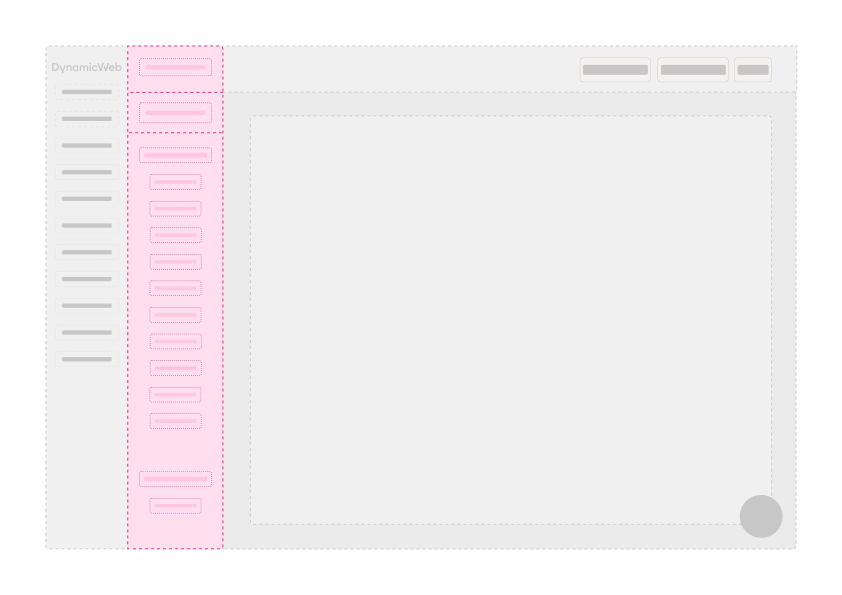
Custom area trees
To create a custom area tree you first create a new class in your project, inheriting from Dynamicweb.CoreUI.Navigation.NavigationSection with the area you want to add the new section to.
For example, if you want to add a new section to the Insights area, you would do something like this - implementing the constructor and setting properties such as Name and Sort:
    public sealed class MonitoringSection : NavigationSection<InsightsArea>
    {
        public MonitoringSection(NavigationContext context) : base(context)
        {
            Name = "Monitoring";
            Sort = 30;
        }
    }
Now, a section is basically a label somewhere in the area tree. To add nodes to a section you need to implement a NavigationNodeProvider and override the default implementation of GetRootNodes(). For each node, you can add properties like Name, Icon, and the NodeAction that should occur when selecting the node. If you have created a custom screen you may want to add it here, along with its associated Query - similar to the ScheduledTasks node below.
    public sealed class MonitoringNodeProvider : NavigationNodeProvider<MonitoringSection>
    {
        private  const string SystemLogRootPath = "/Files/System/Log";
        private static readonly string SystemLogRootFolder = SystemInformation.MapPath(SystemLogRootPath);

        public override IEnumerable<NavigationNode> GetRootNodes()
        {
            var nodes = new List<NavigationNode>();

            nodes.Add(new NavigationNode
            {
                Name = "Reports",
                Id = "Reports",
                Icon = Icon.FileCheckAlt,
                HasSubNodes = true,
                ContextActions = GetContextActions(),
            });
            return nodes;
        }

        public override IEnumerable<NavigationNode> GetSubNodes(NavigationNodePath parentNodePath)
        {
            var nodes = new List<NavigationNode>();
            var parentNodeId = parentNodePath.First;

            if (parentNodeId.Equals(ReportsNodeId, StringComparison.OrdinalIgnoreCase))
            {
                nodes.AddRange(GetReportNodes());
            }
            return nodes;
        }

        private  static IEnumerable<NavigationNode> GetReportNodes()
        {
            var nodes = new List<NavigationNode>();

            nodes.Add(new NavigationNode
            {
                Name = "Scheduled tasks",
                Id = "ScheduledTasks",
                Icon = Icon.ClockFive,
                ContextActions = GetContextActions(),
                NodeAction = new NavigateScreenAction<ScheduledTaskListScreen>(new ScheduledTaskAllQuery()),
            });
            return nodes;
        }

        private static List<ActionNode> GetContextActions()
        {
            return new List<ActionNode>
            {
                new ActionNode { Name = "Permissions", Icon = Icon.Lock, Sort = 10, NodeAction = new AlertAction("HI MOM") },
            };
        }
    }
Add to your solution using the DynamicWeb CLI.
Now you can see your new area tree has been added:
