DynamicWeb 10 supports multiple solutions sharing a single application. This article will outline the recommended structure for a multi-tenant setup, and guide you through the necessary steps for getting it up and running.
Folder structure
The folder structure detailed in the following is the same as the one used by DynamicWeb Cloud hosting.
- Drive root
- Dynamicweb
- DW10
- bin
- DW10 Solutions
- solution1.yourdomain.com
- wwwroot
- files
- web.config
- wwwroot
- solution2.yourdomain.com
- solutionx.yourdomain.com
- solution1.yourdomain.com
- DW10
- Dynamicweb
Installing the application
The DW10/bin folder contains the application and libraries shared by the solutions located under DW10 Solutions. Typically, for multi-tenant setups, you will want to use the zipped milestone packages provided by DynamicWeb. Unpack the latest release and move the contents of the /bin folder to DW10/bin
To upgrade versions simply download a later milestone and overwrite /bin.
It is possible (but not recommended) to operate with multiple /bin folders (and thus have solutions running of different milestone releases). If you elect to do this, you will need to manually adjust the web.config of individual solutions to point at the correct /bin.
Installing DynamicWeb 10 solutions
web.config
Each DynamicWeb 10 solution needs a separate directory under DW 10 Solutions. In the root of folder place a web.config with content like:
<?xml version="1.0" encoding="utf-8"?>
<configuration>
  <location path="." inheritInChildApplications="false">
    <system.webServer>
      <handlers>
        <add name="aspNetCore" path="*" verb="*" modules="AspNetCoreModuleV2" resourceType="Unspecified" />
      </handlers>
      <aspNetCore processPath="dotnet" arguments=".\bin\Dynamicweb.Host.Suite.dll" stdoutLogEnabled="false" stdoutLogFile=".\logs\stdout" hostingModel="inprocess" />

      <!--security related settings START - not strictly needed, but recommended-->
      <httpProtocol>
        <customHeaders>
          <remove name="X-Powered-By" />
        </customHeaders>
      </httpProtocol>
      <security>
          <requestFiltering removeServerHeader="true" />
      </security>
      <!--security related settings END-->
    </system.webServer>
  </location>
    <system.web>
        <customErrors mode="On" />
    </system.web>
</configuration>
Adjust the arguments of the line
<aspNetCore processPath="dotnet" arguments="E:\Dynamicweb\DW10\bin\Dynamicweb.CoreUI.Host.dll" stdoutLogEnabled="false" stdoutLogFile=".\logs\stdout" hostingModel="inprocess" /> to reflect the proper paths for your server.
GlobalSettings.Database.Config
Copy the entire Files-folder from your staging environment to the wwwroot folder of your solution. Inside /Files, edit the GlobalSettings.Database.Config file and add the access information for your SQL-server. See Install using Swift if you're not familiar with this task.
<?xml version="1.0"?>
<Globalsettings>
  <System>
    <Database>
      <SQLServer>.</SQLServer>
      <UserName>sa</UserName>
      <Password>sa</Password>
      <Database>DocumentationSamples</Database>
    </Database>
  </System>
</Globalsettings>
IIS configuration
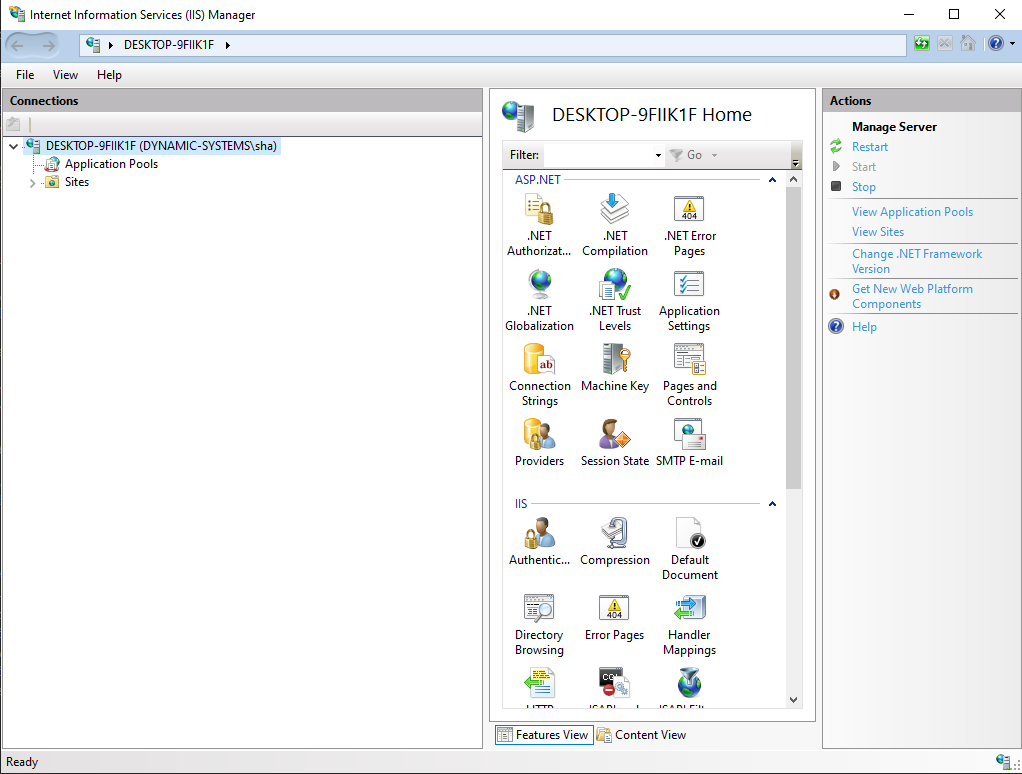
- Open IIS Manager
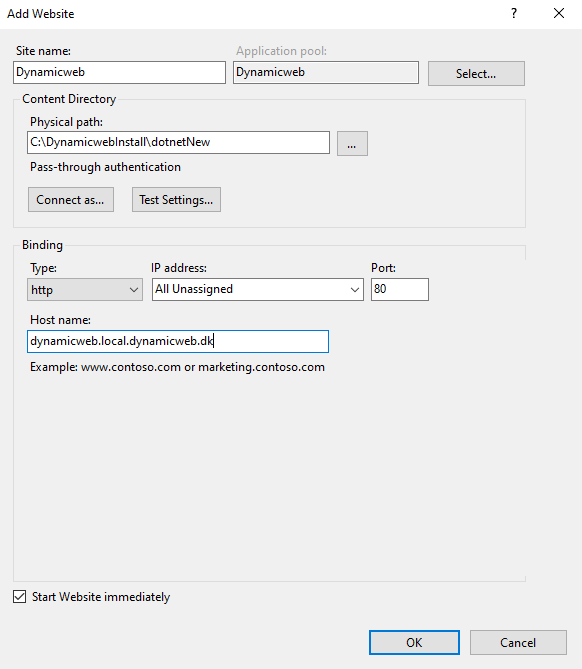
- Right-click Sites > Add website – then configure it:
- Add a site name - e.g solution1.yourdomain.com
- Point the physical path to the solution folder (where the wwwroot-folder is)
- Give it a host name – e.g solution1.yourdomain.com
- Click OK