Kustom Checkout (formerly Klarna Checkout v3) is a service from Klarna which gathers all your payment options into one agreement.
Previous versions of this payment provider were called Klarna Checkout v3 and integrated with the correspondingly named API. As of March 2026, Klarna Checkout v3 has been rebranded to Kustom Checkout. The API flow remains the same, but merchants may need to generate new credentials if required by Kustom.
If your merchant account has moved to Kustom branding and you need new credentials:
- Generate credentials in Kustom portal under Integrations > API
- Use Key ID as API username (UID), and Password as API password
- Verify checkout renders and a test/live authorization completes in the correct mode
Kustom Checkout is rendered through an iframe where all popular payment methods are included.
Provider configuration
When configuring a Kustom Checkout payment method you need an API username (UID) and an API password.
If your merchant account has moved to Kustom branding, generate credentials in your Kustom portal:
- Playground portal: https://portal.playground.kustom.co
- Production portal: https://portal.kustom.co
- Open Integrations > API and generate credentials
- Use Key ID as API username (UID)
- Use Password as API password
When you have the API username & password you can configure the checkout handler:
- Go to Settings > Areas > Commerce > Order Management > Payment and click the '+ New payment' button in the top right corner
- Go to the Provider tab and select the Klarna Checkout v3 as as payment provider
- Fill in the remaining fields. An example is provided below for guidance
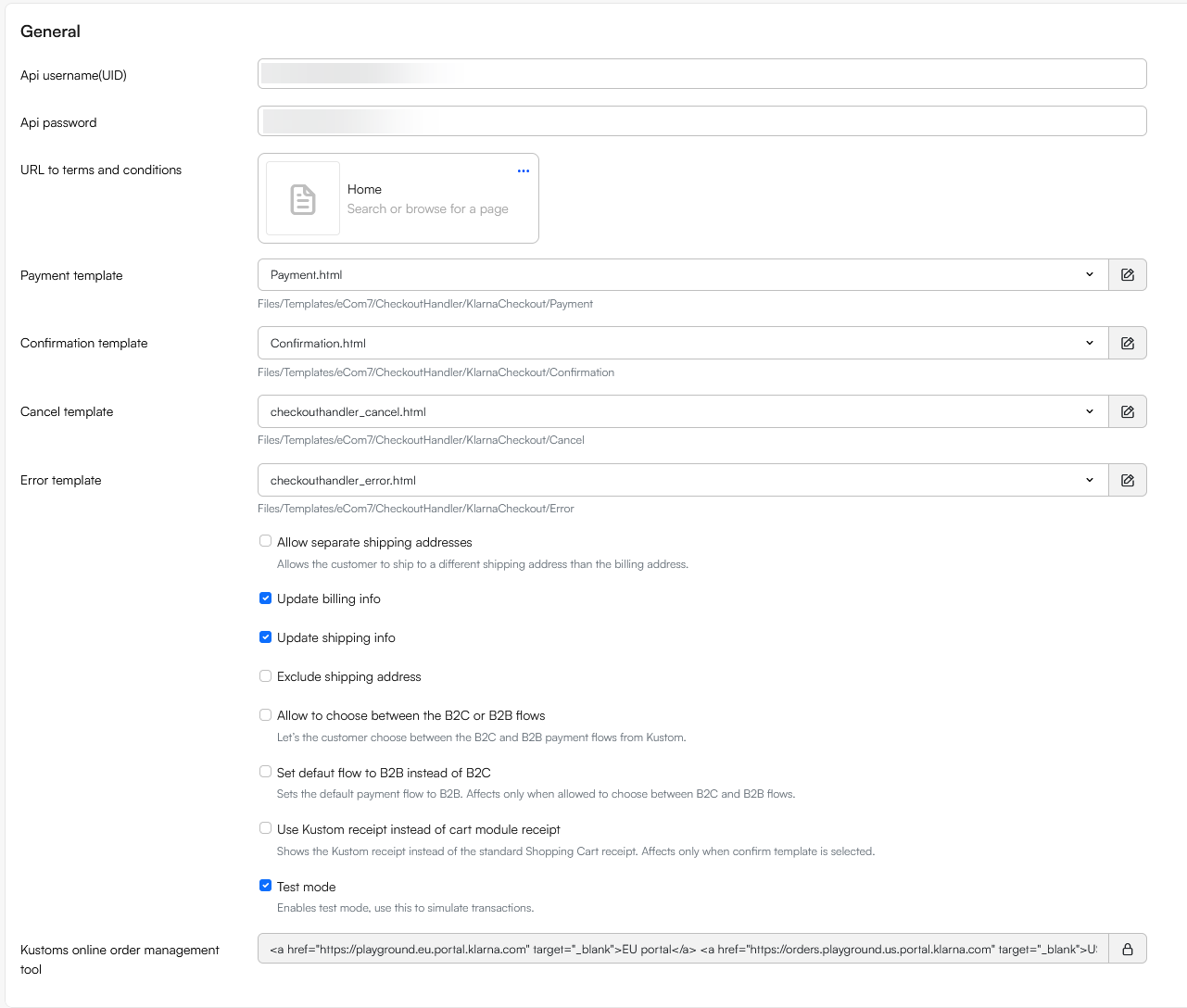
For a basic configuration:
- Supply the API username (UID) and API password from Klarna
- Select a page on your solution which contains terms & conditions – the payment widget links to this page
- Select or create templates:
- The payment template is used to frame the payment form supplied by Klarna
- The confirmation template is used to frame the receipt supplied by Klarna
- The cancel template is shown if the user cancels payment at some point during the process
- The error template is shown if an error occurs, usually due to a combination of currency & country which is not supported by Klarna
In addition, you have access to the following parameters:
| Parameter | What it does | Comment |
|---|---|---|
| Allow separate shipping addresses | Allows the customer to ship to a different shipping address than the billing address | |
| Update billing info | Updates the billing address stored by Klarna | |
| Update shipping info | Updates the shipping address stored by Klarna | |
| Exclude shipping address | ||
| Allow choice between B2C and B2B flows | Let’s the customer choose between the B2C and B2B payment flows from Klarna | Cannot be tested on playground account, only works on a live account |
| Set default flow to B2B instead of B2C | Sets the default payment flow to B2B | Cannot be tested on playground account, only works on a live account |
| Use Klarna receipt instead of cart module receipt | Shows the Klarna receipt instead of the standard Shopping Cart receipt | |
| Test mode | Enables test mode | Use this to simulate transactions |
Payment templates
Templates for the Klarna Checkout v3 provider should be placed in a KlarnaCheckout-folder with subfolders located under Files/Templates/eCom7/CheckoutHandler:
/CheckoutHandler/
├── KlarnaCheckout/
│   ├── Cancel/
│   │   ├── cancel_payment.cshtml
│   ├── Confirmation/
│   │   ├── confirmation.cshtml
│   ├── Error/
│   │   ├── payment_error.cshtml
│   ├── Payment/
│   │   ├── payment_form.cshtml
If it's not available on your solution, the standard payment template we supply looks like this:
<!-- Payment Information -->
<h2><!--@Translate(paimentinformation, "Payment Information")--></h2>
<p>
    <label><!--@Translate(orderid, "Order Id")-->: <b><!--@Ecom:Order.ID--></b></label> <br />
    <label><!--@Translate(amount, "Amount")-->: <b><!--@Ecom:Order.Price.PriceWithVATFormatted--></b></label> <br />
    <label><!--@Translate(currency, "Currency")-->: <b><!--@Ecom:Order.Currency--></b></label>
</p>

<!--@KlarnaCheckout.CheckoutSnippet-->

<br />
<input type="button" onclick="document.location='<!--@KlarnaCheckout.CancelURL-->';" value="<!--@Translate(cancel, "cancel")-->" />
Testing Kustom Checkout
Sample payment data for testing can be found here and sample customer data can be found here.
Please also note that, like all payment providers, Klarna requires a public url on your site to be able to complete a payment.