Spreedly is a payment orchestration platform that enables merchants to process payments through multiple payment gateways using a single integration. In Dynamicweb, the Spreedly Checkout Handler allows payments to be processed securely via Spreedly while keeping sensitive card data outside the platform.
This article explains how to configure and use the Spreedly Checkout Handler payment provider in Dynamicweb.
Before configuring the payment provider, ensure the following requirements are met:
- A Spreedly account and access to the Spreedly dashboard
- The following credentials from Spreedly:
- Environment Key
- Access Secret
- Gateway Token
- Certificate Token
- A configured payment gateway inside Spreedly
From this, you can see that the intended use is to create one payment method per gateway configured in Spreedly.
Provider configuration
Once you have the credentials mentioned above you can create the provider which connects the DynamicWeb solution to Spreedly inside your DW solution:
- Go to Settings > Areas > Commerce > Order Management > Payment and click the '+ New payment'-button
- Go to the Provider tab and select the Spreedly Checkout Handler as as payment provider
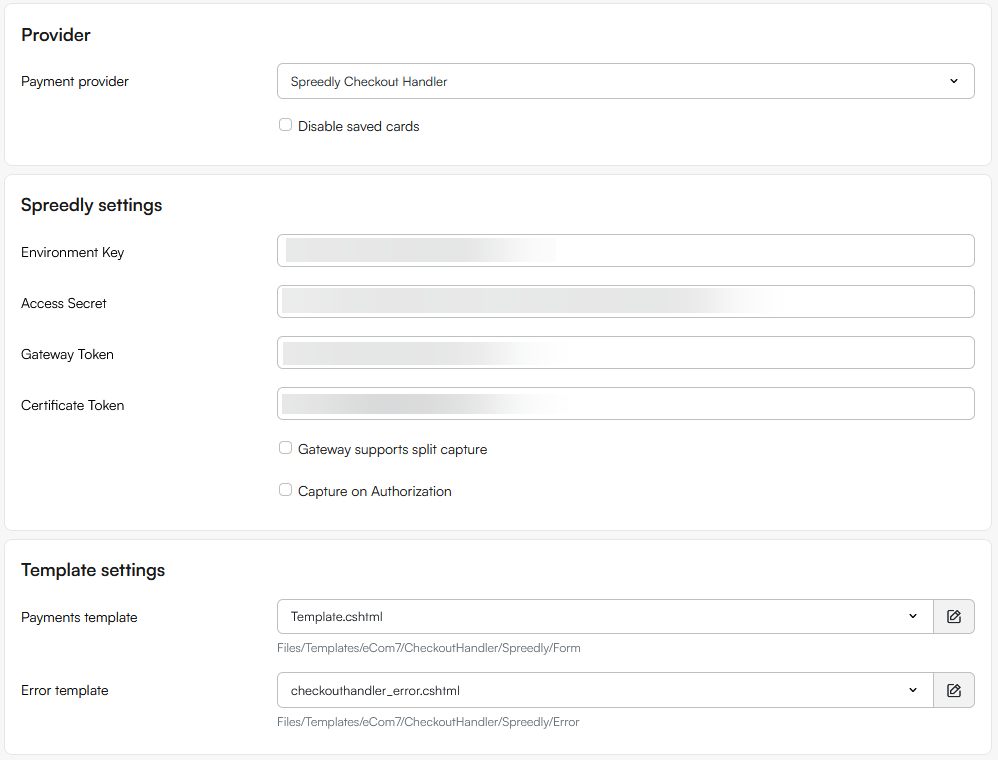
- Fill in the credentials and check Gateway supports split capture and Capture on authorization as appropriate for your setup
- In the Template settings section select or create a payment and error template
- Save
Templates
Templates for the Spreedly Checkout Handler provider should be placed inside a Spreedly folder located under Assets/Templates/eCom7/CheckoutHandler:
/CheckoutHandler/
├── Spreedly/
│   ├── Error/
│   │   ├── payment_error.cshtml
│   ├── Form/
│   │   ├── payment_form.cshtml
If not available out of the box on your solution, this example may serve as a starting poing for a payment form:
@inherits ViewModelTemplate<Dynamicweb.Ecommerce.CheckoutHandlers.Spreedly.ViewModels.SpreedlyExpressPaymentFormViewModel>
@using Dynamicweb.Rendering

<script src='@Model.SpreedlyExpressJavaScriptLink'></script>

<script>

SpreedlyExpress.init('@Model.EnvironmentKey',
	{ // displayOptions
		"amount": '@Model.PriceWithVATFormatted'
	},
	{ // paymentMethodParams
		// TODO: Order and user data
	},
	{ // authenticationParams
		"nonce": '@Model.SessionKey',
		"timestamp": '@Model.SessionTimestamp',
		"certificateToken": '@Model.CertificateToken',
		"signature": '@Model.Signature'
	},
);

SpreedlyExpress.onInit(() => {
	SpreedlyExpress.openView();
});

SpreedlyExpress.onPaymentMethod((token, data) => {
	debugger;
	console.log(data);
	var tokenField = document.getElementById("@Model.PaymentMethodTokenFieldId");
	tokenField.setAttribute("value", token);

	var masterForm = document.getElementById('payment-form');
	masterForm.submit();
});

</script>

<form id="payment-form" method="POST" action="/Default.aspx?ID=@(Pageview.ID)&CheckoutHandlerOrderID=@(Model.OrderId)&redirect=false">
  <input type="hidden" id="@Model.PaymentMethodTokenFieldId" name="@Model.PaymentMethodTokenFieldId" />
</form>