The Users - Change Password app renders a frontend form for signed‑in users to change their password and returns a result you can show in your template.
Note
Template location: /Templates/Users/UserChangePassword/Change
What the app does
When the module runs, it:
- Checks that a user is signed in – otherwise nothing is rendered.
- If the request is a POST to the page with
?Cmd=ChangePasswordin the URL, it validates the inputs and either changes the password or returns a specific error. - On success, it redirects to the same page without
Cmd, and your template will receive aSuccessresult to show a confirmation message.
The template receives a UserChangePasswordViewModel with a single property:
Result– aUserChangePasswordResultTypevalue indicating the outcome.
Paragraph app settings
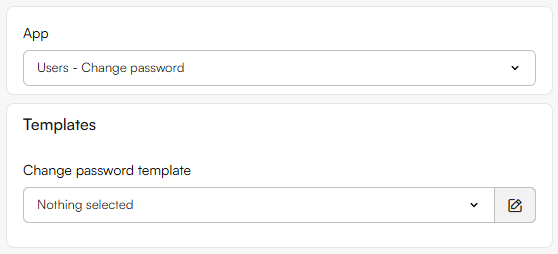
From the paragraph app you have the following settings as an editor:
- Change password template: select a Razor template from
/Templates/Users/UserChangePassword/Change.
Change password template
Place a .cshtml file in /Templates/Users/UserChangePassword/Change. The template should inherit ViewModelTemplate<UserChangePasswordViewModel and import the Dynamicweb.Users.Frontend.UserChangePassword namespace.
Minimal example
@inherits ViewModelTemplate<Dynamicweb.Users.Frontend.UserChangePassword.UserChangePasswordViewModel>
@using Dynamicweb
@using Dynamicweb.Rendering
@using Dynamicweb.Users.Frontend.UserChangePassword

@{
    var pageId = Pageview.Page.ID;
    var action = Model.GetChangePasswordLink(pageId); // adds ?Cmd=ChangePassword
}

<section aria-labelledby="change-password-heading">
  <h2 id="change-password-heading">Change your password</h2>
  <p>Enter your current password and choose a new one.</p>

  <form method="post" action="@action">
    <div class="form-control">
      <label for="old-password">Current password</label>
      <input type="password" name="OldPassword" id="old-password" required autocomplete="current-password" />
    </div>

    <div class="form-control">
      <label for="new-password">New password</label>
      <input type="password" name="NewPassword" id="new-password" required autocomplete="new-password" />
    </div>

    <div class="form-control">
      <label for="confirm-new-password">Confirm new password</label>
      <input type="password" name="ConfirmNewPassword" id="confirm-new-password" required autocomplete="new-password" />
    </div>

    <button type="submit" id="change-password">Change password</button>
  </form>

  @* Show an operation result if present *@
  @if (Model.Result != UserChangePasswordResultType.None)
  {
      <div class="result">@Translate(Model.Result.ToString())</div>
  }
</section>
Styling & accessibility tips
- Use semantic labels bound to inputs for screen readers.
- Ensure the submit button and any result message are close together.
- Consider adding inline validation hints under each field.
Handling results in your template
Use a switch on Model.Result to tailor messages or UI:
@switch (Model.Result)
{
    case UserChangePasswordResultType.Success:
        <div class="success">Your password was changed.</div>
        break;
    case UserChangePasswordResultType.InvalidOldPassword:
        <div class="error">Your current password is incorrect.</div>
        break;
    case UserChangePasswordResultType.MismatchedPasswords:
        <div class="error">New passwords do not match.</div>
        break;
    case UserChangePasswordResultType.InvalidPasswordLength:
        <div class="error">Password length is invalid.</div>
        break;
    case UserChangePasswordResultType.InvalidPasswordComplexity:
        <div class="error">Password doesn't meet complexity requirements.</div>
        break;
    case UserChangePasswordResultType.ViolatingReuseRules:
        <div class="error">New password can't be the same as the old password or recently used passwords.</div>
        break;
    case UserChangePasswordResultType.MustContainNumbersAndCharacters:
        <div class="error">Password must include both letters and numbers.</div>
        break;
    case UserChangePasswordResultType.PasswordMissingCharacterVariety:
        <div class="error">Use uppercase, lowercase, numbers and special characters.</div>
        break;
    case UserChangePasswordResultType.MissingValue:
        <div class="error">Please fill out all required fields.</div>
        break;
}
How the flow works
- Action URL: build it with
Model.GetChangePasswordLink(Pageview.Page.ID)which produces a link to the current page with?Cmd=ChangePassword. - POST only: the module only processes a password change for POST requests with
Cmd=ChangePassword. - Redirect + flash: on success, the module updates the password, stores a short‑lived success flag in session, redirects to the same page without
Cmd, then renders your template withResult = Successonce.
References
- View model:
UserChangePasswordViewModel:Result(typeUserChangePasswordResultType).
- Result values:
None,MissingValue,MismatchedPasswords,InvalidPasswordLength,InvalidPasswordComplexity,MustContainNumbersAndCharacters,PasswordMissingCharacterVariety,InvalidOldPassword,ViolatingReuseRules,Success.