The Users - View User app renders either a user list or a single user detail. It supports multiple data sources (for example current user, users you can impersonate, or users by customer number), and three list actions: delete, toggle active state, and resend invitation.
Note
Template locations:
- List template:
/Templates/Users/UserView/List - Detail template:
/Templates/Users/UserView/Detail - Email template:
/Templates/Users/UserView/Email(used when resending invitations)
What the app does
When the app runs on a paragraph it:
- Chooses which view to render:
- Detail view: if the configured Source is a single user, the module renders the Detail template for that user.
- List view: otherwise it queries users from the configured Source, applies optional Search/CustomerNumber filters, then paging and sorting, and renders the List template.
- Handles list actions on POST (all require Secret={User.UniqueId} in the action URL):
- Delete user (
Cmd=DeleteUser): removes the specified user when permitted. - Change active status (
Cmd=ChangeActiveStatus): toggles the user’s Active flag. IfShow inactive usersis off, deactivated users may no longer appear in the next list. - Resend invitation (
Cmd=ResendInvitation): sends the configured email (template/sender/subject), typically for users who haven’t completed activation. The email includes a link to your Set password page with a recovery token.
- Delete user (
- Redirects and exposes a result
- After an action, the module redirects back (preferring the referrer). On the next GET, the list model sets ResultType so your template can show a confirmation or status message.
The list template receives a UserViewListViewModel (inherits UserListViewModel) with:
Users– the current page of users to render.CurrentPage,PageCount,TotalCount– for paging UI.ResultType– outcome of the most recent action (e.g., deleted, active state changed, invitation resent).EditUserLink,CreateUserLink– resolved base links to your Edit/Create pages (append&Secret={user.UniqueId}when linking to a specific user).
Paragraph app settings
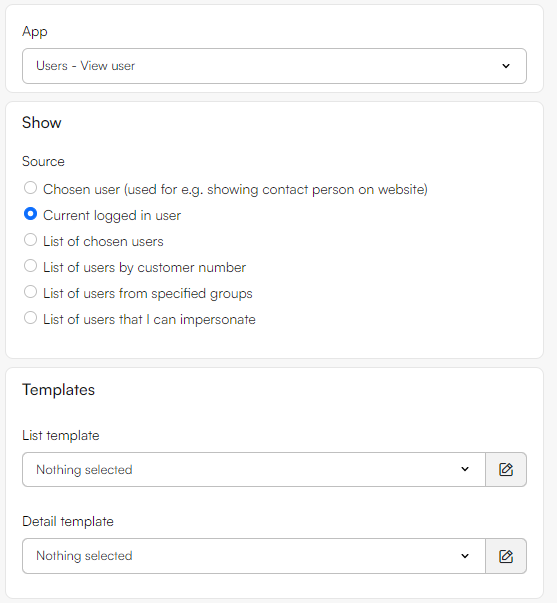
From the paragraph app you have these settings (depending on which chosen source the settings may vary):
- Show
- Source: Current user, Chosen user, List of users I can impersonate, List of users by customer number, List of users from specified groups, List of chosen users, List of users by username
- User, Users, User groups
- Show inactive users (also reveals Email settings for resending invitations)
- List
- Users per page (
PageSize) - Sort by (
Id,Name,CustomerNumber) - Sort direction (Ascending/Descending)
- List template
- Users per page (
- Detail
- Detail template
- Email (used by Resend invitation)
- Email template, Sender name, Sender email, Email subject
- Pages (used to build links in the list model)
- Page to edit profile
- Page to create user
- Page to set password
List template
Place a .cshtml file in /Templates/Users/UserView/List. The template should inherit ViewModelTemplate<UserViewListViewModel> and import the Dynamicweb.Users.Frontend.UserView namespace.
Minimal example (with actions)
@inherits ViewModelTemplate<Dynamicweb.Users.Frontend.UserView.UserViewListViewModel>
@using Dynamicweb
@using Dynamicweb.Rendering
@using Dynamicweb.Users.Frontend.UserView

@{
  int pageId = Pageview.Page.ID;
}

@if (Model.Users?.Any() == true) {
  <table class="table">
    <thead>
      <tr>
        <th>Id</th>
        <th>Name</th>
        <th>Customer no.</th>
        <th>Active</th>
        <th></th>
      </tr>
    </thead>
    <tbody>
      @foreach (var u in Model.Users) {
        var detailLink = $"/?ID={pageId}&Secret={u.UniqueId}";
        var deleteAction = $"/?ID={pageId}&Secret={u.UniqueId}&Cmd=DeleteUser";
        var toggleAction = $"/?ID={pageId}&Secret={u.UniqueId}&Cmd=ChangeActiveStatus";
        var resendAction = $"/?ID={pageId}&Secret={u.UniqueId}&Cmd=ResendInvitation";
        var editProfile = !string.IsNullOrEmpty(Model.EditUserLink) ? $"{Model.EditUserLink}&Secret={u.UniqueId}" : null;
        <tr>
          <td><a href="@detailLink">@u.ID</a></td>
          <td><a href="@detailLink">@u.Name</a></td>
          <td>@u.CustomerNumber</td>
          <td>@(u.Active ? "Yes" : "No")</td>
          <td class="actions">
            @if (!string.IsNullOrEmpty(editProfile)) { <a href="@editProfile">Edit</a> }
            <form method="post" action="@toggleAction" class="inline">
              <button type="submit">@(u.Active ? "Deactivate" : "Activate")</button>
            </form>
            <form method="post" action="@resendAction" class="inline">
              <button type="submit">Resend invitation</button>
            </form>
            <form method="post" action="@deleteAction" class="inline" onsubmit="return confirm('Delete this user?');">
              <button type="submit" class="link">Delete</button>
            </form>
          </td>
        </tr>
      }
    </tbody>
  </table>
} else {
  <p>No users found.</p>
}

@if (Model.PageCount > 1) {
  <nav class="pagination">
    Page @Model.CurrentPage of @Model.PageCount (Total: @Model.TotalCount)
  </nav>
}

@if (Model.ResultType != Dynamicweb.Users.Frontend.UserView.UserViewResultType.None) {
  <p class="form-message">@Translate(Model.ResultType.ToString())</p>
}
Detail template
Place a .cshtml file in /Templates/Users/UserView/Detail. The template should inherit ViewModelTemplate<UserViewModel> and import the usual namespaces. Use properties from the model to render a profile.
Minimal example
@inherits ViewModelTemplate<Dynamicweb.Frontend.UserViewModel>
@using Dynamicweb
@using Dynamicweb.Rendering
<table class="table">
<tr><th>Customer no.</th><td>@Model.CustomerNumber</td></tr>
<tr><th>Name</th><td>@Model.Name</td></tr>
<tr><th>Last name</th><td>@Model.LastName</td></tr>
<tr><th>Address</th><td>@Model.Address</td></tr>
<tr><th>Zip & City</th><td>@Model.Zip @Model.City</td></tr>
<tr><th>Country</th><td>@Model.Country</td></tr>
</table>
Handling results in your template
Use Model.ResultType on the list view to surface feedback after an action.
@switch (Model.ResultType)
{
  case Dynamicweb.Users.Frontend.UserView.UserViewResultType.None:
    break;
  case Dynamicweb.Users.Frontend.UserView.UserViewResultType.Deleted:
    <div class="success">The user was deleted.</div>
    break;
  case Dynamicweb.Users.Frontend.UserView.UserViewResultType.UserActiveStateChanged:
    <div class="success">The user’s active state changed.</div>
    break;
  case Dynamicweb.Users.Frontend.UserView.UserViewResultType.InvitationResent:
    <div class="success">Invitation email was resent.</div>
    break;
}
How sources, search, actions & redirects work
- Search & filters: optional
Search(free text) andCustomerNumberquery parameters; Show inactive users toggles whether inactive accounts are included. - Actions: forms that POST with
Cmd=DeleteUser,Cmd=ChangeActiveStatus, orCmd=ResendInvitation(includeSecret={user.UniqueId}in the action URL). After an action, the app redirects to the referrer and the next GET exposes aResultTypeyou can display.