The Products-area contains our built-in toolset for working with products; an object which represents something you want to sell - e.g. a physical object, a service, a digital product, and so on. Fundamentally, each product is a record in the database with a bunch of properties - e.g. a name, an ID, a description, etc.
Like other areas of DynamicWeb 10, the Products-area features:
- A dashboard with key metrics
- An area tree where you select the tool you want to work with
- A workspace where you work with the selected content

Creating products
Products on a DynamicWeb 10 solution can be created manually directly in DynamicWeb, but are typically created in an external system such as Dynamics 365 Business Central or Dynamics 365 Finance & Operations - and then imported to the DynamicWeb solution via an integration.
In most cases, the products are only imported with a very limited set of attributes - for example a Name, a Price and a Stock-level. In order to make those products ready for sale on either the DynamicWeb solution or external marketplaces you therefore need to do a lot of product management:
- Adding custom product attributes to products
- Adding data to standard and custom product attributes
- Publishing products to channels and feeds
To make those tasks easier, we've created a set of tools which can be configured to make this process easier and more structured for a wide variety of product portfolios.
Handling attributes
Product attributes - like name, description, and EAN - are used to hold information about the product which is then displayed in frontend, used by the system to e.g. calculate shipping fees, and so on.
All products on a DynamicWeb 10 solution have access to a set of standard fields - e.g. name, price, stock and other attributes common to most products - which can be augmented with a set of custom attributes, global or category-based.
On solutions with a PIM-license you can use data models to add sets of custom attributes to a products, or even predefined data sets with pre-filled values, something which is especially powerful for component-based product portfolios.
You can read more about product attributes and how you can use data modeling to create non-redundant attribute structures in the linked documentation.
Product Enrichment
Once a product has been fitted with the appropriate custom attributes it is time to enrich the product with attribute values. This is fundamentally done using two tools:
- Queries are used to retrieve lists of products sharing attributes
- Dynamic Workspaces allows you to create auto-generated group-like structures which makes it trivial to approach a product portfolio from many different angles
In addition to these structural features which make it easy to find the products you want to work with, the platform also contains a number of hands-on tools which make it convenient to enrich products - for instance grid edit...
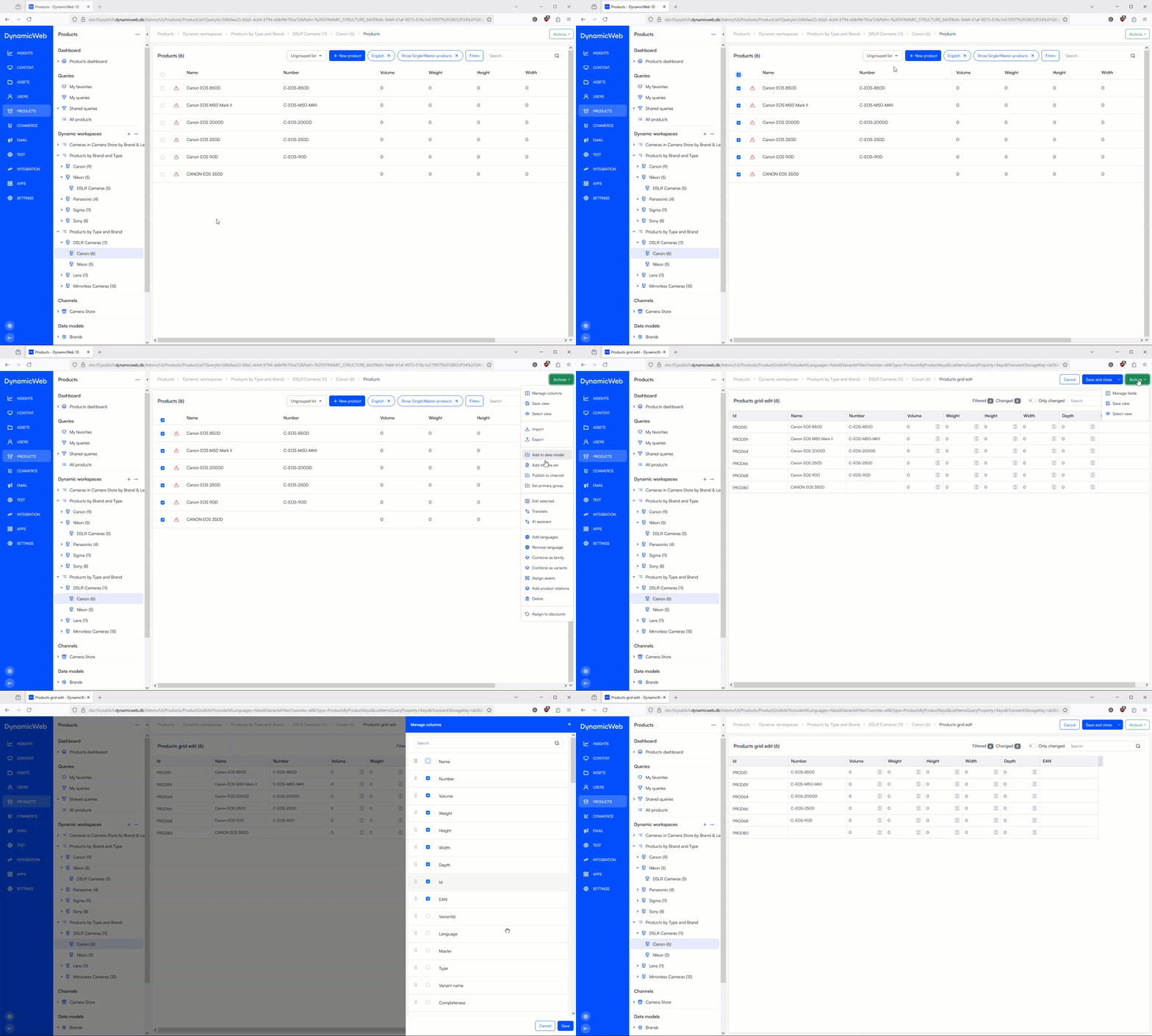
...and the Assets manager which allows you to work intelligently with product images and other assets and define how/if they inherit from master products to product variants:
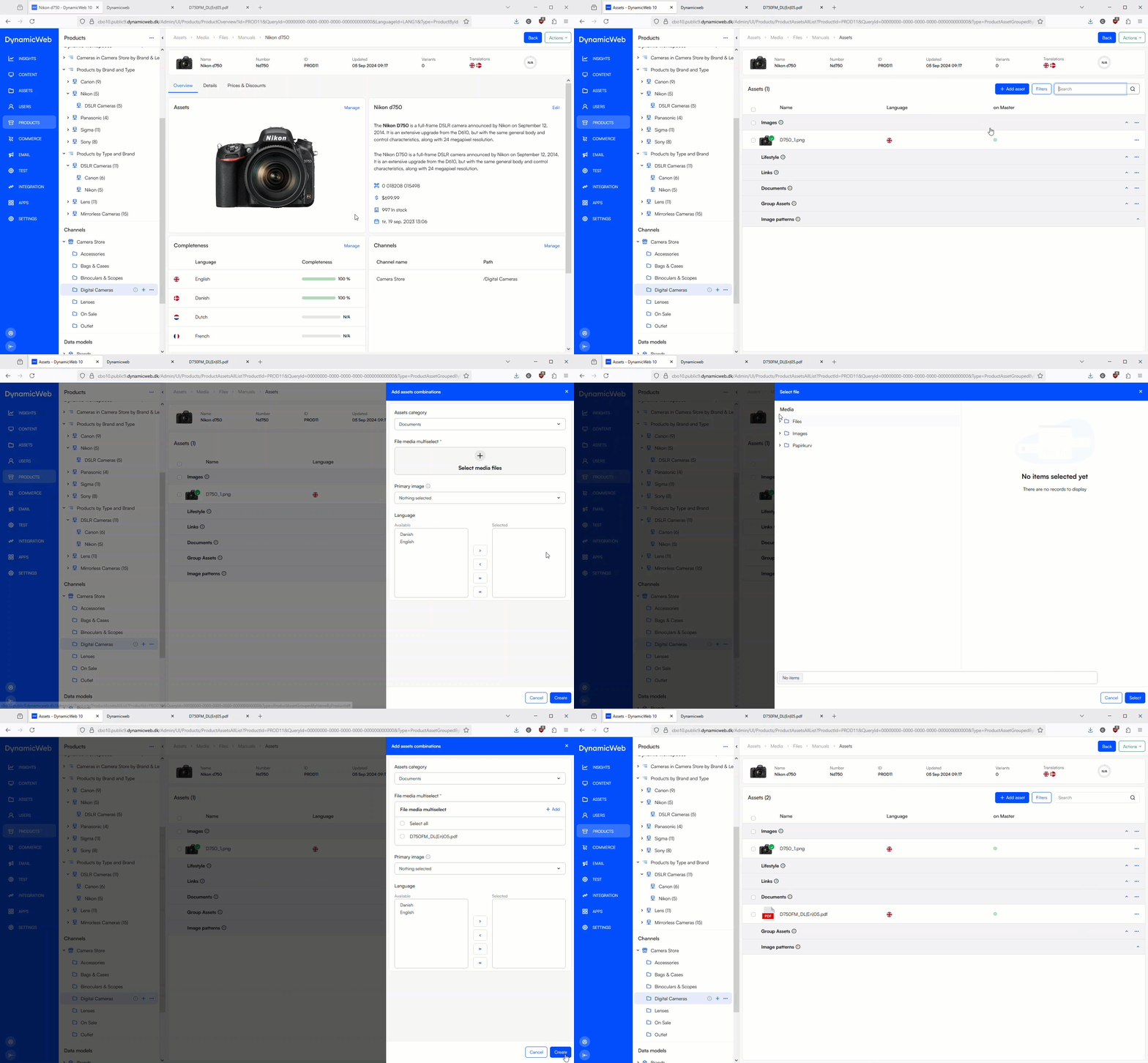
You can also create or remove language versions of a product, use our AI assistant to create engaging descriptions, add relations to other products or to quantities of packaging material or raw materials used in the product, and much much more.
Publication
At some point - maybe assisted by a completeness calculation - you will be ready to publish products to one or more channels:
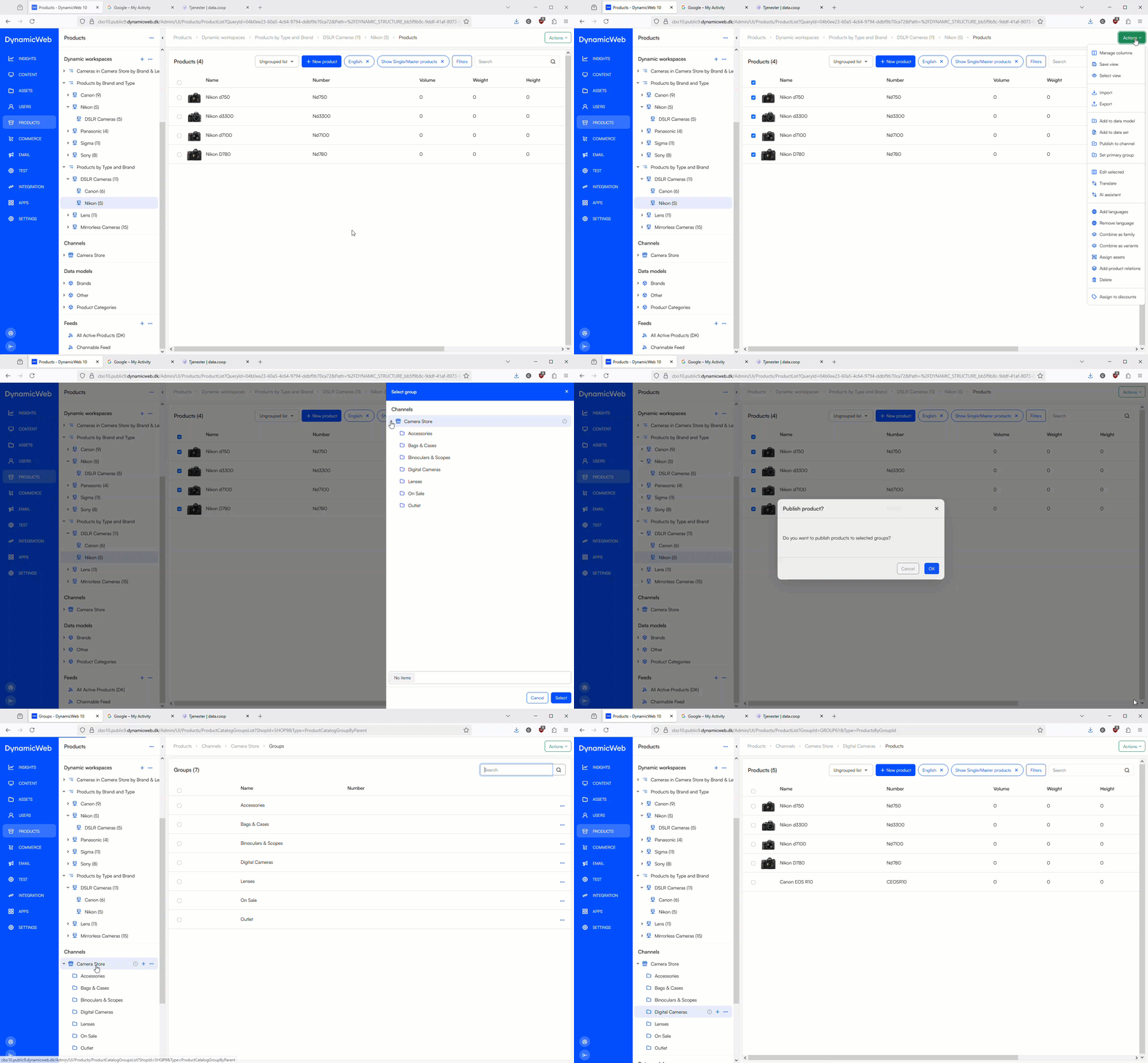
Typically, your main channel will be a DynamicWeb shop which is then published to frontend for people to browse and buy, but you can create a number of other channels and e.g. create a feed with product data in JSON or XML format for an external service or marketplace to consume.
Further Reading
Because of the complexity of the Products-area we've created two different sections introducing you to the interface and how to work with it:
- The Key concepts section
- The Managing products section