The Configure screens node shows a list of saved list screen column configurations associated with your account - or all accounts, if you're an administrator user.
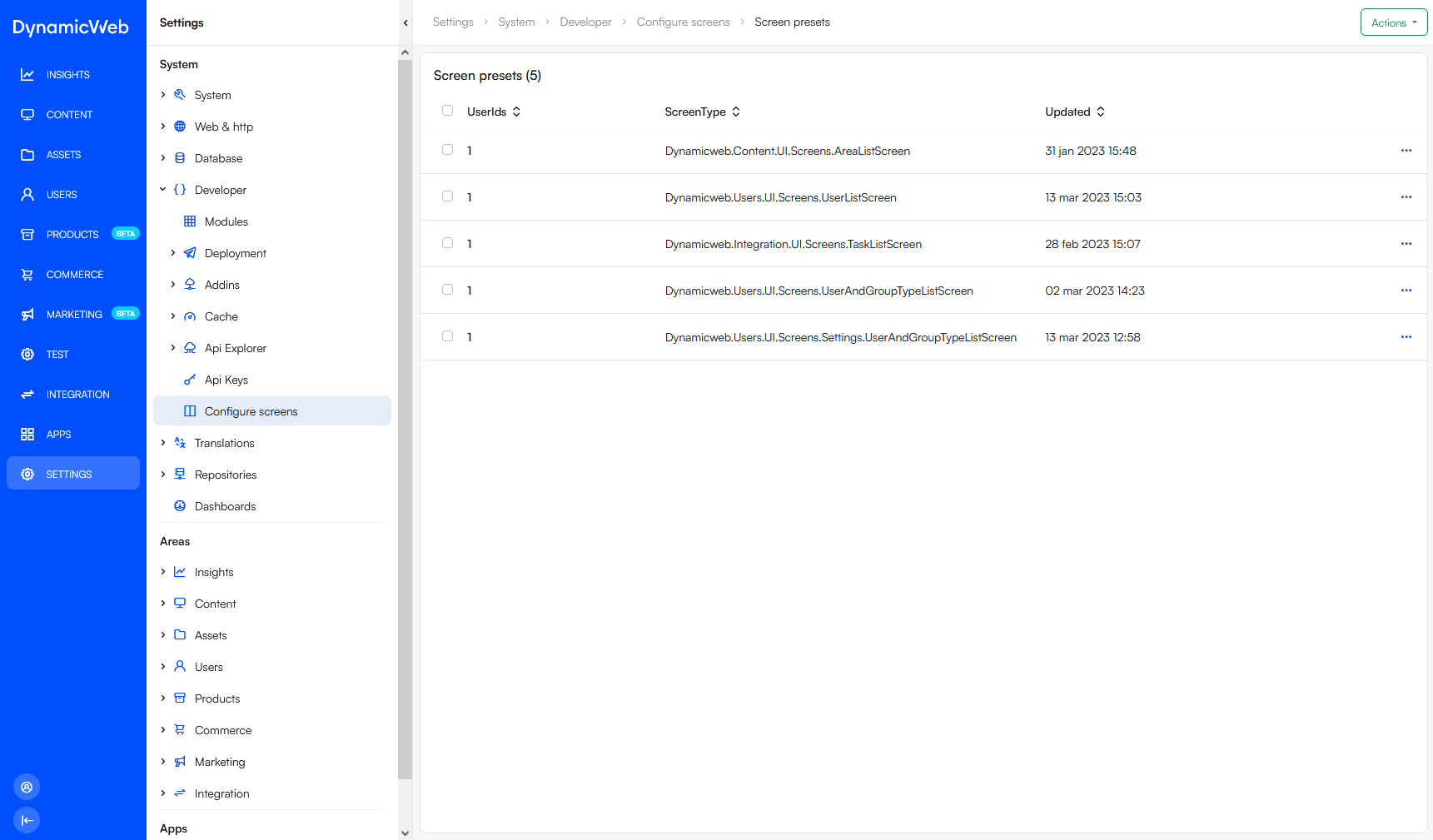 You can use the context menu to assign a screen preset to other users and/or user groups.
Creating screen presets
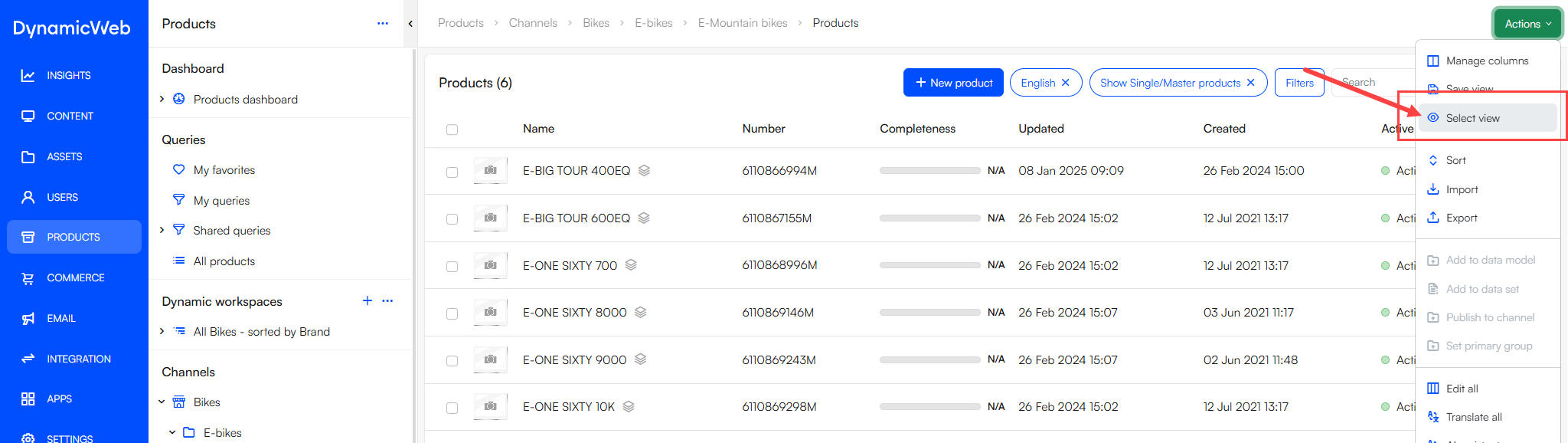
Most of the time, screen presets are created from a product list or product edit screen using the action menu to manage columns or manage fields and then saving the configuration.
However, if you have to you can also create screen presets manually:
- Navigate to Settings > Administration > Configure screens
- Click "+ Add new preset"
- Provide the preset with a name
- Select a model type from the drop down, e.g. ProductDataModel for product screens
- Once you select a model type, additional options will appear. For example, with ProductDataModel, you can choose which product fields to include in the preset.
- Additionally, you can select which users or user groups the preset will be available for
- If left empty, the preset will only be available for admins
- Save
To use your screen preset, go to the relevant area, open the action menu, and apply the preset.