The MCP Configurations screen is available when you have the DynamicWeb MCP Server installed - you can read more about this under AI in DynamicWeb.
Create an MCP Configuration
To configure MCP Server access:
- Click + New Configuration
- Provide a name and optionally a description
- If relevant, check Full Access (use this with caution)
- In the Credentials section, choose a credential type
- Set an expiry date for the key you will generate
- Click Create
After creating the configuration, credentials are generated based on the selected credential type:
- API Key: A static bearer token is generated and displayed once. Copy and store it securely, as it cannot be retrieved later
- OAuth Client: A client ID and client secret are generated for OAuth 2.0 authentication
- Claude: Credentials are created automatically when a client connects via Dynamic Client Registration
Configuring MCP tool permissions
To configure MCP tool access for your connected agent, click on the MCP configuration and open the MCP tool permissions overview:
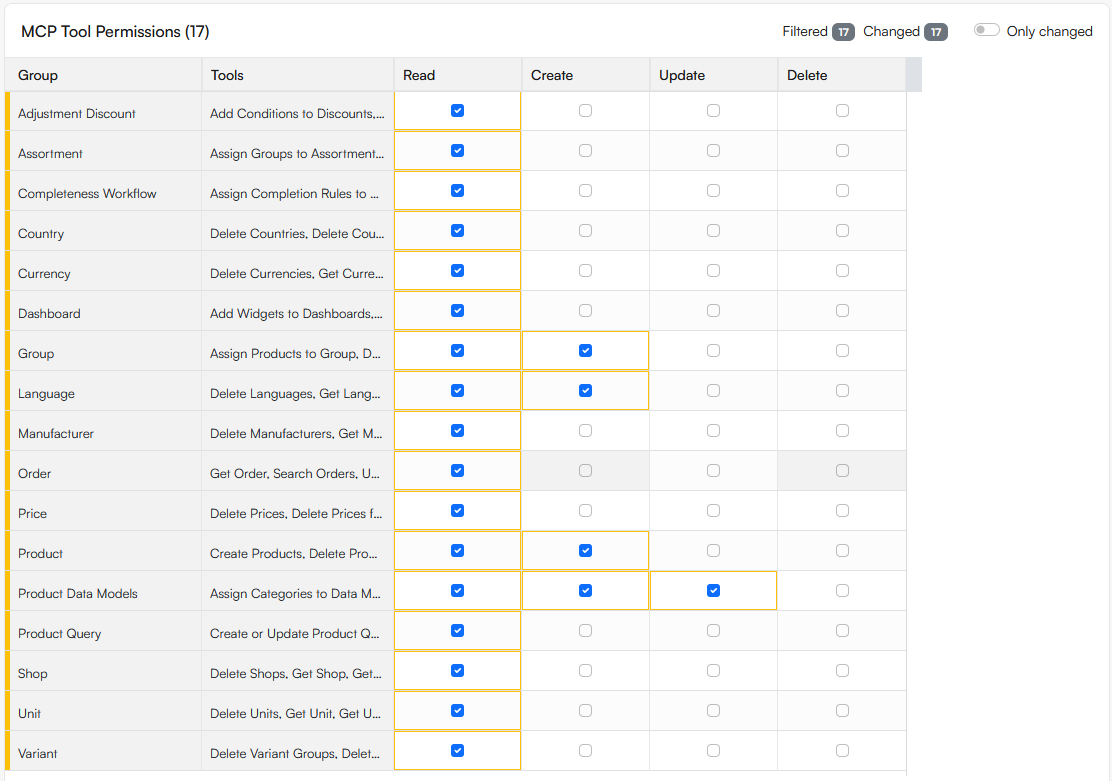
For each MCP tool you can define permission levels:
- Read
- Create
- Update
- Delete
We recommend that you provide restrictive access to AI agents and expand as the need arises to avoid potentially overzealous AI actions from impacting your solution data health.