A Content Delivery Network (CDN) places copies of your static assets — images, stylesheets, scripts, fonts, documents — on edge servers distributed around the world. When a visitor requests your page, those assets are served from the nearest edge location instead of from the origin server. The result is faster load times, lower server load, and a better experience for your users, no matter where they are.
Two separate CDN hosts can be configured:
- CDN Host — used for static files under
/Files/(stylesheets, scripts, images, documents, etc.) - CDN Host (GetImage) — used specifically for image transformation requests via
/Admin/Public/GetImage.ashx
You can use the same URL for both, or separate them if your setup requires it.
Basic CDN configuration
To set up CDN for a DynamicWeb solution, first navigate to Settings > System > Web & HTTP > CDN.
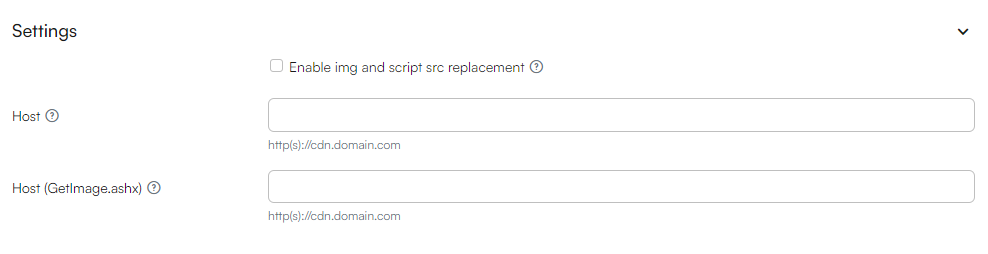
- Check Enable img and script src replacement
- In CDN Host, enter your CDN endpoint URL — e.g.
https://mysite.cdn.dynamicweb.cloud - In CDN Host (GetImage), enter the same URL — e.g.
https://mysite.cdn.dynamicweb.cloud - Click Save
This is a global setting — it applies to all websites on the solution.
Note
The CDN host URL must start with https://. If the URL does not have a valid protocol prefix, CDN replacement will be silently disabled.
You can read a more in-depth explanation of how CDN works inside DynamicWeb in the implementer CDN Setup guide.
Verifying it works
After enabling CDN:
- Open your website in a browser
- Right-click an image or stylesheet reference and choose Inspect
- Confirm that the
srcorhrefattribute now starts with your CDN host — e.g.https://mysite.cdn.dynamicweb.cloud/Files/... - In the browser Network tab, verify that static assets are served from the CDN host