Page types in Swift are used to control the structure, content, and functionality of individual pages within a website. They determine the fields and settings available for each page, what content can be added, and how it is displayed. Customization of page types is typically needed when specific functionality or unique fields are required for a particular type of page.
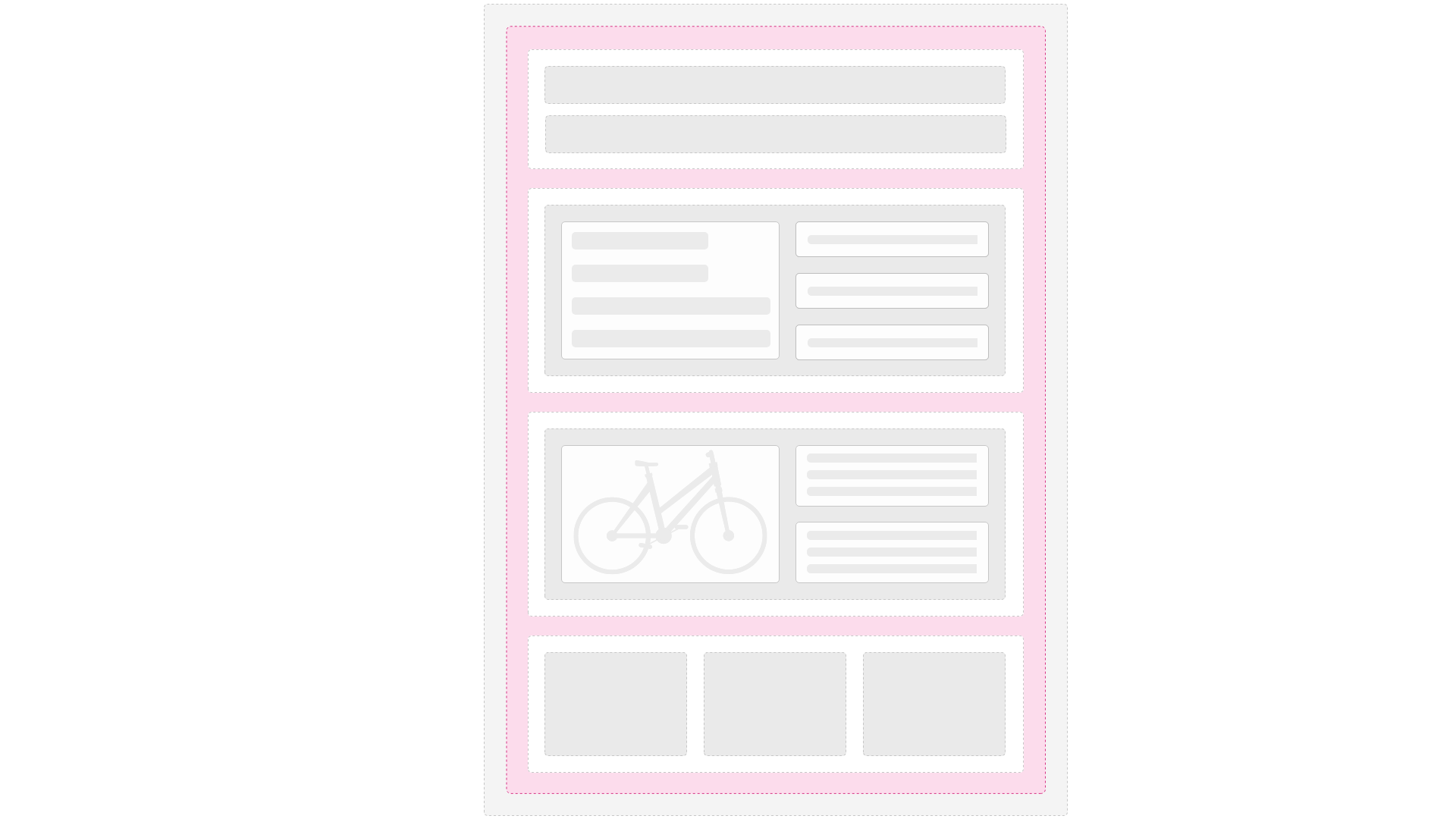
In most cases, existing page item types, such as Swift-v2_Page, are not customized directly. Instead, new page item types are created to meet specific requirements, such as adding fields for a blog post’s author, publishing date, and tags, while reusing existing content elements like rows and paragraphs.
Alternatively, settings that apply to all pages within a website, such as navigation appearance or footer configurations, are added to the page properties item type (Swift-v2_PageProperties).
Understanding page types
Each page in Swift is associated with an item type that determines its fields and settings. The default page item type is Swift-v2_Page, which corresponds to the layout template Swift-v2_Page.cshtml located at /Templates/Designs/Swift-v2/Swift-v2_Page.cshtml.
A page has two distinct item types with specific roles:
Page Item Type: This item type, such as
Swift-v2_Page, is used to control the content and structure of individual pages. It defines what content can be added within the grid and is governed by item type restrictions, as explained in the Dynamicweb documentation. Different pages can have unique fields and settings, allowing for flexibility in content and layout.Page Properties Item Type: This item type, common to all pages on a website, controls settings that apply globally to all pages in the tree. For instance, it defines how a page appears in navigation menus or controls dropdown behavior. In Swift, the item type for page properties is called
Swift-v2_PageProperties. Examples of its settings include:- Icon: Allows the selection of an icon to represent the page, which can be used in navigation menus
- Submenu Type: Defines how submenus should behave, with options such as "Auto," "Dropdown," or "Megamenu"
These item types work in tandem to ensure consistent yet customizable page behavior and appearance across a website. When deciding which item type to customize, consider the following scenarios:
If there is a need for a specific page type, such as a blog post page with fields for author, publishing date, tags, and other blog-related input fields, it is best to create a new page item type. This allows the page to re-use existing content elements for rows and paragraphs (e.g., text and images) by setting appropriate item type restrictions.
If the customization involves a setting that applies to all pages in the tree but varies by individual pages (e.g., a field that modifies the
<head>or footer section), use the page properties item type. This ensures the same settings for all pages in a website, regardless of the page item type.
Properties are often handled in the master template, which controls settings and functionality shared across the entire website. Page item type fields, on the other hand, are usually managed in the layout template that corresponds to the specific item type.
Extending page types
Extending a page type involves modifying either the layout template, the item type, or both to meet specific requirements. Below are key areas and examples of customization:
1. Changing the layout template
The layout template (Swift-v2_Page.cshtml) controls the HTML structure and the dynamic elements of a page.
You can customize it to change markup that should be available to all pages of a given type. This could include custom changes to the header and footer sections of the markup, ensuring consistent styling and functionality across pages of the same type.
2. Adding new fields to the item type
To extend functionality, you can introduce new fields to the Swift-v2_Page item type. For example:
- Add a toggle for enabling or disabling a custom banner
- Provide a text field for a page-specific subtitle
Example field addition:
<field name="Page Subtitle" systemName="PageSubtitle" type="System.String, System.Private.CoreLib">
  <editor type="Dynamicweb.Content.Items.Editors.TextEditor, Dynamicweb">
    <editorConfuguration />
  </editor>
</field>
After adding the field, reference it in the layout template:
<h2 class="page-subtitle">@Model.Page?.Item?.GetValue("PageSubtitle")</h2>
Approaches to customization
There are two primary approaches to extending page types:
1. Create custom copies (recommended)
Using the item type customization feature in the UI (accessible under Settings > Item Types), you can create a custom version of the page type, such as Swift-v2_Page_Custom, along with its corresponding layout template (Swift-v2_Page_Custom.cshtml). This ensures your customizations are isolated from the default setup and protected from future updates.
- Pros:
- Protects customizations from being overwritten
- Allows complete control over new functionality
- Cons:
- Requires additional maintenance
- Potential for duplicate work if the default template evolves
2. Modify the existing page type and template
Directly edit the Swift-v2_Page.cshtml layout template or the Swift-v2_Page item type.
- Pros:
- Keeps changes centralized
- Avoids duplicating templates and item types
- Cons:
- Updates to Swift may overwrite your changes
- Requires careful merging during updates
Advanced Customization Scenarios
In advanced scenarios, it is possible to create a custom page type that uses a custom grid and thereby can define a completely custom content model. By default, the grid used in Swift is simply called "Page" and is located at /Templates/Designs/Swift-v2/Grid/Page.
However, you can define a custom grid — for example PageGridCustom— by adding a folder with that name to the /Templates/Designs/Swift-v2/Grid folder. Using a custom page item type with a corresponding layout template you can then:
- Define custom row definitions specific to the new grid using the UI
- Use custom row templates and row item types that are tailored for the page type
- Control the content (paragraphs) within the grid by defining item types and applying the correct restrictions
This approach allows for granular control and flexibility in defining how specific pages should behave and look, providing developers the ability to create highly customized layouts and content structures.