This article will outline how DynamicWeb and Swift implement CSS used for designing a Swift solution covering these topics
- Generated CSS Variables: DynamicWeb 10 produces
--dw-...and--swift-...variables (e.g., button sizes, colors, typography) based on backend design settings - Swift CSS + Bootstrap: Swift reads those variables and maps them onto Bootstrap and Swift-specific CSS, ensuring consistent styles across your entire storefront
- Swift SCSS Structure: If you have the full Swift source, you’ll see a clear folder layout (
0-base,1-dw, etc.) showing exactly how these variables feed into the final CSS - Source vs. Distribution CSS/JS: Most solutions rely on the precompiled Swift distribution, but you can also work directly in the
_srcif you need deeper customizations - Customization Paths: You can easily override the generated CSS variables or insert your own rules—keeping your code separate from core Swift files for seamless updates
Understanding these concepts makes it easier to do design changes to Swift.
Generated CSS variables
DynamicWeb (DW) provides a mechanism for generating CSS files that contain all the essential design variables for your Swift solution. These files capture user-defined styles from the backend—such as button shapes, color schemes, and typography settings—and expose them as reusable CSS variables.
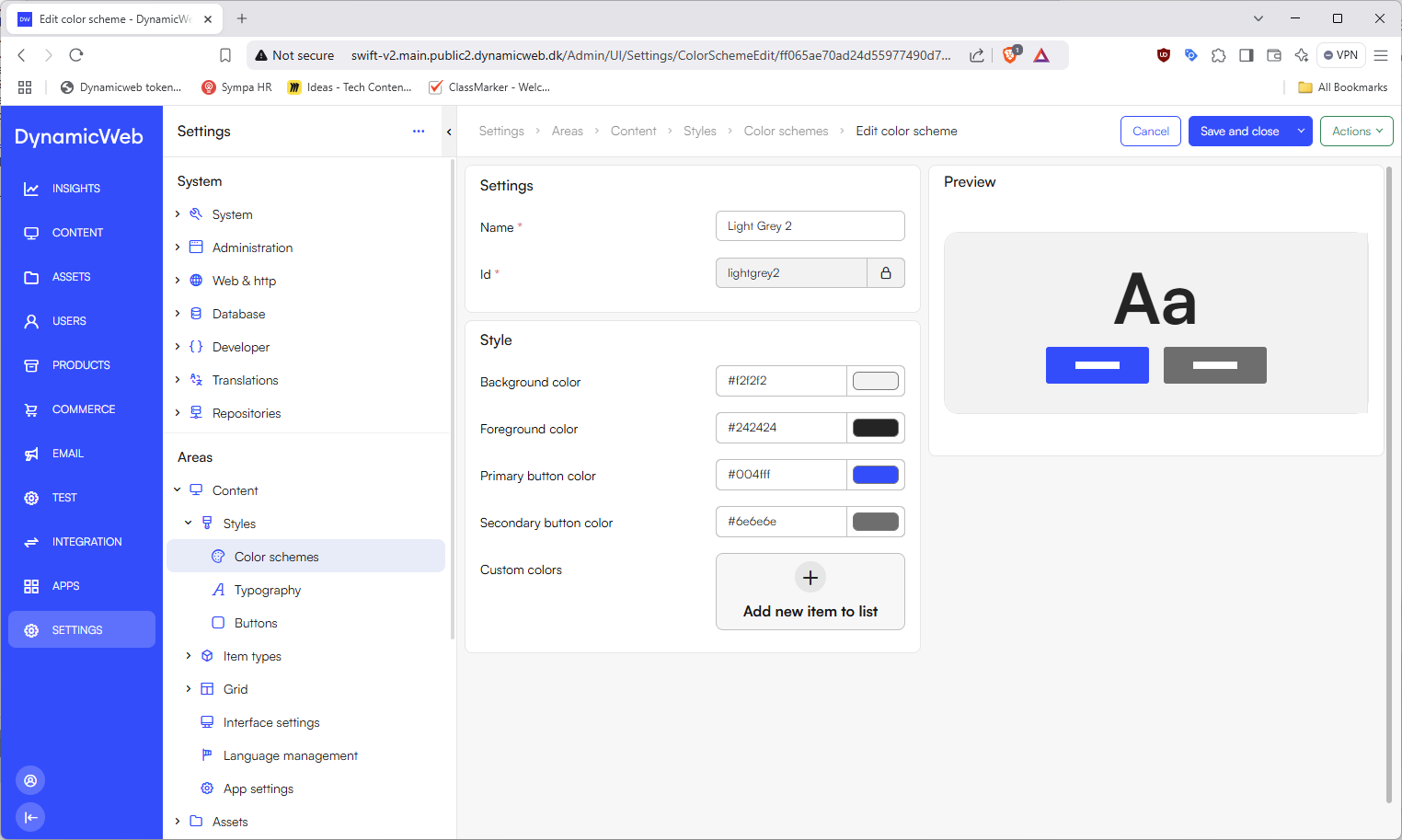
By doing so, DynamicWeb decouples design configuration from the code, making it easier to maintain and update your store’s appearance without overwriting core Swift files.
Location of files
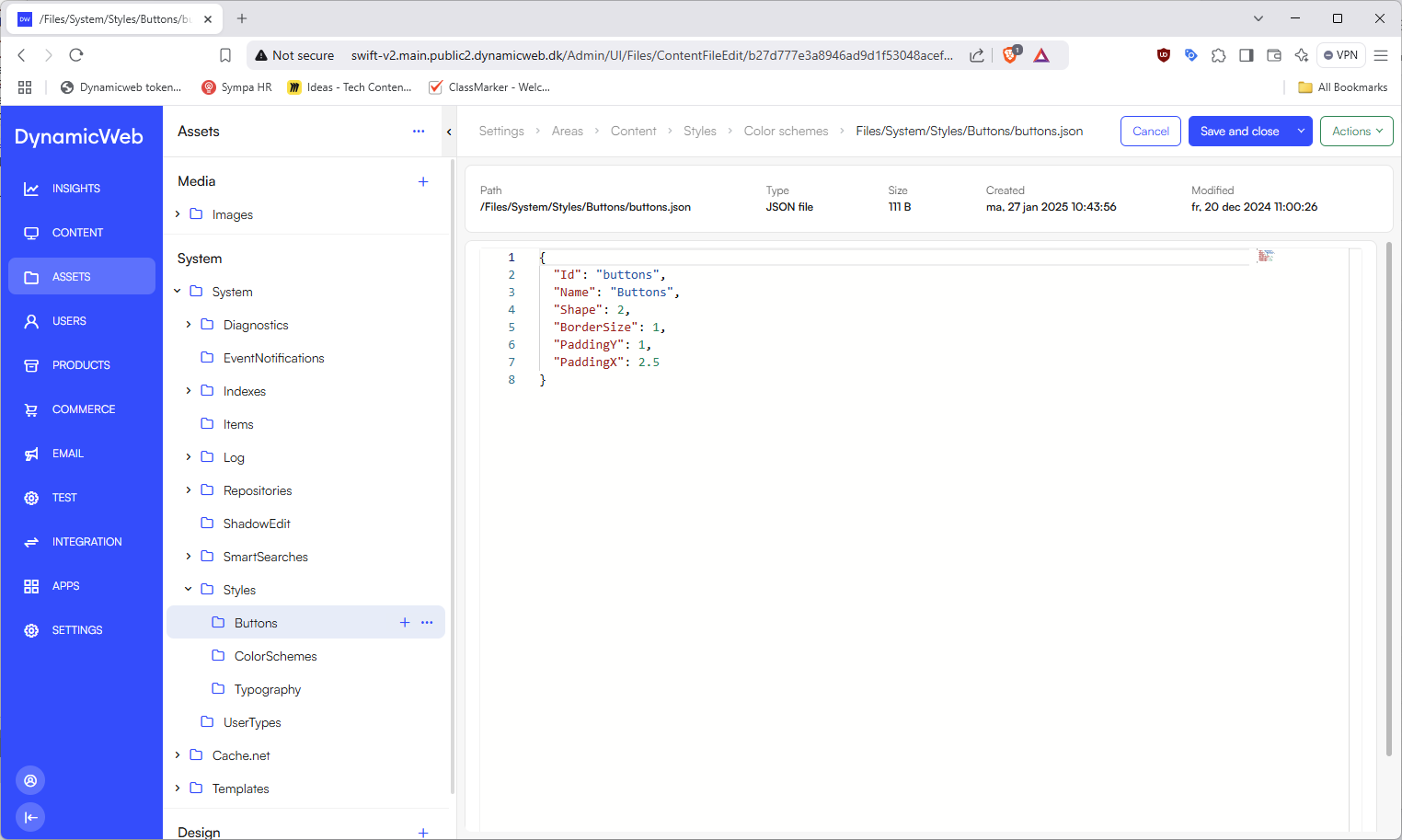
All generated CSS (and the corresponding JSON that defines the styling options) is stored in the following folder on your file system:
/Files/
├── Images/
├── System/
│   ├── Styles/  <----------- This folder
├── Templates/
Inside this folder, you’ll find sub-folders for key style categories:
buttons– Defines button shape, border size, padding, etc.typography– Defines font family, font weights, line heights, etc.colorschemes– Defines background, foreground, and button colors for different schemes
Each category contains:
- JSON files describing the chosen style settings
- CSS files translating those settings into CSS variables
For example, buttons.json corresponds to buttons.css, and colorscheme.json corresponds to colorscheme.css.
How dw-variables work
When you or another administrator configure styles in the DynamicWeb backend, those selections (e.g., button padding, color codes) are saved to JSON files. DynamicWeb then automatically generates corresponding CSS files that expose each design choice as a --dw-... variable.
For instance, in buttons.json you might see:
{
  "Id": "buttons",
  "Name": "Buttons",
  "Shape": 2,
  "BorderSize": 1,
  "PaddingY": 1,
  "PaddingX": 2.5
}
Which produces a buttons.css file like this:
.dw-button, [data-dw-button] {
  --dw-btn-padding-x: 2.5rem;
  --dw-btn-padding-y: 1rem;
  --dw-btn-border-radius: 50rem;
  --dw-btn-border-width: 1px;
}
Here, --dw-btn-border-radius is inferred from the Shape property (a value of 2 typically translates to a pill shape in Swift), while padding values come directly from PaddingX and PaddingY.
Because all settings are output as standard CSS variables (--dw-…), any subsequent styles — whether in Swift’s own SCSS or in your custom overrides — can reference these variables. In the example above, a button’s border-radius might dynamically adjust if an administrator changes the "Shape"-setting in the backend.
Examples: Colors and typography
Similar logic applies to color schemes and typography:
Color Schemes
Thecolorscheme.jsondefines multiple theme variants (e.g., “Light,” “Light Grey 1”), each with its own background and foreground colors. DynamicWeb renders those definitions as CSS classes and[data-dw-colorscheme]attributes, exposing the color values as variables like--dw-color-backgroundor--dw-color-foreground.Typography
Font families, weights, and line heights specified in the backend end up infonts.css. These might include Google Font imports and corresponding--dw-font-familyor--dw-line-heightvariables. Each part of your page (body, headings, or buttons) can then reference those variables so the entire site remains consistent if the configuration changes.
Swift CSS
Swift is built on top of Bootstrap 5 and DynamicWeb’s system-generated CSS variables to provide a flexible yet upgradable storefront design. This section covers where the Swift SCSS source files reside, how they relate to the final compiled CSS assets, and how Swift ties in the DynamicWeb --dw-… variables.
Swift’s out-of-the-box design combines precompiled resources with DynamicWeb’s automatically generated CSS variables. Under the hood, Swift references these --dw-... variables to dynamically adapt core Bootstrap styling and Swift-specific components. Whether you choose to work with Swift’s raw source files in _src/ or rely on the precompiled assets in the distribution folder, you can customize everything from button shapes to color schemes using the same underlying DW variables.
In the following sections, we’ll look at these two primary entry points for extending Swift; Source versus Distribution, and how each approach lets you tailor your storefront’s appearance and functionality.
Two Approaches: Source vs. Distribution
Source-Based
If you have taken Swift’s source code directly from GitHub, you’ll find a_src/folder containing the raw SCSS and JavaScript files. This allows you to modify Swift at a deeper level—extending or overriding Bootstrap and Swift’s own styles before compiling to your final CSS/JS.Distribution-Based
In most solutions, Swift is already compiled, and you’ll only have access to the final compiled distribution assets — meaning the_srcfolder is not present on your production or staging environment. You work directly with the compiled CSS and JS in the/Files/Templates/Designs/swift-v2/Assetsfolder and extend DynamicWeb by adding a custom CSS file that will override Swift CSS rules.
Regardless of whether you work on the _src folder or only the compiled output, Swift fully integrates with DynamicWeb’s design variables, so you can still take advantage of the default styling and configuration options. Below, you’ll see how each workflow ties into these variables.
Folder Structures
If you do have the Swift source code, it is organized like this:
swift-v2 (repository root)
 ├─ _src
 │   ├─ js
 │   │   └─ components
 │   └─ scss
 │       ├─ 0-base
 │       ├─ 1-dw
 │       ├─ 2-components
 │       └─ 3-helpers
 └─ Files/Templates/Designs/swift-v2/ (Dist)
     ├─ css
     ├─ images
     ├─ js
     └─ ...
_src/scss/– Contains all SCSS files for Swift, split into logical sub-folders (e.g.,0-base,1-dw,2-components,3-helpers)._src/js/– Holds Swift-specific JavaScript logic for components and functionality.
When you run the build process, the SCSS and JS in _src are compiled and minified into production-ready assets, which end up in the /Files/Templates/Designs/swift-v2/Assets folder.
Structure of Swift SCSS
If you have access to the _src/scss/ folder, you’ll notice these primary directories:
0-base/- Extends and overrides Bootstrap variables at a fundamental level.
- Defines base global styles and foundational settings.
1-dw/- The most crucial folder for DynamicWeb integrations.
- Maps the
--dw-...variables (generated by DW) to Bootstrap variables or Swift-specific CSS. - Files like
_buttons.scss,_colorschemes.scss,_typography.scssmirror the design settings in DynamicWeb.
2-components/- Contains SCSS for Swift-specific components (e.g., product list, hero banners).
- References both Bootstrap and the DW variable mappings from
1-dw/.
3-helpers/- Includes shared mixins, functions, or utility classes used throughout Swift’s SCSS.
Each SCSS file "imports" and references these layers, culminating in a single compiled CSS output when you run your build.
Swift’s use of dw-variables
Swift leverages DynamicWeb’s design variables. In the DynamicWeb backend, you configure styles (e.g., button shapes, typography, color schemes), which are stored as JSON files in /Files/System/Styles/ and compiled into CSS containing --dw-… variables. Examples:
- Buttons –
--dw-btn-padding-x,--dw-btn-border-radius - Typography –
--dw-font-family,--dw-font-weight - Color Schemes –
--dw-color-background,--dw-color-foreground
Mapping to Bootstrap variables
Inside the Swift SCSS (especially in 1-dw/), these --dw-... variables get mapped to Bootstrap variables or used directly in Swift-specific classes. For example, _buttons.scss might look like this:
// Capture DW variable
$dw-btn-padding-x: var(--dw-btn-padding-x);

// Map it to Bootstrap’s $btn-padding-x
$btn-padding-x: $dw-btn-padding-x;

// Use it in Swift’s .btn class or extended styles
.btn {
  padding-left: $btn-padding-x;
  padding-right: $btn-padding-x;
}
Also --swift-... variables exist - defined and used in various components.
The --swift-... and --dw-...variables can be overridden in your custom CSS using your own rules and in that way adjusting the look and feel of the final design.
Building the Swift project from source
To work with Swift's raw source files (_src/) and compile them into the production-ready distribution folder (Files/Templates/Designs/Swift-v2/Assets/), you’ll need to follow a simple build process:
- Setting up the required dependencies
- Running the build scripts
- Understanding the structure of the output files.
Tip
Before building the project, ensure the following are installed on your system:
- Node.js (v14 or higher) and npm (Node Package Manager).
- A modern code editor like Visual Studio Code for editing and debugging.
First-time build after cloning from Git
When you clone the Swift repository from GitHub, the node_modules folder (which contains all project dependencies) will not be included. To set up the project for the first time:
Navigate to the Project Directory
Open a terminal and change the working directory to the Swift project root where thepackage.jsonfile is located.cd /path/to/swift-v2Install Dependencies
Use npm to install all required dependencies specified in thepackage.jsonfile.npm installThis command will populate the
node_modulesfolder with all necessary libraries and tools.
Compiling SCSS and JS to the distribution folder
Swift uses Rollup.js as its build tool to compile SCSS and JavaScript files from the _src/ folder into the production-ready dist folder located at Files/Templates/Designs/Swift-v2/Assets/. Follow these steps to build the project:
Run the Build Command
Use the following npm script to start the build process. The command automatically compiles the SCSS and JavaScript files based on the configuration in therollup.config.jsfile.npm run buildIf you are working in a development environment, ensure the
NODE_ENVis set todevelopment:NODE_ENV=development npm run buildFor production builds:
NODE_ENV=production npm run build
What Happens During the Build?
JavaScript Compilation:
Theswift.jsfile in_src/js/is bundled and minified (for production) and output to theFiles/Templates/Designs/Swift-v2/Assets/js/folder as:swift.js(UMD format)swift.esm.js(ES module format)
SCSS Compilation:
Theswift.scssfile in_src/scss/is processed and compiled into CSS. The output is saved in theFiles/Templates/Designs/Swift-v2/Assets/css/folder as:swift.css
Copying Dependencies:
The build process also copies external libraries (e.g., Bootstrap, Swiffy Slider, htmx) into theFiles/Templates/Designs/Swift-v2/Assets/lib/folder for inclusion in the project.
Tip
During development, you can enable file watching to automatically rebuild the project when you make changes to the source files:
npm run watch
This command ensures that any updates to SCSS or JavaScript files in the _src/ folder are immediately reflected in the dist folder.
Troubleshooting
- Missing Dependencies: If you encounter errors related to missing packages, re-run
npm installto ensure all dependencies are properly installed. - Style or Linting Errors: The build process uses stylelint and eslint to enforce code quality. If errors occur, review the console output for details and fix the issues in your SCSS or JavaScript files.
Version control and automation
An additional benefit of having the design configurations stored in JSON and CSS files is that they integrate seamlessly with modern development workflows. Because each configuration is file-based, you can check these files into Git (or another version control system), where they can be branched, merged, and reviewed just like any other code.
This also enables continuous integration/continuous deployment (CI/CD) pipelines — such as GitHub Actions, Azure DevOps, or similar — to automate tasks like validating configuration changes, deploying updated styles to staging environments, and ultimately releasing to production.
This approach ensures that style changes are transparent, auditable, and revertible, providing a robust framework for collaboration and quality control in both small and large development teams.
Why it matters for frontend developers
For a frontend developer, these JSON→CSS variable files are critical because:
Consistent Theming
They ensure that Swift’s look and feel is uniform across the entire site—even if design settings are changed later.Separation of Concerns
You don’t need to manually update multiple CSS files when a style changes; you can rely on these automatically generated variables for consistency.Easy Overrides
If you need custom styles, you can either override specific--dw-…variables in your own CSS or apply additional rules that build on top of them. This approach keeps your solution clean and aligned with Swift’s upgradable structure.
How it All Comes Together
DynamicWeb Backend
- Administrators change design settings (e.g., color, font, buttons) in the backend.
- JSON files and
--dw-...variable-based CSS files get generated in/Files/System/Styles/.
Swift Source (if applicable)
- The SCSS in
_src/scss/1-dw/reads those--dw-...variables and assigns them to Bootstrap/Swift variables. - You or your team can add custom overrides in separate SCSS files or inline with Swift’s SCSS.
- The SCSS in
Build Process
- Running a build (npm/Gulp/Webpack) compiles all SCSS into one or more CSS files.
- Output goes to the
dist/folder (in development) or\Files\Templates\Designs\swift-v2\Assets\in a production/deployed environment.
Distribution (Deployed Swift)
- Your site or solution references the compiled CSS and JS from the
Assets/folder. - You can continue to fine-tune your design by updating the DynamicWeb backend settings or, if you have the source, adjusting the SCSS and rebuilding.
- Your site or solution references the compiled CSS and JS from the
Key Takeaways
- Source vs. Dist – Most deployed Swift solutions use the compiled distribution by default, but you can obtain the raw
_srcfrom GitHub if you want to customize Swift at the SCSS/JS level. - SCSS Folder Structure – Swift organizes its source SCSS into foundational, DW-integrated, component-specific, and helper layers, making it easier to maintain.
- DW Variables – DynamicWeb’s design settings are automatically exposed as
--dw-...variables, which Swift maps to Bootstrap and custom classes. - Upgrade Path – By relying on DW variables and layering changes via SCSS imports or separate files, you can keep your Swift solution upgradable without having to rewrite large swaths of code whenever Swift or DynamicWeb release updates.