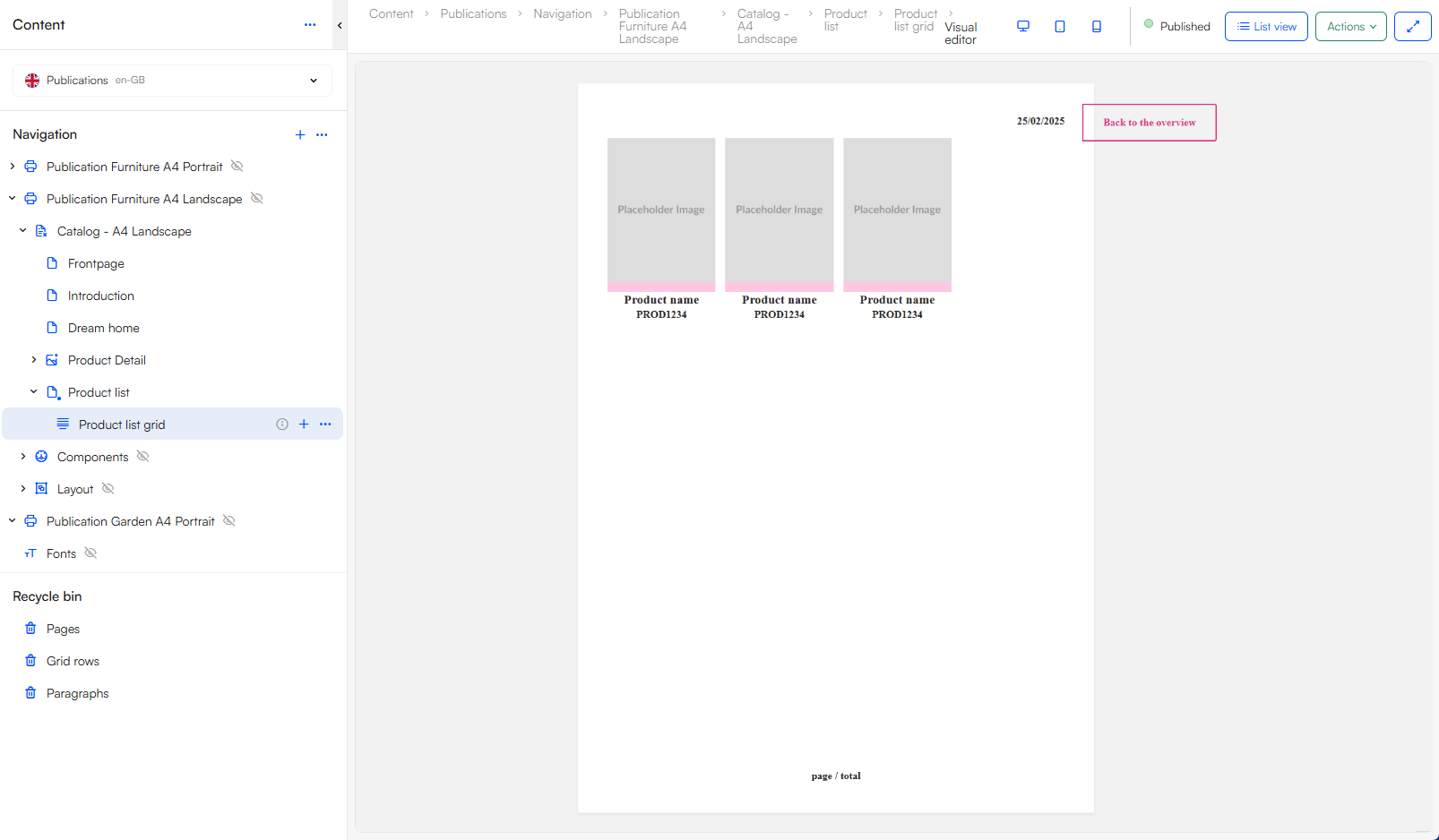
Publication is a tool to set up designs for printable catalogs containing content pages, data sheets, price lists based on already existing product information from DynamicWeb.
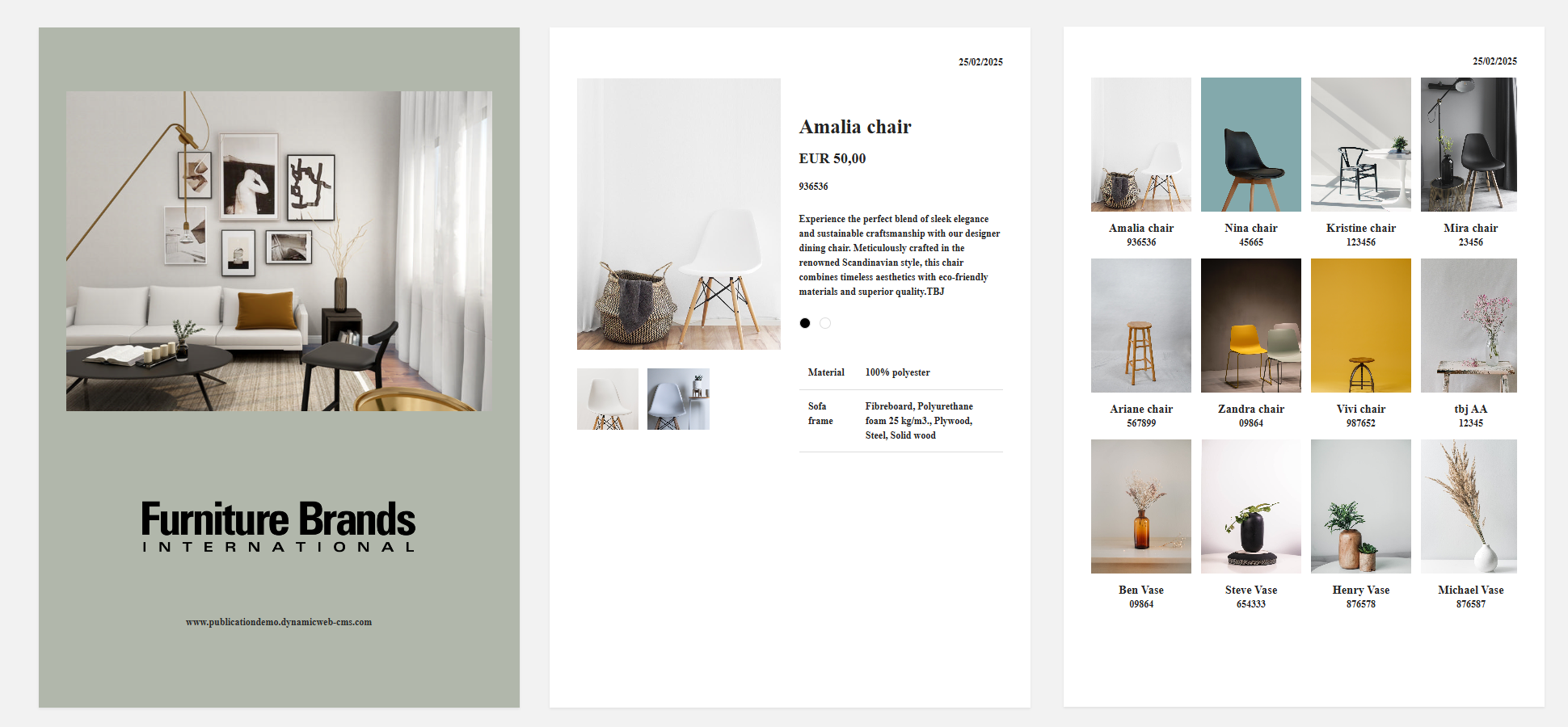
In practical terms, DynamicWeb Publications consists of:
- A
Filesfolder containing templates and other static resources - If needed, a database with demo data - pages, products, paragraphs, etc.
- Password for Admin: Admin1
- Password for Administrator: Administrator1
Note
The publication tool is a design folder of its own it does not require Swift for the setup. However, it does require a DynamicWeb and Publications license.
Structure
We will explain a bit about the structure to help you understand the tool. On the image below we show an example of how the publications tool can be structured.
The structure is as follows:
- Publications folder
- Catalog folder
- Content pages
- Can be regular content pages, table of contents page, product list- or product pages container
- Component folder
- Can contain component folder and component setup
- Layout folder
- Contains header and footer pages
- Font folder

The folders Publications, Catalog, Component and Layout will be further explained in this article.
Publications folder
Publications folders are the foundation of the catalog. As you might want to create multiple catalogs you can also create multiple publication folders. The publications folder can this be seen as the wrapper for each catalog.
The publication folders holds information about the page format, heading and body font and typescale settings. This is also where you design and link the header and footer. This way all pages in the catalog placed in this publication folder will have the same header and footer.
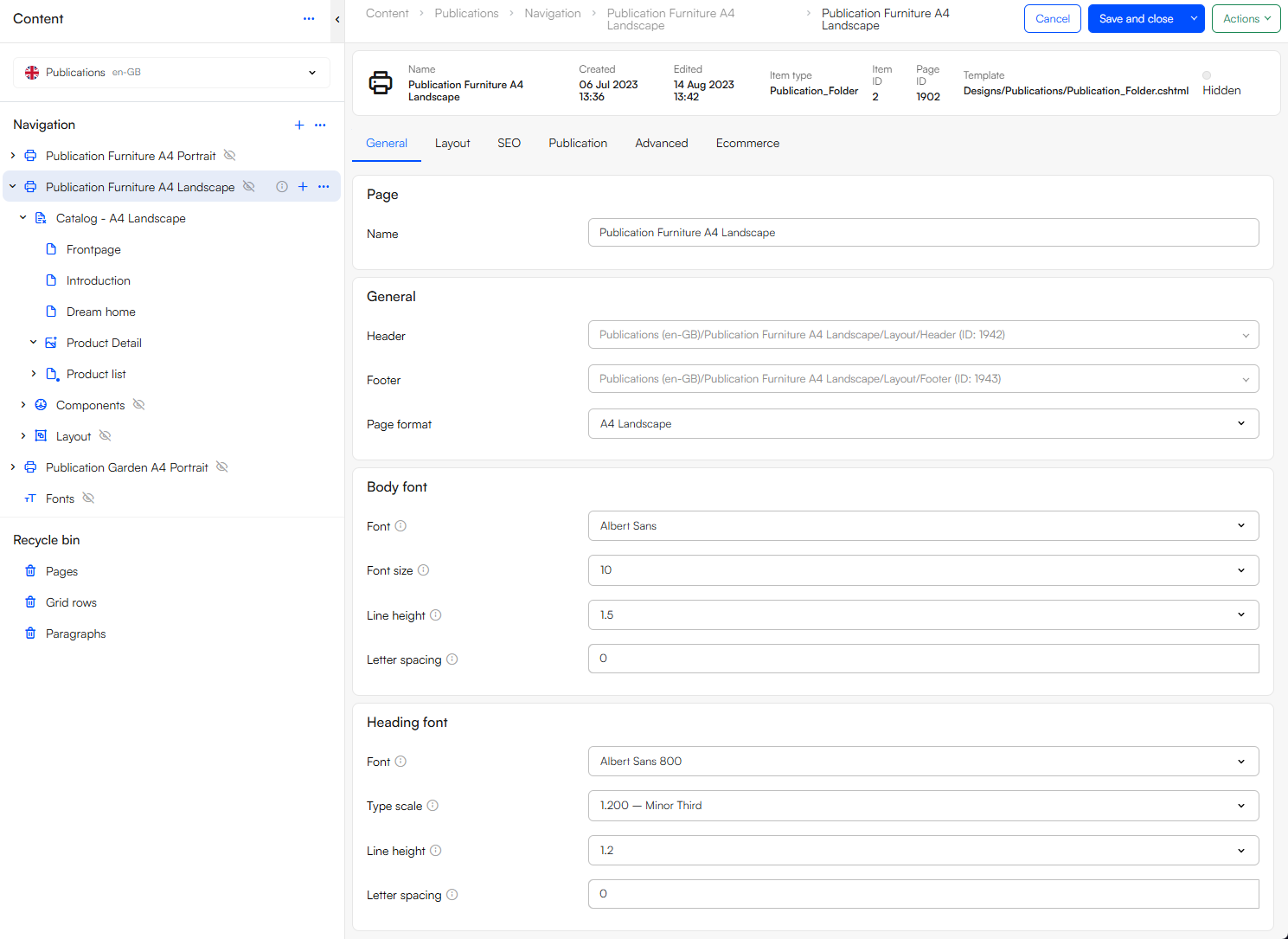
From the publication folder you can create a component folder, a layout folder and a catalog folder.
Component folder
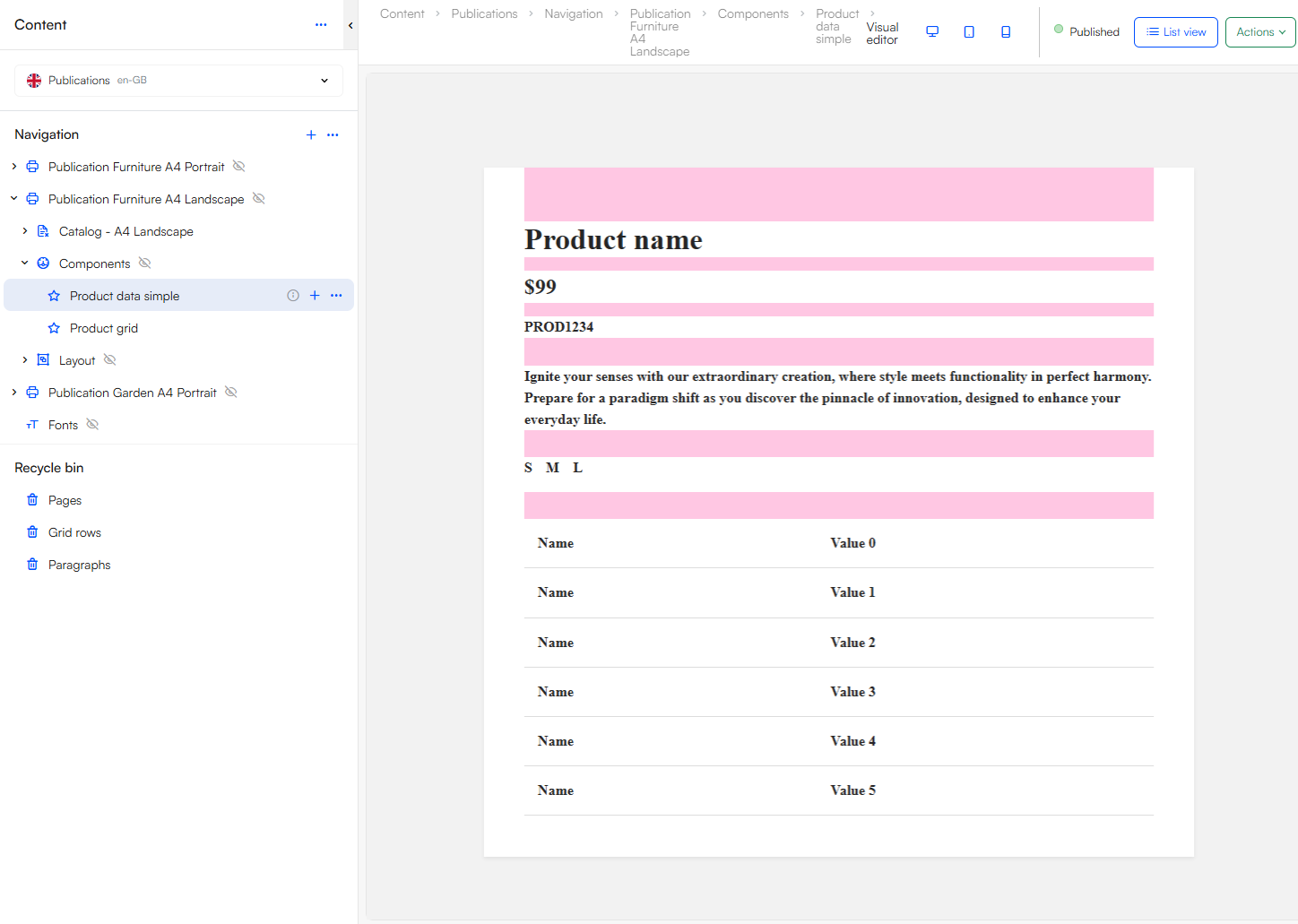
Components are a way to further customize the design of a catalog. The components allows the designer to break free of the otherwise rigid structure made from the rows. Normally you would only be able to fit one item type per column, but with components you can design a component card, consisting of multiple item types. The card can then be placed on an empty column space in a row.
Layout folder
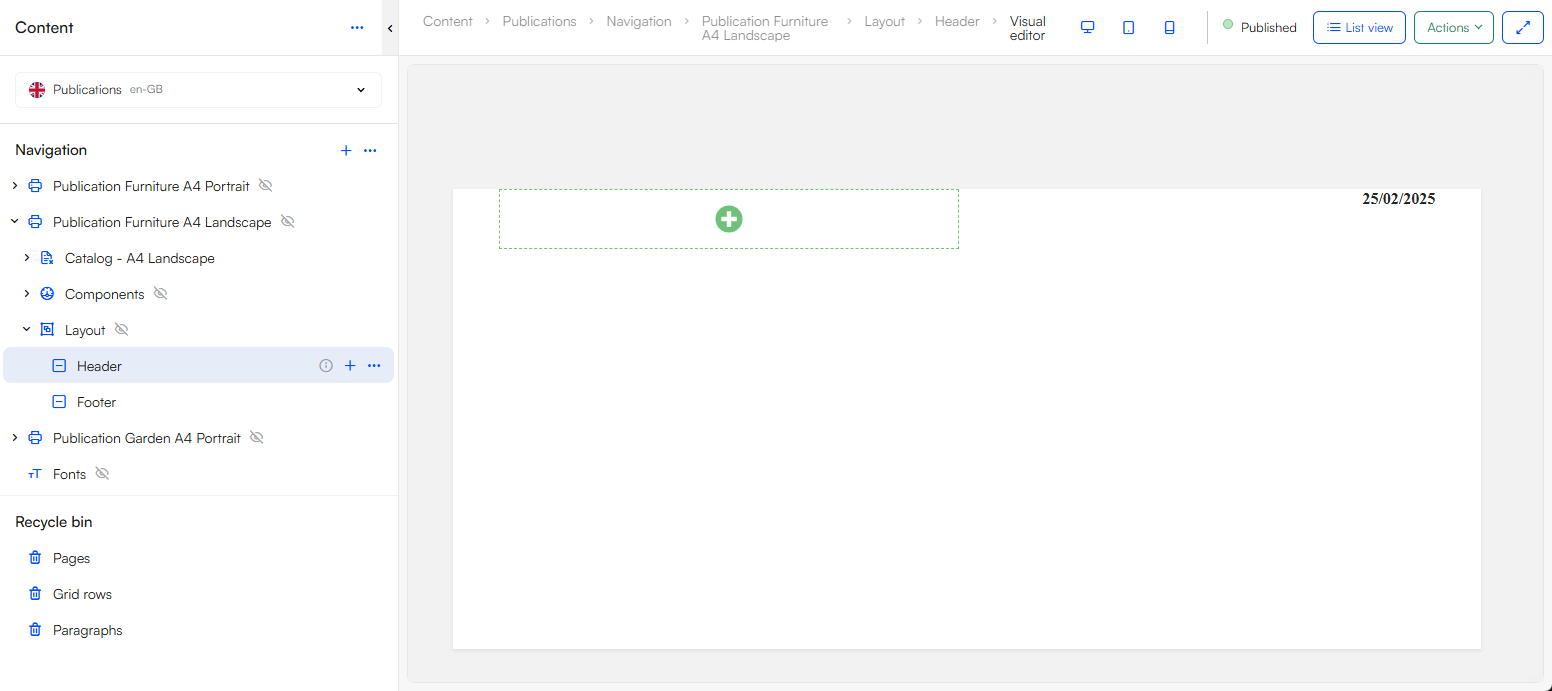
The layout folder is where you place the header and footer of the catalog. Headers and footers are often small watermarks that will create a connection between the different pages. This could also be page numbers. As you often want to keep the design of headers and footers relatively simple, you only have a few options in terms of content columns: Content Image, Content title, Date stamp, Page number and Page title.
Catalog folder
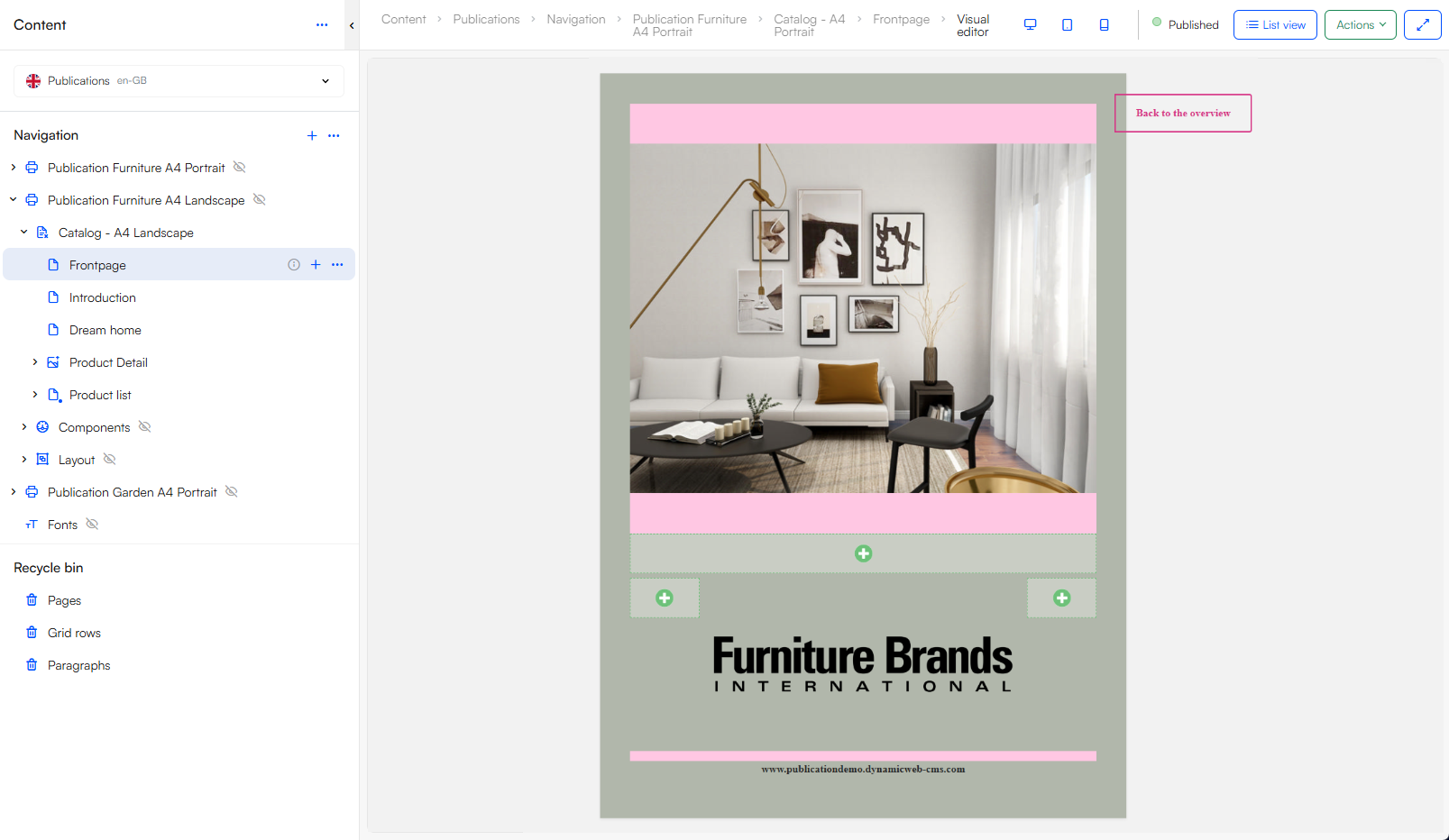
The catalog folder is the place for all content pages. Here you can create regular content pages such as front/back covers, a table of contents page, and product list- or product pages containers. The content page you can create a static page with images and text using paragraphs.
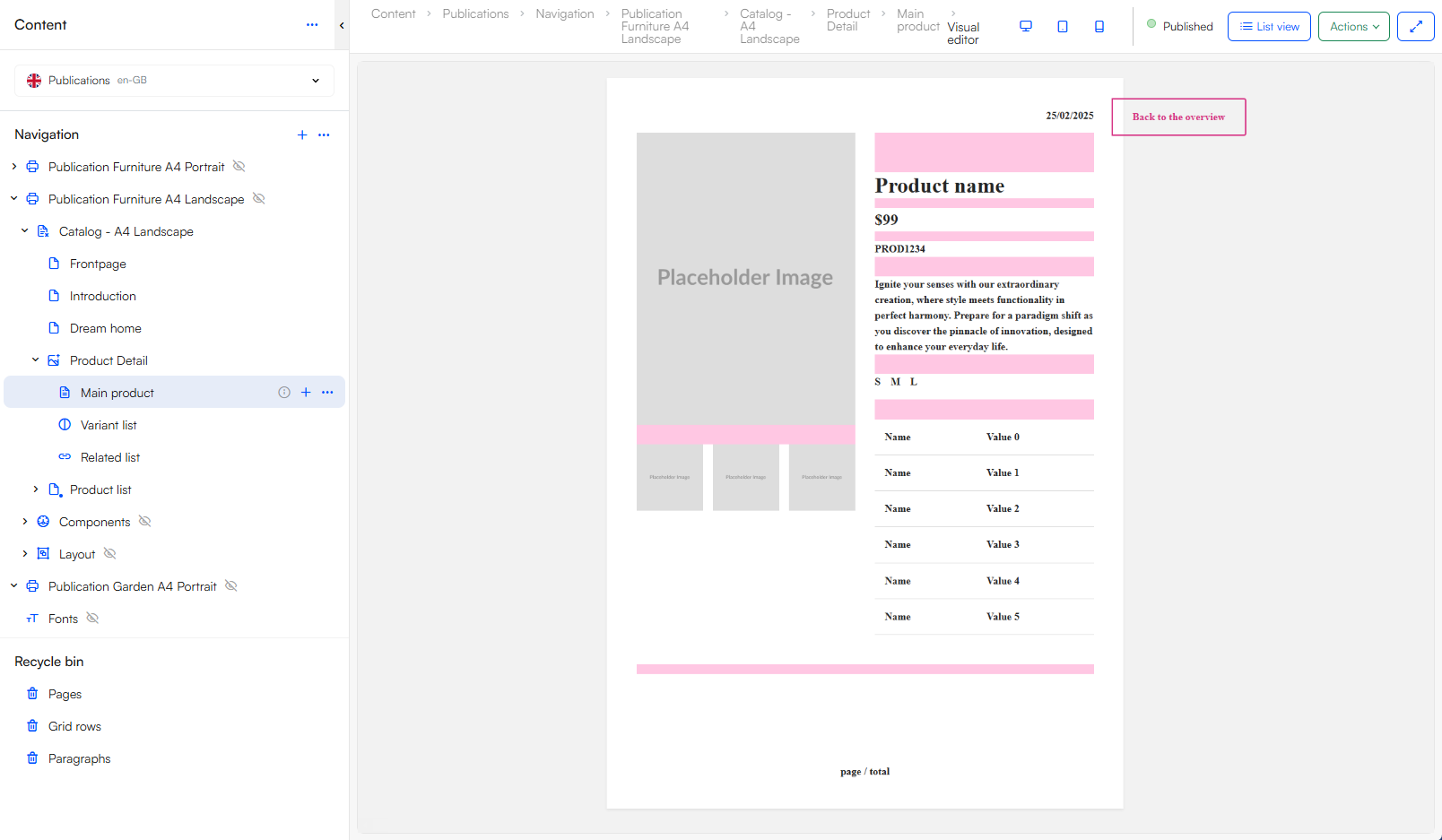
The Product pages container is used to create a design for a specific product and its related product information. You have the pages:
- Content - a regular content page
- Data sheet - design either a sale sheet or technical sheet based on which information is available
- Related list - present a list of variants to the specific product if the information is available
- Variant list - present a list of related products to the specific product if the information is available
From the Product list container it is possible to create a product list and product group info. You have the pages:
- Group info - design a content page containing product group info
- Product list - create a list e.g. a price list