You can extend the Swift JavaScript module by subscribing to events – either all events of a particular type or only events fired by a specific element:
- All events: document.addEventListener("update.swift.cart", ...
- A specific element: document.querySelector(“#DetailsInfoAddToCart”).addEventListener("update.swift.cart", ...
The following events are available:
- Cart.js
- update.swift.cart (detail.formData, detail.parentEvent)
- updated.swift.cart (detail.formData, detail.html)
- Productlist.js
- update.swift.productlist (detail.formData, detail.parentEvent)
- updated.swift.productlist (detail.formData, detail.html)
- resetfacets.swift.productlist (detail.formData, detail.parentEvent)
- Pageupdater.js
- update.swift.pageupdater (detail.formData, detail.parentEvent)
- updated.swift.pageupdater (detail.formData, detail.parentEvent)
- VariantSelector.js
- optionclick.swift.variantselector (detail.parentEvent)
- selectioncomplete.swift.variantselector (detail.selections)
It is also possible to completely take over an event from Swift – for instance, if you want to replace the swift.Cart.Update method you can add event.preventDefault() to your update.swift.cart event listender.
Example 1: Show a notification when adding to card
In this example you want to ensure that the customer is informed about what items have been added to their cart. Therefore, it's important to notify the customer each time they click the 'Add to cart' button.
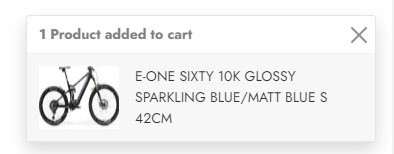
To make this happen:
- First take a look at Toasts from Bootstrap – We will use the lightweight notifications to solve this
- Open the Files/Templates/Designs/Swift/Paragraph/Swift_ProductAddToCart.cshtml template – this is the template which typically contains an add to cart button At the bottom of this template add a notification – note the IDs on the elements where we want to change the content:
<div aria-live="polite" aria-atomic="true">
    <div class="toast-container position-fixed bottom-0 end-0 p-3">
        <div id="cartNotificationToast" class="toast" role="alert" aria-live="assertive" aria-atomic="true">
            <div class="toast-header">
                <strong id="cartNotificationToastHeader" class="me-auto">@Translate("Added to cart")</strong>
                <button type="button" class="btn-close" data-bs-dismiss="toast" aria-label="Close"></button>
            </div>
            <div class="toast-body d-flex gap-3 theme theme-gray">
                <img id="cartNotificationToast_Image" src="" />
                <div id="cartNotificationToast_Text"></div>
            </div>
        </div>
    </div>
</div>
Next, create an event listener hooking into the update.swift.cart event:
<script type="text/javascript">
document.addEventListener("update.swift.cart", function (event) {
    var cartNotification = document.querySelector("#cartNotificationToast");
    var data = Object.fromEntries(event.detail.formData.entries());
    var toast = new bootstrap.Toast(cartNotification);

    if (data.Quantity == "1") {
        document.querySelector("#cartNotificationToastHeader").innerHTML = data.Quantity + " " + '@Translate("Product added to cart")';
    } else {
        document.querySelector("#cartNotificationToastHeader").innerHTML = data.Quantity + " " + '@Translate("Products added to cart")';
    }

    if (data.Thumbnail != "") {
        document.querySelector("#cartNotificationToast_Image").src = data.Thumbnail;
    }
    document.querySelector("#cartNotificationToast_Text").innerHTML = data.ProductName;

    toast.show();
});
</script>
In the notification we want to show the name and image of the product just added to cart, but we need to make it available for the notification. You can start out by looking at the data currently available:
- Open the Product Details page in frontend
- Open the DevTools (F12 in Chrome), make sure you're directed to the network tab and Fetch/XHR
- Add a product to the cart
- Click on the request and find the form data
- You should see a number of properties – e.g. ProductId, ProductName, and Quantity – matching the Add to cart form in the Swift_ProductAddToCart.cshtml template

To add the name/image data to the notification you have two options.
The first option is to add hidden fields with the data to the form:
<input type="hidden" name="ProductName" value="@product.Name" />
@if (product.DefaultImage != null)
{
<input type="hidden" name="Thumbnail" value="/Admin/Public/GetImage.ashx?image=@(product.DefaultImage.Value)&width=80&format=webp" />
}
The second option is to extend formData directly in the eventlistener:
event.detail.formData.set("ProductName", "@(product.Name)");
Whichever option you choose, the script will:
- Listen to the ”update.swift.cart” event
- Take the formData entries and convert them to an object
- Adds the data to the Toast-markup
- Call the toast.show() command
Short story long, this will cause a small notification to appear in the lower right corner when products are added to cart.
Example 2: Show a notification before adding products to cart
Building upon the previous example, it is important to implement a notification system for customers attempting to add more products to their cart than there are currently in stock. Furthermore, you may want to restrict customers from adding quantities exceeding availability. Let's look at this example where customers are notified if the selected quantity is larger than the available stock, preventing them adding these products to their cart.
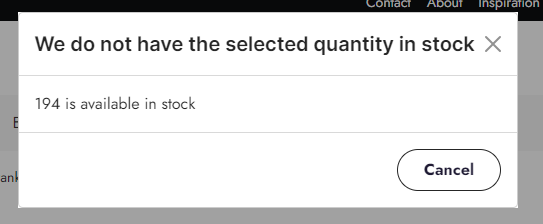
- First take a look at the Bootstrap 5 Modals documentation as we will use a model in this example
- At the bottom of the Swift_ProductAddToCart.cshtml template add a modal:
<div id="cartNotificationModal" class="modal" tabindex="-1">
    <div class="modal-dialog theme light">
        <div class="modal-content">
            <div class="modal-header">
                <h5 class="modal-title">@Translate("We do not have the selected quantity in stock")</h5>
                <button type="button" class="btn-close" data-bs-dismiss="modal" aria-label="Close"></button>
            </div>
            <div id="cartNotificationModalBody" class="modal-body"></div>
            <div class="modal-footer">
                <button type="button" class="btn btn-secondary" data-bs-dismiss="modal">@Translate("Cancel")</button>
            </div>
        </div>
    </div>
</div>
In this scenario we need to pass information about the current stock level to the modal – to do this add a hidden field to the add-to-cart form:
<input type="hidden" name="StockQuantity" value="@product.StockLevel" />
Finally we will update the eventlistener from before to check for quantity exceeding available stock. If the quantity selected by the customer is larger than the available stock, a modal notification is triggered, informing the customer about the limitation:
<script type="text/javascript">
    document.addEventListener("update.swift.cart", function (event) {
        var cartNotification = document.querySelector("#cartNotificationToast");
        var data = Object.fromEntries(event.detail.formData.entries());
        var toast = new bootstrap.Toast(cartNotification);

        if (parseFloat(data.Quantity) > parseFloat(data.StockQuantity)) {
            event.preventDefault();
            var cartNotification = document.querySelector("#cartNotificationModal");
            var modal = new bootstrap.Modal(cartNotification);
            document.querySelector("#cartNotificationModalBody").innerHTML = data.StockQuantity + " " + "@Translate("is available in stock")";
            modal.show();
        }
        else {

                if (data.Quantity == "1") {
                    document.querySelector("#cartNotificationToastHeader").innerHTML = data.Quantity + " " + '@Translate("Product added to cart")';
                } else {
                    document.querySelector("#cartNotificationToastHeader").innerHTML = data.Quantity + " " + '@Translate("Products added to cart")';
                }

                if (data.Thumbnail != "") {
                    document.querySelector("#cartNotificationToast_Image").src = data.Thumbnail;
                }
                document.querySelector("#cartNotificationToast_Text").innerHTML = data.ProductName;
            }

        toast.show();
    });
</script>