The "My Orders" section in the customer center allows users to view all their past orders. This section displays a complete history of the user's orders, tracking the status of each order and indicating whether they are new, in progress, or completed.
Reorder
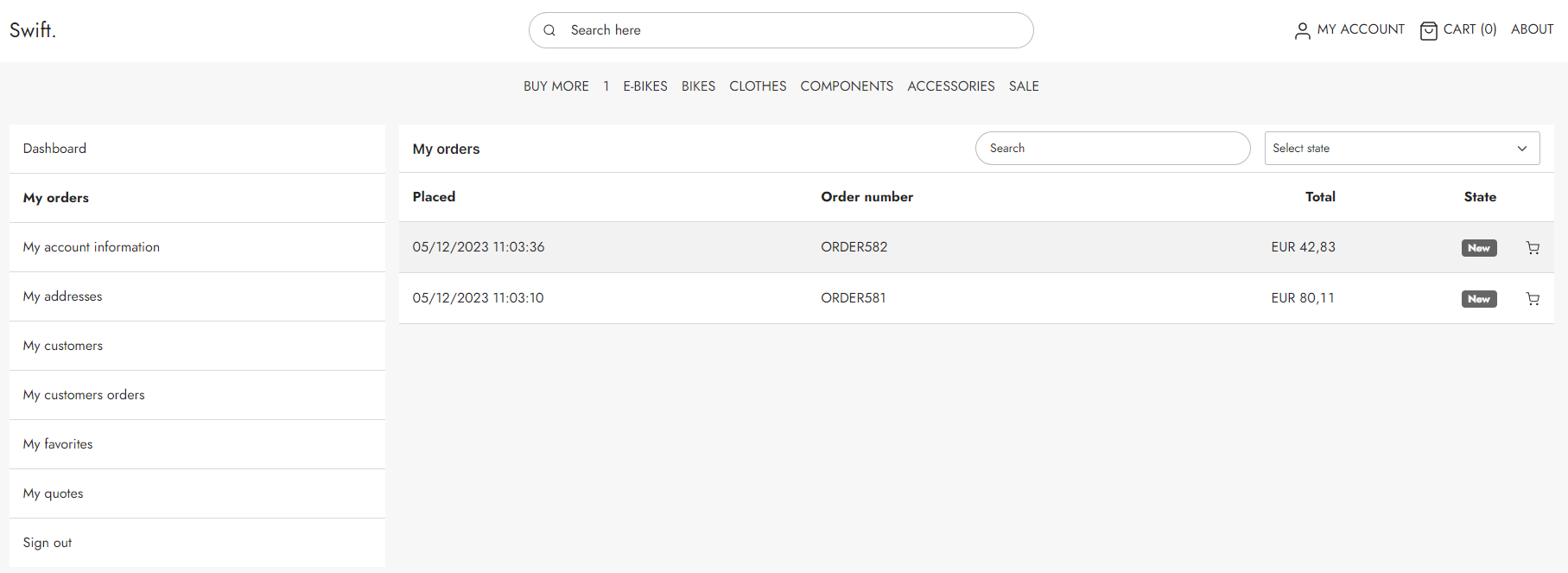
In the My Orders section, users have the ability to Reorder a previous order. This feature is represented by a cart icon located at the far right of the orders table. When users click this icon, the products from the old order will be added to an express buy window. In this window, users will be notified if any of the products are out of stock. Otherwise, the user can add the products to their cart or checkout immediately.
Re-download product assets
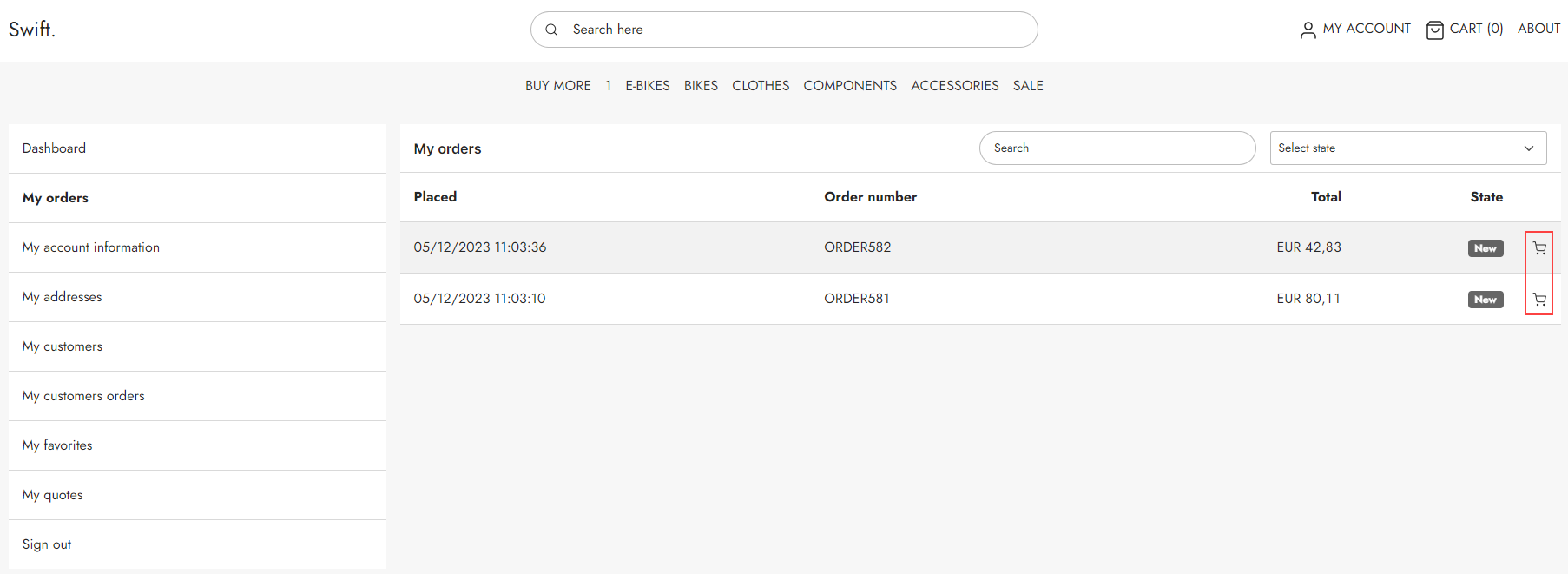
It is possible to quickly download product assets from the My Orders page. When a user is logged in and enters the My Orders page a small download icon will appear to the right of each order. Clicking this will open a download side menu, where the user can download the product assets.
This setting can be enabled or disabled in the app column settings.
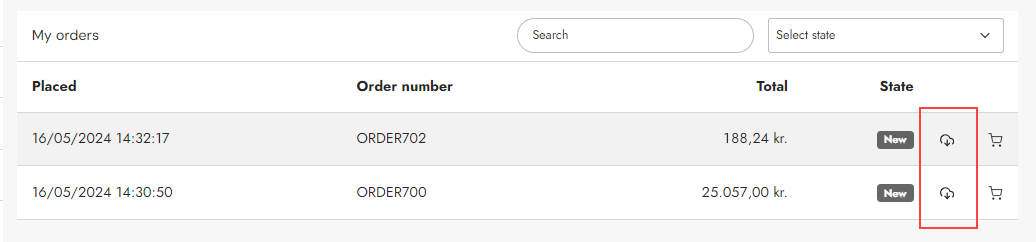
If a user wants to download an order, they have several options to customize their product file:
- Language: Choose the language for the product file
- Format: Select the file format, the options are CSV, XML, or JSON
- Image Resolution: Choose the resolution for the images
- Email: Specify the email address to which the downloads will be sent
A license is needed for this feature to work.
Manual setup
This is a standard built-in feature in Swift. However, if you're interested in manually setting up this page for any reason, you can follow the guide below.
- Add a new one column row
- Add a customer center app to the row and give it a title, e.g. My orders
- Depending on you preferences, check or uncheck the "Show download assets button"
- In the App section, select the "Customer experience center" app
- Select Orders as the order type
- Select how many orders you want displayed per page, e.g. 5
- Select the templates you want to use