Using the Swift B2C demo shop as a template for your own website, you’ll already have a bunch of different preset pages to customize. These can be found in the navigation folder in the content tree. You might be needing other pages or feeling that you have too many. This guide will explain how to either add, remove or hide pages.
In relation to removing pages or creating new ones we've made a guide about publication periods and scheduled publication. The guide for that can be found here.
Making New Folders
Before creating any new pages, please pay attention to the organization of the pages in the content tree. Pages are divided into different folders by their content. Before you create a new page think of the content you want on the page and try matching it with an existing folder in the content tree. If you can’t find any matching folders, you should create a new one to keep everything neat and organized.
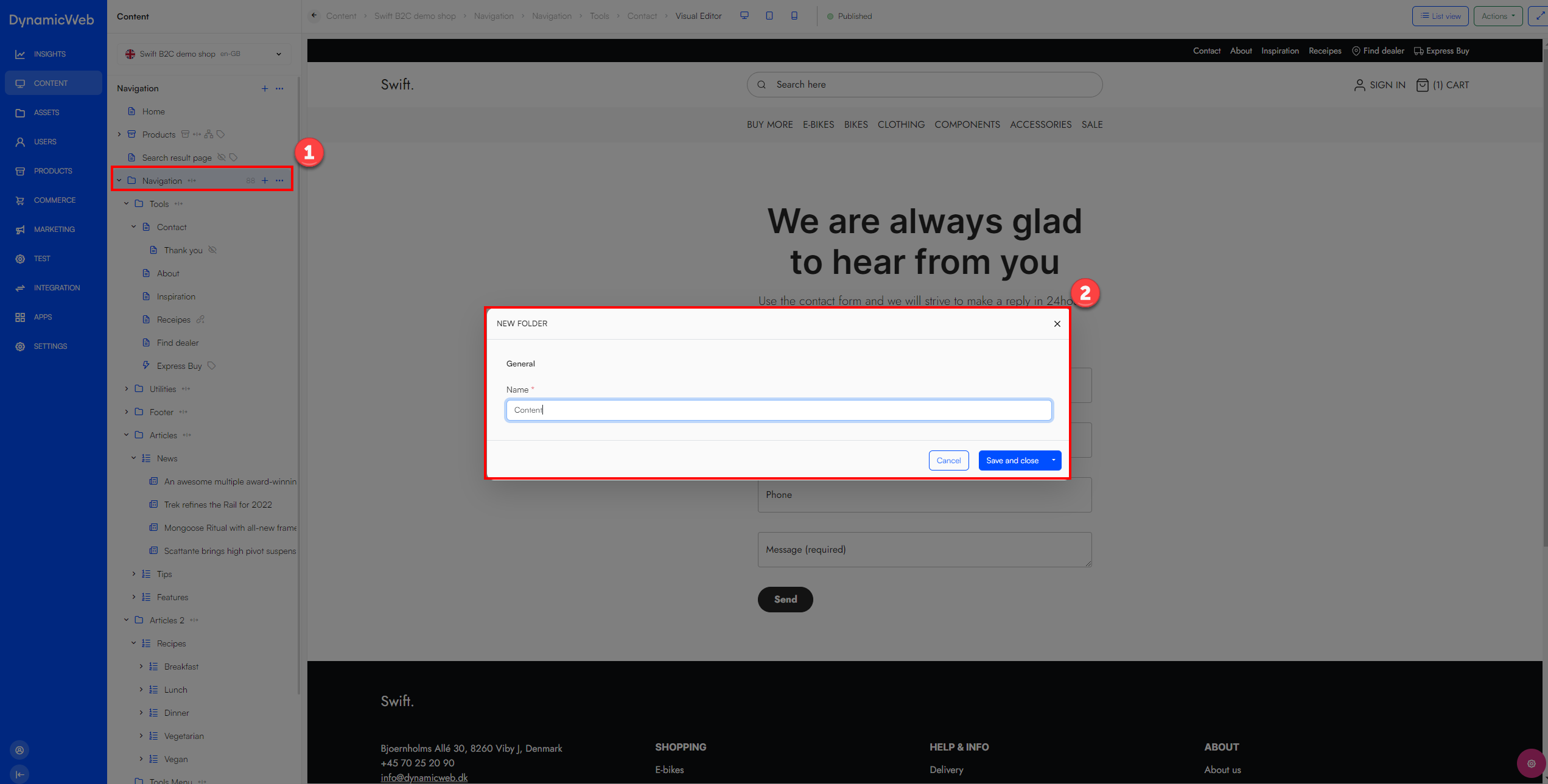
In this example we’ll create a new main folder within the Navigation folder.
- Click the navigation folder.
- Click the three vertical dots on the right (1)
- Click "New folder" and give the folder a descriptive name (2).
Adding Template Pages
Should you want to add a new page, there are two ways to do it. Either you use one of the templates already existing and edit the content or you create an empty page and customize it from scratch.
Both ways are started in the same way:
- First, you’ll need to think of where to place your new page.
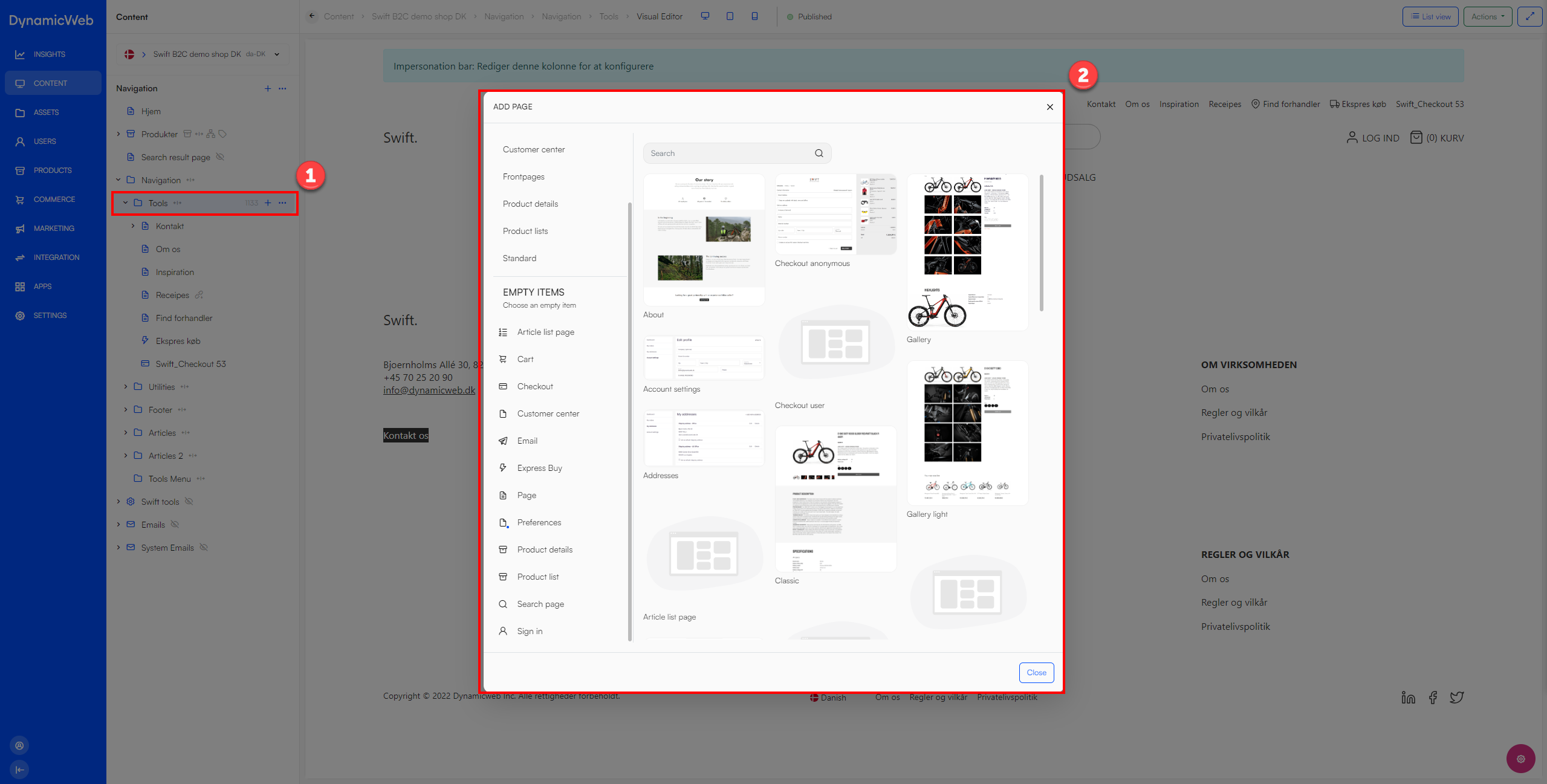
- Navigate to the wanted placement in the content tree and click the preferred folder (1).
- Click the three vertical dots on the right and click “New page”. This will open a list of different templates. The easiest way to set-up a new page would be to choose one of these and edit text and pictures to your liking.
- Choose the template that fits your needs.
Adding Empty Pages
Should you want to create a page from scratch or use the page for redirecting the customer to external pages the beginning steps are similar to the ones above.
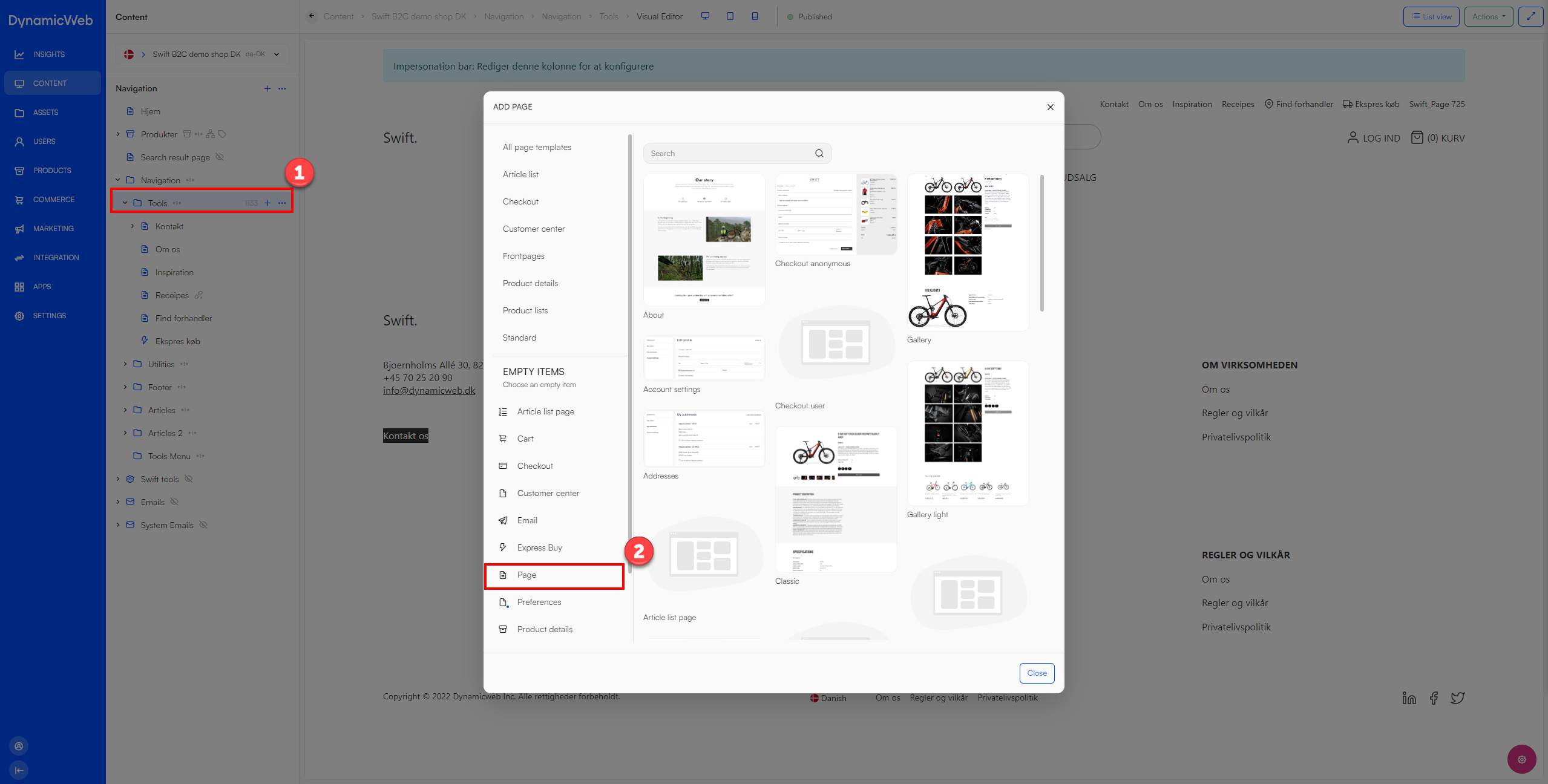
- Click on the wanted placement of the new page in the content tree and click three vertical dots on the right (1).
- Choose Page. (2)
Hiding or deleting Pages
If you’re using the Swift B2C demo shop as a template for your page we’ve tried making the basic pages you should need. However, you could end up needing to hide or delete a page. Maybe you don’t have a LinkedIn page for your company, then naturally it shouldn’t be included in your Social links folder.
If you don’t want a specific page shown on your website (e.g., when using the navigation on your footer) you have two options: delete it or hide it.
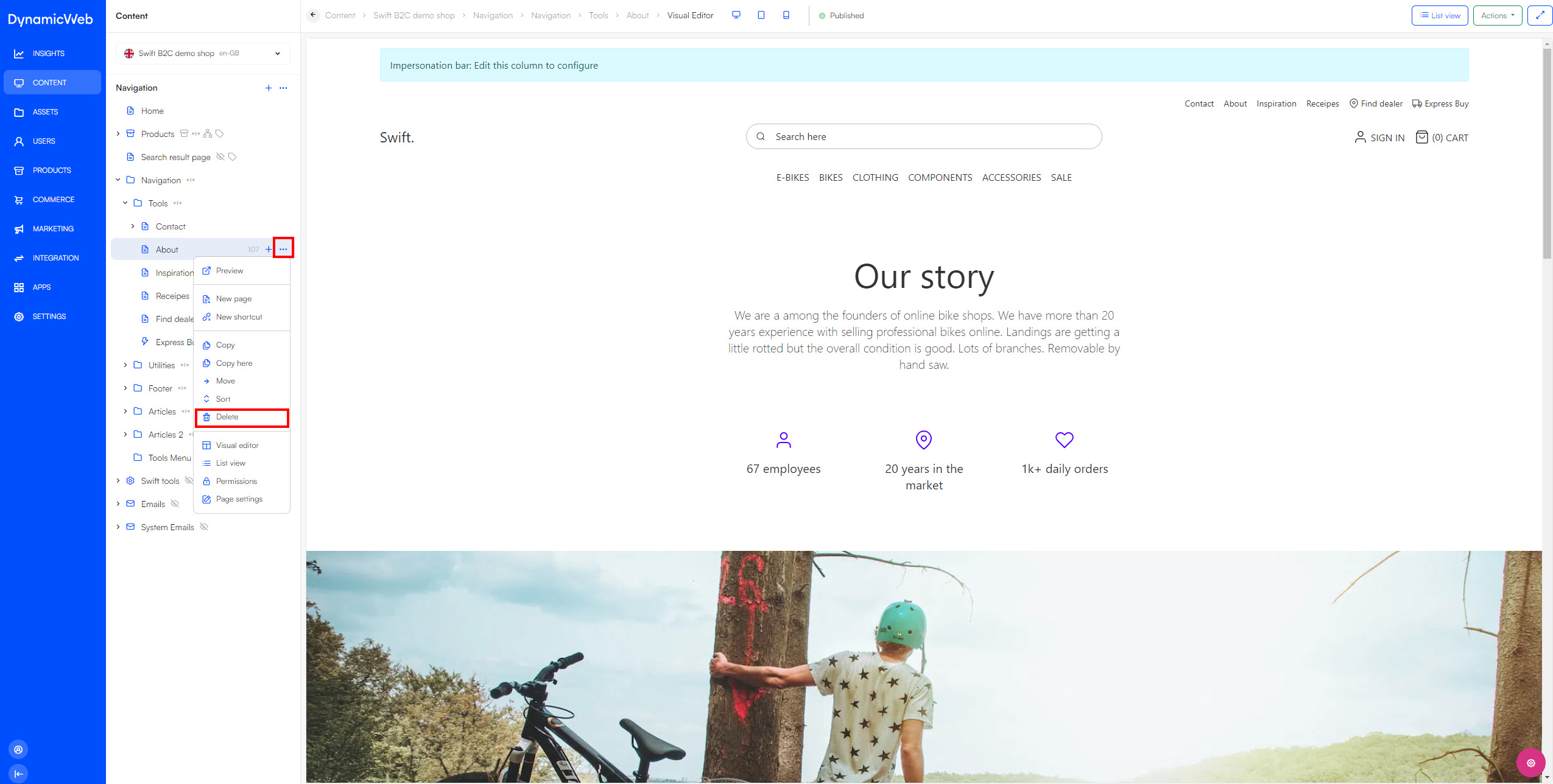
- Deleting the page is easily done. Open the dropdown menu of the unwanted page by hovering it and clicking the three vertical dots appearing. After this click “Delete” and “OK”.
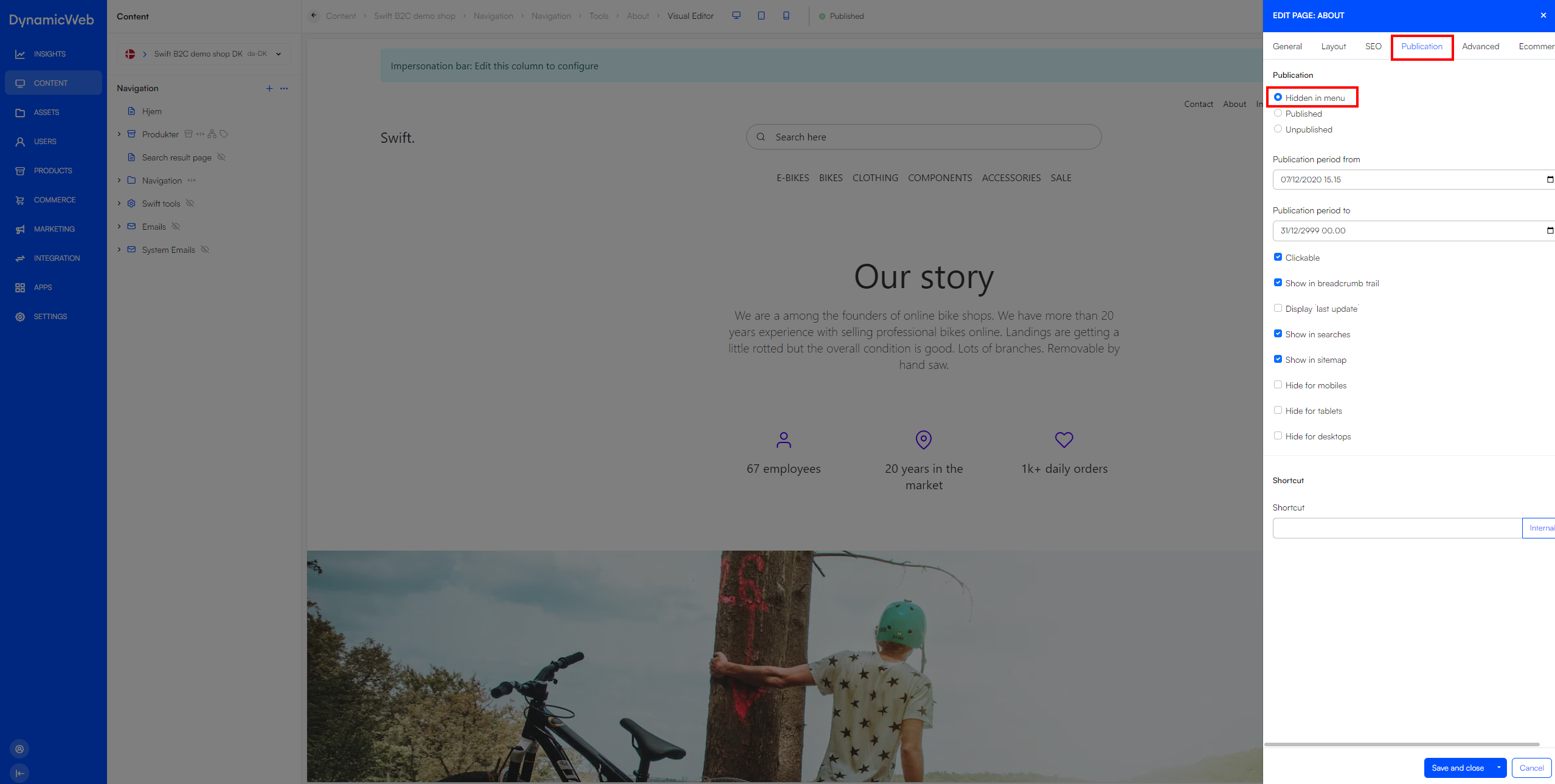
 2. To hide the page, click the pink Edit page button, which is located in the lower right corner and shaped like a circle. This action will open the page editor. Next, navigate to the Publication tab and select Hide in menu.
Renaming a Page
Renaming a page is done in a few simple steps.
- Navigate to the page that needs renaming in the content tree and click on it.
- Click the pink Edit page button, which is located in the lower right corner and shaped like a circle.
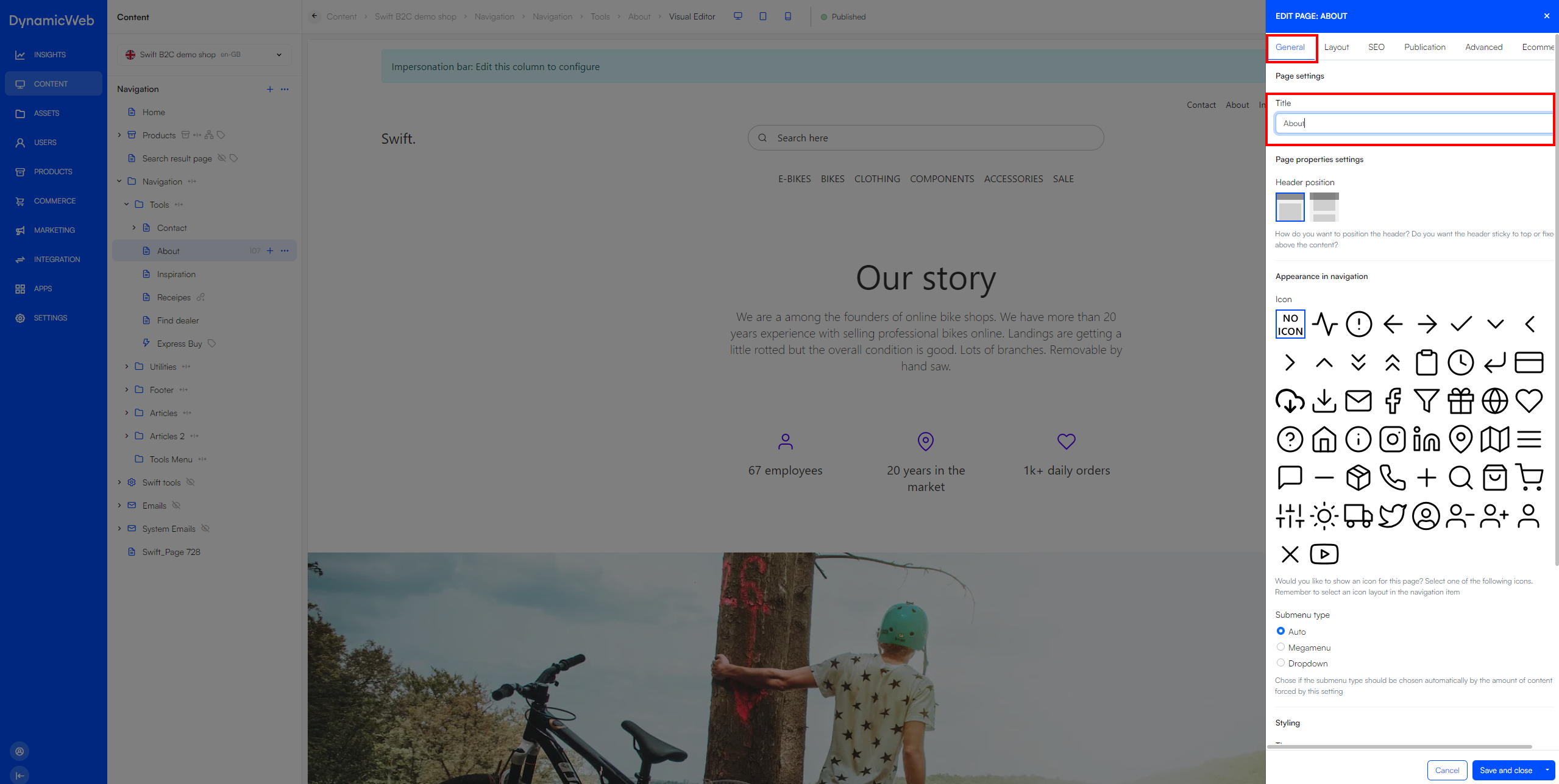
- Under the General tab, change the title of the page and hit Save and close.