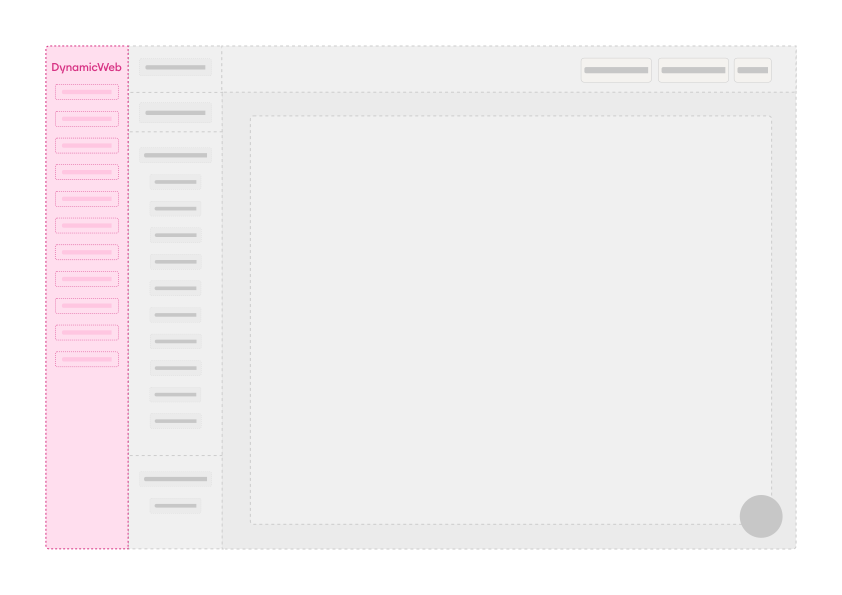
The area list is the visual sidebar in the UI that lists all registered areas. It's the main navigation element in the UI, and is used to navigate between different areas and their respective area trees.
Custom areas
To create a custom area you create a new class in your project and inherit from Dynamicweb.CoreUI.Application.AreaBase. You then implement the constructor and set properties such as Name, Icon, and Sort:
    public sealed class FilesArea : AreaBase
    {
        public FilesArea()
        {
            Name = "Assets";
            Icon = Icon.Folder;
            Sort = 30;
        }
    }
Add it to your solution using the DynamicWeb CLI.
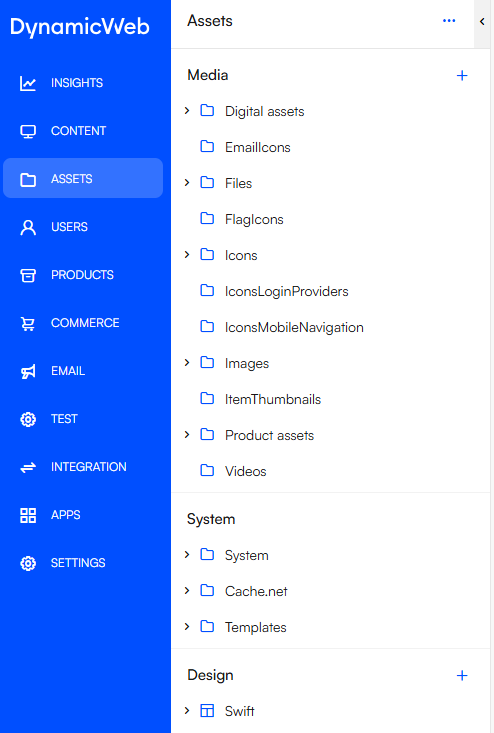
Now you can see your new area has been added to the area list:
You can also add a context menu to the area by implementing the GetContextActions method. Here you can do things like set Permissions for the area.
    private IEnumerable<ActionNode> GetContextActions()
        {
            var permissionSection = GetPermissionSection();

            List<ActionNode> contextActions =
            [
                new()
                {
                    Name = "Permissions",
                    Icon = Icon.Lock,
                    PermissionLevelRequired = PermissionLevel.All,
                    NodeAction = NavigateScreenAction.To<PermissionListScreen>()
                        .With(new PermissionsByIdentifierQuery
                        {
                            Name = permissionSection.GetPermissionName(),
                            Key = permissionSection.GetPermissionKey()
                        }),
                }
            ];

            return contextActions.WithPermission(permissionSection.GetPermission());
        }
Register the context menu in your area's constructor:
    public sealed class FilesArea : AreaBase
    {
        public FilesArea()
        {
            Name = "Assets";
            Icon = Icon.Folder;
            Sort = 30;
            ContextActions.AddRange(GetContextActions());
        }
    }
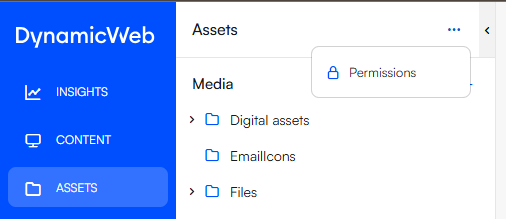
You can now view and manage the permissions for the area from this context menu: