The DynamicWeb 10 interface consists of screens - views where you can see and interact with all the stuff in the solution database. When you're extending a DynamicWeb 10 solution you therefore sometimes need to create custom screens to enable your backend users to see and work with non-standard data.
There are two main approaches to creating custom screens you can take:
- Using an existing ScreenType - you get a lot of stuff for free; functionality, overall look, and so on is handled by us
- Using a custom ScreenType - if our built-in ScreenTypes don't work for you, can create custom ScreenTypes to supplement them - with the added caveat that this means you have to handle everything; functionality, looks, rendering, etc.
For both of these you need to figure out where the data for the Screen should come from, and whether the screen needs to be able to manipulate data and if so - how. In DynamicWeb:
- Data on a screen comes from a query
- Data is manipulated using commands
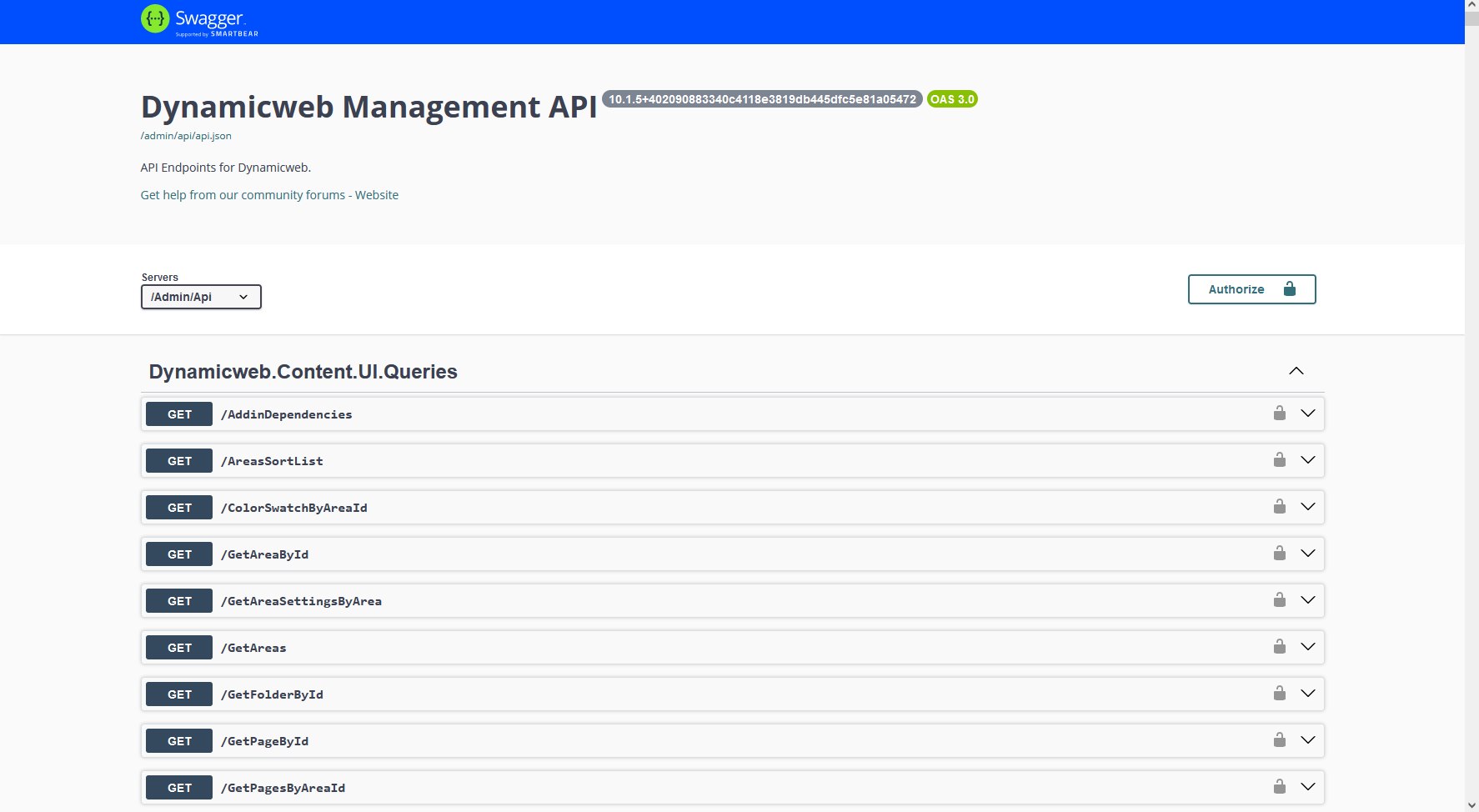
If your custom screen works with standard DynamicWeb 10 data you can use our built-in queries and commands - known as the Management API - you can explore them in detail via the API explorer tool or by appending /admin/api/docs/ to your solution URL and playing around with the Swagger documentation:
However, if your screen needs to work with custom data you need to implement custom queries and possibly custom commands.
Custom queries
Queries are used for fetching data from the domain based on a specific condition, and then transforming that domain model into a DataViewModel.
If you need to implement your own Query, there's two different types of Queries:
- One that returns a single Model
- One that returns a list of Models
A DataViewModel is a representation of a domain model, where the data is optimized for display on Screens. Properties intended for display are marked with the [ConfigurableProperty()] attribute; those without it will not appear. This means the Model is created specifically for use in Screens and Commands, containing only the information that we want to show on these Screens.
The PageDataModel has many properties, but this is a small example of two that have been decorated with the [ConfigurableProperty()] so that they can be displayed on the Screen. The ColorSchemeId property has also been given a label so it will be displayed as "Color scheme" on the Screen, rather than "ColorSchemeId". This is very useful for making your Screen more user-friendly and readable:
public sealed class PageDataModel : DataViewModelBase
{
    [ConfigurableProperty]
    public bool Published { get; }

    [ConfigurableProperty("Color scheme")]
    public string ColorSchemeId { get; set; } = "";

    ...
}
There are two ways to define the mapping between the domain model and the DataViewModel:
- Global mapping - In this case we define the mapping based on the source type (domain model) and the target type (DataViewModel). So as soon as we have defined a mapping from a specific domain model to a specific DataViewModel, we can reuse it throughout the entire system every time we work with these types. This makes it a lot easier to maintain the mapping functionality, because it's the same that is being used everywhere.
- Custom mapping - In some scenarios you need to map some properties on the DataViewModel in a special way when you're working on a specific Query. When that's needed you can just do the mapping manually in the
GetModelfunction on the Query.
Single Model
When you want to implement a Query that only returns a single Model, you need to inherit from the DataQueryModelBase<TModel> class to indicate that this is a Query. When inheriting, you need to define which Model this Query will be returning.
public sealed class PageByNavigationTagQuery : DataQueryModelBase<PageDataModel>
{
    public string NavigationTag { get; set; } = "";

    public override PageDataModel GetModel()
    {
        //Find the page using the domain API
        var page = Dynamicweb.Content.Services.Pages.GetPageByNavigationTag(NavigationTag)

        //Map the page into a PageDataModel
        return MappingService.Map<PageDataModel>(page);
    }
}
List of Models
When you want your Query to return a list of Models, there are two different ways to do it.
The first option is to create a simple Query which just returns an IEnumerable<TModel>. This one doesn't require much code and it's easy to understand. The downside of this option is that you have no context information on the Model about which conditions the Query has used to find the information, which sometimes is needed to show the information on the Screen.
The simple Query is implemented by inheriting from the DataQueryListBase<TModel, TDomainModel>:
public sealed class PagesByParentIdQuery : DataQueryListBase<PageDataModel, Page>
{
    public int ParentId { get; set; }
    protected override IEnumerable<Page> GetListItems()
    {
        return Dynamicweb.Content.Services.Pages.GetPagesByParentID(ParentId);
    }
}
The other option is to define your own specific ListDataModel, and then your Query will return that ListDataModel:
public sealed class SubPagesListDataModel : DataListViewModel<PageDataModel>
{
    public int ParentId { get; set; }
}
Now that we have our ListDataModel, we can implement the Query, which needs to inherit from DataQueryListBase<TModel, TDomainModel, TListModel>:
public sealed class PagesByParentIdQuery : DataQueryListBase<PageDataModel, Page, SubPagesListDataModel>
{
    protected override SubPagesListDataModel MakeListModel() => new()
    {
        ParentId = ParentId,
    };

    protected override IEnumerable<Page> GetListItems()
    {
        return Dynamicweb.Content.Services.Pages.GetPagesByParentID(ParentId);
    }
}
Custom commands
Commands are actions that are handled on the server. These can be used to manipulate data e.g. save or delete a Page. A Command will typically receive a Model or some other information that can be used to identify the entity we want to manipulate. The Command will then interact with the domain to make sure that the data is persisted in the database.
There are two kinds of Commands that can be implemented:
- Command with a Model
- Command without a Model
Command with Model
A Command with a Model is only used for saving data on an EditScreen. You set the Model type when you implement the Command.
When the Command is being called, the Model will contain the information that has been posted to it by the EditScreen. That way you will have access to all the information which can then be transformed into a domain model and persisted in the database.
To implement a Command with a Model you need to inherit from CommandBase<TModel>, where TModel defines which Model this Command will be working on.
public sealed class FolderSaveCommand : CommandBase<FolderModel>
{
    public override CommandResult Handle()
    {
        //Getting the Model from the Command
        var model = GetModel();

        //Fetching the model from the domain, if we have a valid ID, otherwise we will create a new Page
        var folder = model.Id == 0 ? new Page(model.AreaId, model.ParentId) : Services.Pages.GetPage(model.Id);

        //Check permission level
        var level = model.Id == 0 ? PermissionLevel.Create : PermissionLevel.Edit;
        folder.ValidatePermission(level);

        //Mapping the values from the Model to the domain model
        folder.IsFolder = true;
        folder.MenuText = model.Name;
        folder.ActiveFrom = DateTime.Now;
        folder.Active = true;
        folder.Allowsearch = false;
        folder.Allowclick = false;
        folder.ShowInSitemap = false;
        folder.ShowInLegend = false;
        folder.ShowUpdateDate = false;
        folder.UrlIgnoreForChildren = true;
        folder.HideForPhones = true;
        folder.HideForTablets = true;
        folder.HideForDesktops = true;

        //Saving the domain model
        Services.Pages.SavePage(folder);

        //Return a result for indicating that the Command executed successfully
        return new CommandResult
        {
            Model = model,
            Status = CommandResult.ResultType.Ok
        };
    }
}
Command without Model
For all other Commands you just need to inherit from CommandBase without any generic arguments. When we are working with a Command without a Model, we have no information about the entity we are working on. So this kind of Command would need to have some properties that can contain an identifier for the entity we want to manipulate.
public sealed class AreaDeleteCommand : CommandBase
{
    public int Id { get; set; }

    public override CommandResult Handle()
    {
        //Find the domain model matching the given Id
        var area = Services.Areas.GetArea(Id);

        //Check if the user has permissions to do the action
        area.ValidatePermission(PermissionLevel.Delete);

        //Delete the area
        var response = Services.Areas.DeleteArea(Id);

        //Return a result for indicating that the Command executed successfully
        var result = new CommandResult
        {
            Status = response.Succeeded ? CommandResult.ResultType.Ok : CommandResult.ResultType.Error,
            Message = response.Succeeded ? "" : response.Message
        };

        return result;
    }
}
Screen injectors
Screen injectors let you modify any existing administration screen — without subclassing it. You can add, remove, or replace information, actions, editors, columns, and other UI components on screens that ship with Dynamicweb or that are provided by other add-ins.
Injectors are discovered automatically by the AddInManager. Create a class, inherit from the appropriate base, and your changes are applied the next time the screen renders — no registration required.
How it works
Every screen follows this lifecycle when it renders:
- OnBefore — all injectors for the screen type are called. The screen instance and its
Modelare available, but the layout has not been built yet. - GetDefinitionInternal — the screen builds its layout (form, list, overview widgets, infobar, actions, etc.).
- OnAfter — all injectors are called again, now receiving the fully built
UiComponentBase content. You can traverse, modify, or replace any part of it.
Injector base classes
Dynamicweb provides three injector base classes, each tailored to a screen category.
ScreenInjector<T>
The general-purpose base class. Use it when you need direct access to the rendered content tree — for example to modify an overview screen's infobar or collapse a form group.
public abstract class ScreenInjector<T> where T : ScreenBase
{
    public T? Screen { get; }
    public virtual void OnBefore(T screen) { }
    public virtual void OnAfter(T screen, UiComponentBase content) { }
}
EditScreenInjector<TScreen, TModel>
Specialized for edit screens. Adds a builder-based API to insert editors and form sections, and a hook to override the editor used for a specific property.
public abstract class EditScreenInjector<TScreen, TModel>
    : ScreenInjector<TScreen>
    where TScreen : EditScreenBase<TModel>, new()
    where TModel  : DataViewModelBase, new()
{
    public virtual void OnBuildEditScreen(
        EditScreenBase<TModel>.EditScreenBuilder builder) { }

    public virtual EditorBase? GetEditor(
        string propertyName, TModel? model) => null;

    public virtual IEnumerable<ActionGroup>? GetScreenActions() => null;
}
ListScreenInjector<TScreen, TRowModel>
Specialized for list screens. Lets you customize cell rendering, add toolbar actions, and add per-row context menu actions.
public abstract class ListScreenInjector<TScreen, TRowModel>
    : ScreenInjector<TScreen>
    where TScreen    : ListScreenBase<DataListViewModel<TRowModel>, TRowModel>
    where TRowModel  : DataViewModelBase
{
    public virtual Cell? GetCell(
        string propertyName, TRowModel model) => null;

    public virtual IEnumerable<ActionGroup>? GetScreenActions() => null;

    public virtual IEnumerable<ActionGroup>? GetListItemActions(
        TRowModel model) => null;
}
Examples
Modifying the infobar on an overview screen
Overview screens display an InfoBar at the top with key-value information, an optional image, append-components (badges, progress bars), and a primary action. You can modify every part of it.
The InfoBar has this structure:
| Property | Type | Description |
|---|---|---|
Image |
Image? |
Thumbnail shown on the left |
Icon |
Icon? |
Icon shown when no image is set |
Information |
Dictionary<string, InfoValue>? |
Key-value rows displayed in the bar |
AppendComponents |
List<UiComponentBase> |
Additional components (badges, progress, alerts) |
PrimaryAction |
ActionBase? |
Action triggered when clicking the bar |
InfoValue accepts several types through its constructors:
| Type | Rendering |
|---|---|
string |
Plain text |
DateTime |
Formatted date |
bool |
Checkmark or cross icon |
DisplayBase |
Any UI component |
(string, ActionBase) |
Text with a clickable action |
The following injector removes two default rows, adds four custom ones using different value types, modifies an existing row, changes the primary action, adds an alert component, and removes the progress bar:
using Dynamicweb.CoreUI.Screens;
using Dynamicweb.CoreUI.Layout;
using Dynamicweb.CoreUI.Displays.Information;
using Dynamicweb.CoreUI.Displays.Widgets;
using Dynamicweb.Products.UI.Screens;

public sealed class CustomProductInfoBarInjector
    : ScreenInjector<ProductOverviewScreen>
{
    public override void OnAfter(
        ProductOverviewScreen screen, UiComponentBase content)
    {
        if (!content.TryGet<ScreenLayout>(out var layout))
            return;

        var infoBar = layout.InfoBar;
        if (infoBar is null)
            return;

        // Remove rows by key
        infoBar.Information?.Remove("Variants");
        infoBar.Information?.Remove("Number");

        // Add a string value
        infoBar.Information?.Add("Brand", new InfoValue("Acme Corp"));

        // Add a DateTime value
        infoBar.Information?.Add("Created",
            new InfoValue(screen.Model?.CreatedAt));

        // Add a bool value — renders as checkmark or cross
        infoBar.Information?.Add("Active",
            new InfoValue(screen.Model?.Active ?? false));

        // Add a string with a navigation action
        infoBar.Information?.Add("Category", new InfoValue(
            "Electronics",
            NavigateScreenAction.To<CategoryOverviewScreen>()
                .With(new CategoryByIdQuery { Id = 42 })));

        // Overwrite an existing row
        if (infoBar.Information is not null)
        {
            infoBar.Information["Name"] =
                new InfoValue($"Custom: {screen.Model?.Name}");
        }

        // Change the primary action
        infoBar.PrimaryAction =
            NavigateScreenAction.To<ProductEditScreen>()
                .With(new ProductByIdQuery { Id = screen.Model?.Id });

        // Append an alert component
        infoBar.AppendComponents.Add(new Alert
        {
            Text = "This product needs review",
            Type = AlertType.Warning
        });

        // Remove the completeness progress bar
        infoBar.AppendComponents.RemoveAll(
            c => c is ProgressDisplay);
    }
}
Note
You can also replace the infobar entirely by assigning a new instance to layout.InfoBar.
Adding fields to an edit screen
Use EditScreenInjector to add editors to an existing edit form. The builder places your components inside a named tab and group.
public sealed class CustomUserFieldsInjector
    : EditScreenInjector<UserEditScreen, UserDataModel>
{
    public override void OnBuildEditScreen(
        EditScreenBase<UserDataModel>.EditScreenBuilder builder)
    {
        builder.AddComponents("Commerce", "Settings", new[]
        {
            builder.EditorFor(m => m.CustomerNumber),
            builder.EditorFor(m => m.ShopId),
            builder.EditorFor(m => m.Currency),
        });
    }

    public override EditorBase? GetEditor(
        string propertyName, UserDataModel? model)
    {
        return propertyName switch
        {
            nameof(model.ShopId) =>
                EditorHelper.GetShopEditor(new[] { ShopType.Shop }),
            nameof(model.Currency) =>
                EditorHelper.GetCurrencyEditor(),
            _ => null
        };
    }
}
Customizing cell rendering on a list screen
Use ListScreenInjector to change how specific columns render, and to add actions to the list toolbar or individual rows.
public sealed class CustomAreaListInjector
    : ListScreenInjector<AreaListScreen, AreaDataModel>
{
    public override Cell? GetCell(
        string propertyName, AreaDataModel model)
    {
        return propertyName switch
        {
            nameof(AreaDataModel.EcomCountryCode) =>
                Cell.MakeCell(new TextBlock
                {
                    Value = GetCountryName(model.EcomCountryCode)
                }),
            _ => null
        };
    }

    public override IEnumerable<ActionGroup>? GetListItemActions(
        AreaDataModel model)
    {
        return new List<ActionGroup>
        {
            new()
            {
                Nodes =
                [
                    new ActionNode("View details", Icon.Eye,
                        NavigateScreenAction.To<AreaOverviewScreen>()
                            .With(new AreaByIdQuery
                                { Id = model.Id }))
                ]
            }
        };
    }

    private static string? GetCountryName(string? code)
    {
        if (string.IsNullOrEmpty(code))
            return null;
        var country = Ecommerce.Services.Countries
            .GetCountry(code);
        return country?.GetName(
            Ecommerce.Services.Languages
                .GetDefaultLanguageId());
    }
}
Manipulating form structure in OnAfter
When the specialized hooks are not enough, use OnAfter to walk the rendered component tree directly. This example collapses a form group by default:
public sealed class CollapseAdvancedGroupInjector
    : ScreenInjector<DiscountEditScreen>
{
    public override void OnAfter(
        DiscountEditScreen screen, UiComponentBase content)
    {
        if (content is not ScreenLayout layout
            || layout.Root is not Form form
            || form.Content is not TabContainer tabContainer)
            return;

        var groups = tabContainer.Tabs
            .SelectMany(t => t.Section.Groups);

        foreach (var group in groups)
        {
            if (string.Equals(group.Name, "Advanced",
                    StringComparison.OrdinalIgnoreCase))
            {
                group.Collapsed = true;
            }
        }
    }
}
Reordering data in OnBefore
OnBefore runs before the screen builds its layout. Use it to preprocess or reorder the data model:
public sealed class SortOrderLinesInjector
    : ListScreenInjector<OrderLineListScreen,
        OrderLineListDataModel, OrderLineDataModel>
{
    public override void OnBefore(OrderLineListScreen screen)
    {
        if (screen.Model?.Data is null)
            return;

        // Ensure parent order lines appear before their children
        screen.Model.Data = screen.Model.Data
            .OrderBy(line => line.ParentLineId ?? line.Id)
            .ThenBy(line => line.ParentLineId is null ? 0 : 1)
            .ToList();
    }
}
Navigating the content tree
In OnAfter, the content parameter is typically a ScreenLayout. Use the extension methods on UiComponentBase to find components within the tree:
| Method | Returns | Use case |
|---|---|---|
content.TryGet<T>(out var result) |
bool |
Guard clause — find the first component of type T |
content.Get<T>() |
T? |
Get first match or null |
content.Get<T>(predicate) |
T? |
First match satisfying a condition |
content.GetAll<T>() |
IReadOnlyCollection<T> |
All matches in the tree |
content.Has<T>() |
bool |
Check existence without retrieving |
Common traversal starting points:
ScreenLayout
├── InfoBar          → layout.InfoBar
├── Alert            → layout.Alert
├── Actions          → layout.Actions / layout.ContextActionGroups
└── Root             → layout.Root
    ├── Form         → layout.Root as Form
    │   └── TabContainer → form.Content as TabContainer
    │       └── Tab[] → tabContainer.Tabs
    │           └── Section → tab.Section
    │               └── Group[] → section.Groups
    └── List / other component types
Things to keep in mind
- Discovery is automatic. Your injector class is found by
AddInManagerthrough assembly scanning. Make sure your assembly is loaded — no manual registration is needed. - Multiple injectors can target the same screen. They all run in sequence. Do not assume your injector is the only one modifying the content.
- OnBefore has no layout. The
ScreenLayout,InfoBar, and other UI components do not exist yet duringOnBefore. Use it for data preparation only. - OnAfter content is mutable. The
UiComponentBasepassed toOnAfteris the live instance. Changes you make are reflected in the rendered screen. - Null-safety matters. Always check for
null— the screen may not have a model, the layout may not have an infobar, andInformationdictionary keys may not exist. - Dictionary keys are the display labels. When removing or overwriting entries in
InfoBar.Information, the keys are the labels shown in the UI (e.g.,"Name","Number","Variants").