DynamicWeb 10 allows you to configure Google as an external authentication provider. Instead of using DynamicWeb-managed usernames and passwords, users can sign in with their Google accounts.
This integration is useful for both B2B (corporate GSuite/Workspace users) and B2C (personal Gmail accounts), depending on your portal scenario.
It works like this:
- User clicks Login with Google in DynamicWeb.
- DynamicWeb redirects them to Google’s login page.
- Google authenticates the user and issues an ID token.
- DynamicWeb validates the token and extracts Name and Email claims.
- If the email matches an existing DynamicWeb user, the login succeeds. Otherwise, access is denied unless provisioning logic is implemented.
Tip
Some best-practice tips to start you off:
- Always use HTTPS for redirect URIs
- Use Internal OAuth consent type if the portal is only for Workspace users in your organization (B2B)
- Use External consent type if the portal is public-facing (B2C)
- Limit the OAuth scopes to openid and email unless more are required
Create a Project in Google Cloud Console
In order to set up an authentication connection between Google and a DynamicWeb 10 solution you need to retrieve a client ID and a Client Secret. This done via the Google Cloud Console.
First create an app:
- Log into the Google Cloud Console
- From the top navigation, select or create a new project
- Go to APIs & Services → OAuth consent screen
- Click Get started and fill out the app information:
- App name
- User support email
- Audience - choose External if you want to allow any Google account, or Internal if only Workspace users in your domain should log in
- Contact information
- Agree to the Google API services user data policy
- Click Create
Then generate an Oauth Client ID:
- Navigate to APIs & Services → Credentials
- Click Create Credentials → OAuth client ID:
- Application type: Web application
- Name: YourName
- Under Authorized redirect URIs click Add URI and enter e.g.
https://yourdomain.com/signin-google - Click Create
- Save and copy the Client ID and Client Secret
The redirect URI must match the Provider Scheme you configure in DynamicWeb (signin-{scheme}), the default value for google is signin-google.
Configure Google Provider in DynamicWeb
- Log in to the administration interface of the DynamicWeb solution
- Open Settings > Areas > Users > External Authentication
- Click New Provider and fill in the basic settings:
- Name
- Active state
- Provider restrictions (None/Backend only/Frontend only)
- Icon
- Select the Google provider to see the provider-specific configuration fields:
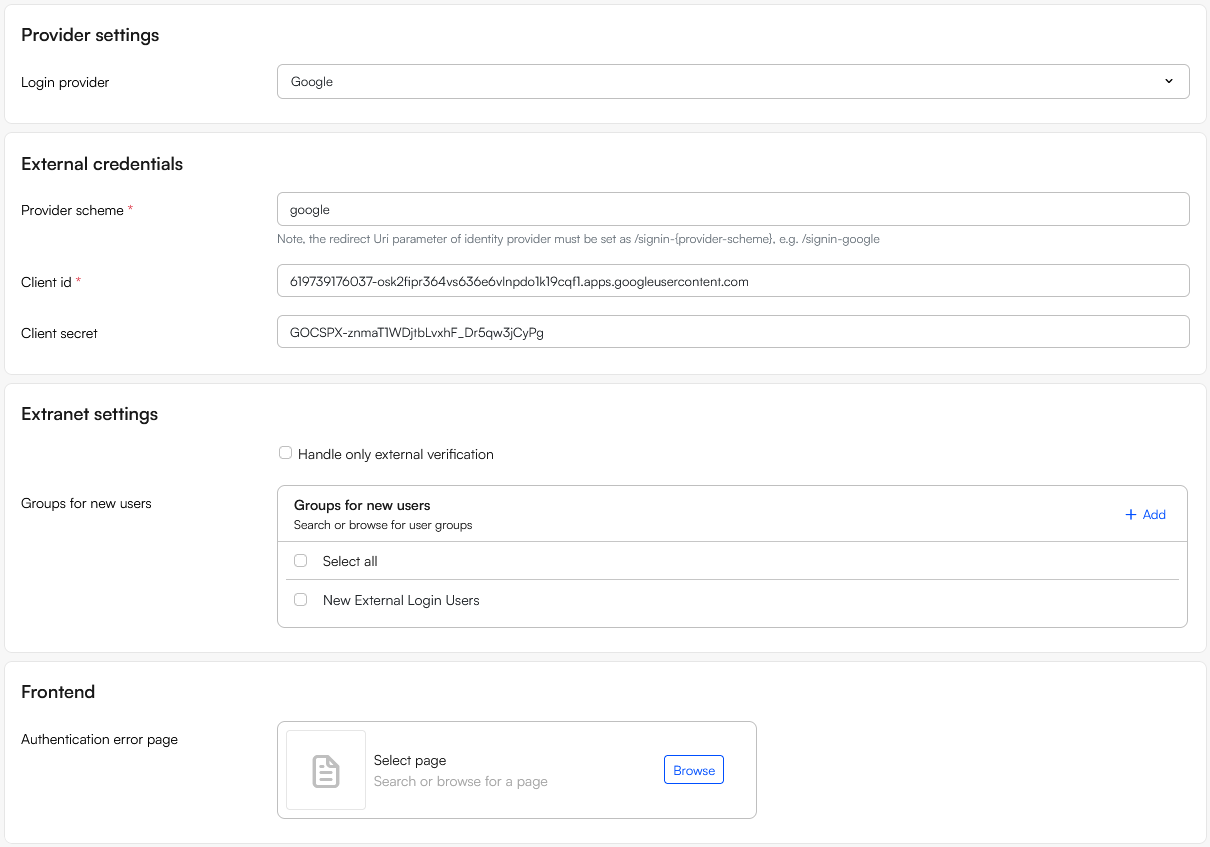
- Fill in:
- Provider Scheme:
google(must match your redirect URI) - Client ID: from Google Cloud Console
- Client Secret: from Google Cloud Console
- Provider Scheme:
- Use the Extranet settings to handle unknown users without an account in DW with an email matching the email on the Entra-account:
- If Handle only external authentication is checked login fails
- If Handle only external authentication is not checked, login succeeds and a user is created in the user group(s) selected under Groups for new users. This can be used to control which permissions a newly created user will have
- In the Frontend section select an Authentication error page to redirect users to if login fails
Note
DynamicWeb automatically applies the required OpenID Connect configuration for Google:
- Authority:
https://accounts.google.com - Callback Path:
/signin-google - Response Type:
code(Google requires Authorization Code flow) - Scopes:
openid,email(ensures user’s email is available)
DynamicWeb also enriches the claims so the Name is mapped consistently across providers.
Step 3: Testing the Integration
To test the integration:
- Go to your DynamicWeb login page.
- Click Login with Google.
- You’ll be redirected to Google’s login screen.
- After authenticating:
- If the user’s email matches a DynamicWeb user → login succeeds.
- If no match exists → access is denied (unless you add provisioning logic).
On failed authentication, users are redirected to your Error Page (if configured) or the default backend login with an error message. Errors are logged in DynamicWeb Security logs, tied to the Google provider scheme.