DynamicWeb 10 allows you to use Microsoft Entra (Azure Active Directory) as an external authentication provider. This replaces traditional username/password logins with secure Single Sign-On (SSO) managed by Microsoft.
With this integration, users authenticate through Entra, and DynamicWeb signs them in via token validation, ensuring a secure and seamless login flow.
It works like this:
- User clicks Login with Microsoft Entra in DynamicWeb
- DynamicWeb redirects the user to the Microsoft Entra login page
- User authenticates with their Entra credentials
- Microsoft issues an ID token back to DynamicWeb
- DynamicWeb extracts key claims (email, name) and matches them to a local user
- If a matching user is found, login succeeds. If not, access is denied unless provisioning logic is added
Using this setup, DynamicWeb never stores or processes the user’s password — authentication is delegated fully to Microsoft Entra.
Tip
Some best-practice tips to start you off:
- Always use HTTPS for all redirect URIs
- Use Single tenant for backend/admin authentication to lock down access
- Use Multitenant or Multitenant + MSA for ecommerce portals depending on B2B/B2C needs
- Apply additional conditional access and MFA policies in Microsoft Entra for enhanced security
Register an app in MS Entra
First you need to register an App in Microsoft Entra and collect the application credentials:
- Go to the Microsoft Entra admin center
- Navigate to Entra ID → App registrations and click New registration
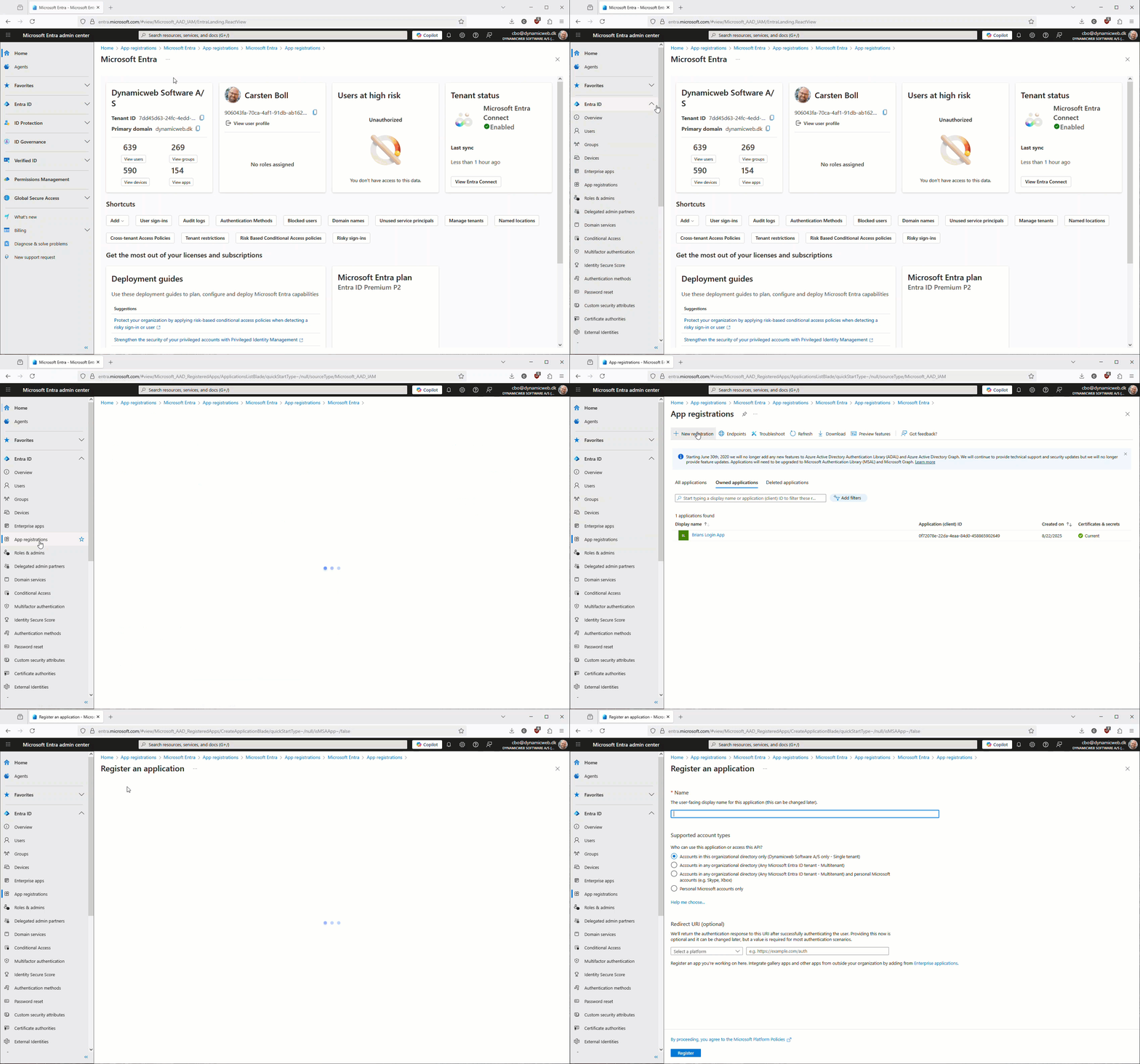
- Fill in:
- Name: e.g. DynamicWeb Login
- Supported account types: choose based on your scenario (explained in detail below)
- Redirect URI:
https://yourdomain.com/signin-msentra
Replace yourdomain.com with your DynamicWeb domain. The suffix (signin-msentra) must match the Provider Scheme in DynamicWeb, more on that later.
Supported account types
During registration, Microsoft Entra requires you to choose Supported account types which defines who can log in via your app:
| Option | Description | B2B/B2C Context | DynamicWeb Recommendations |
|---|---|---|---|
| Accounts in this organizational directory only (Single tenant) | Only users and guests from your own tenant. | Pure B2B internal (staff only). | Best for backend admin logins or intranets. Keeps access restricted to employees. |
| Accounts in any organizational directory (Multitenant) | Users from any Azure AD tenant. | B2B cross-organization (partners, suppliers). | Best for B2B ecommerce portals where external companies need secure access. |
| Accounts in any organizational directory and personal Microsoft accounts (Multitenant + MSA) | Both work/school accounts and personal Microsoft accounts. | Mixed B2B + B2C. | Best for customer-facing ecommerce or hybrid portals (corporate buyers + consumers). |
In a DynamicWeb context you would typically choose the following:
- Backend admin login > Single tenant
- Pure B2B portal > Multitenant
- Hybrid B2B2C or B2C ecommerce > Multitenant + personal accounts
Collect app credentials
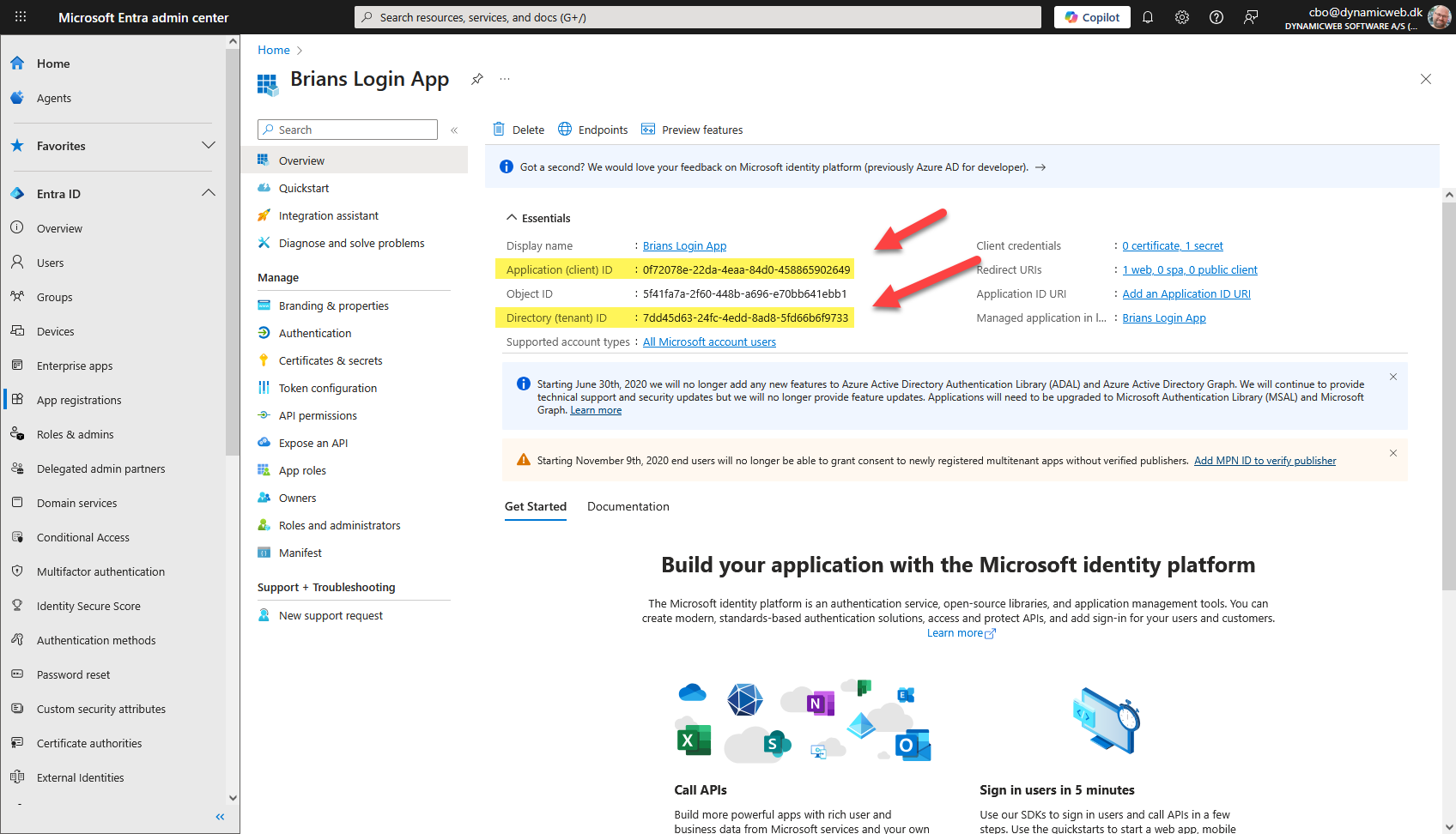
From the registered app in Entra copy the Application (client) ID and the Directory (tenant) ID:
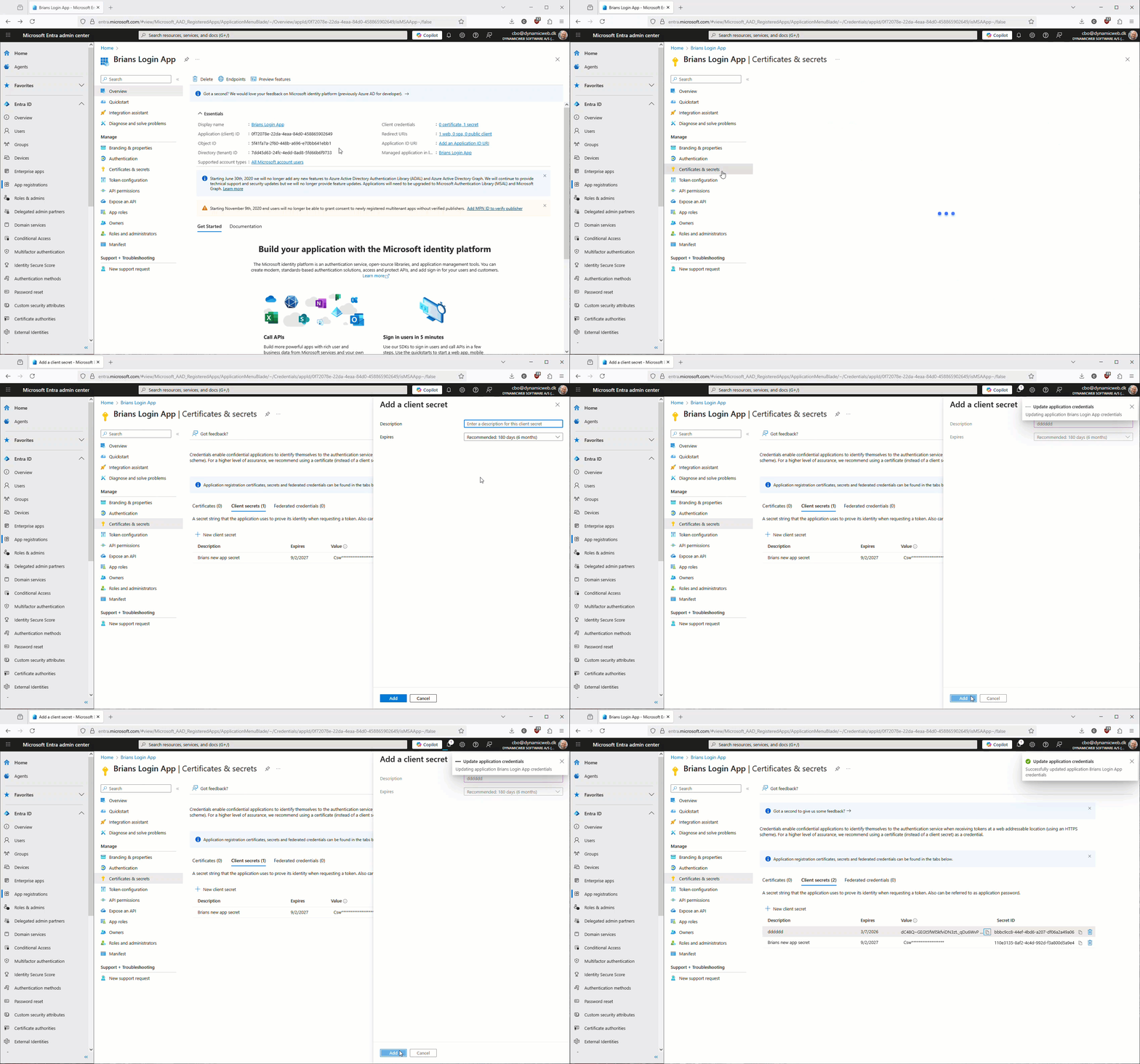
Then, under Certificates & secrets, create a new Client secret and copy its Value:
Enable ID tokens (required)
DynamicWeb uses the OpenID Connect implicit flow with id_token. For this to work, the application must be explicitly configured to issue ID tokens:
- In the app registration, go to Authentication
- Under Web and SPA settings
- Enable ID tokens (used for implicit and hybrid flows)
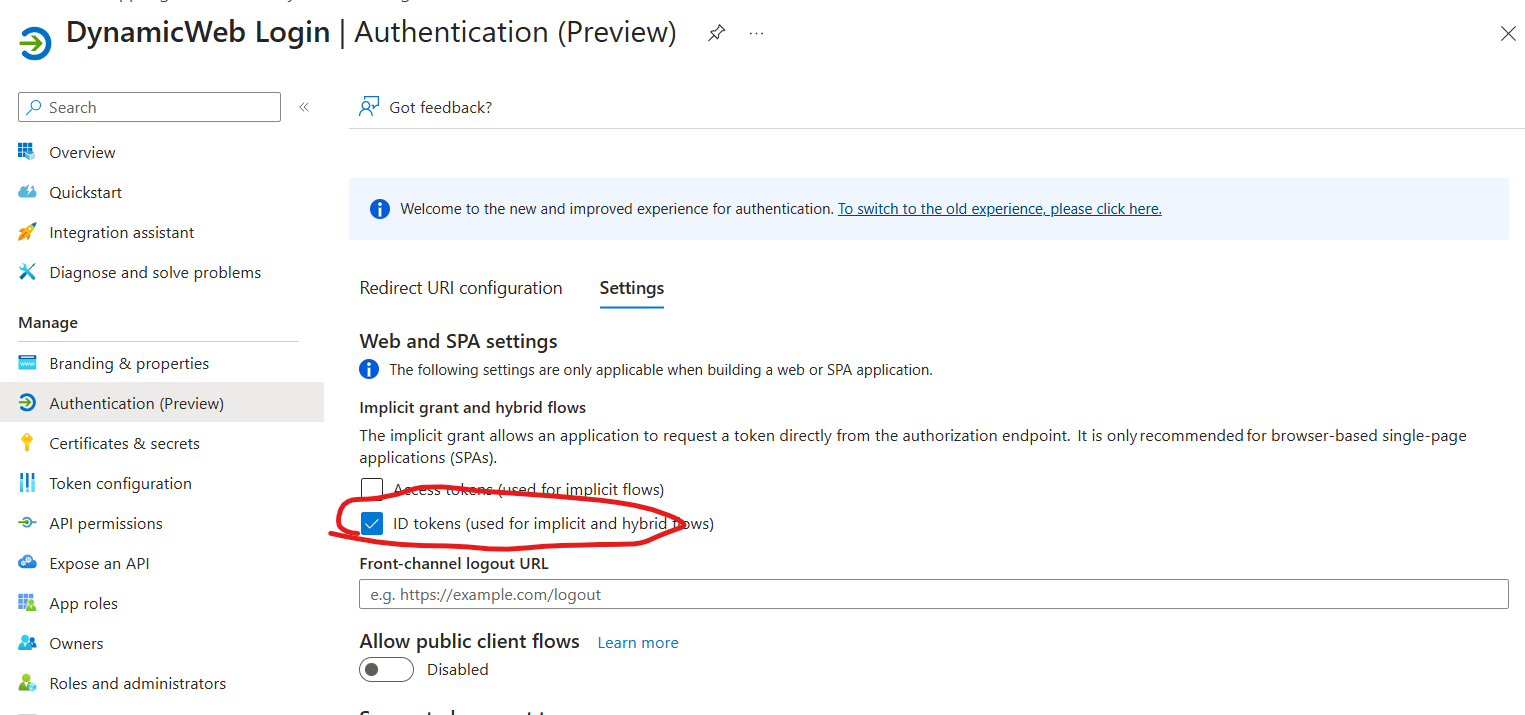
- Save the changes
If ID tokens are not enabled, login will fail with an error similar to:
error: unsupported_response_type
error_description: AADSTS700054: response_type 'id_token' is not enabled for the application
Recommended tenant configuration
While still in the app registration, we recommend the following additional setup to ensure reliable user matching and a smooth login experience.
Token configuration (claims)
Under Token configuration, add the following Optional claims to the ID token:
emailpreferred_usernamenameupnif applicable
DynamicWeb uses the email address to match the authenticated user to a local user account. Depending on account type (member, guest, multitenant), Entra may emit the email in different claims — adding these ensures compatibility across scenarios.
Email claim normalization
DynamicWeb uses the email address from the authentication token to match the external user to a local user account.
Microsoft Entra does not always emit the same claim for the user's email address. Depending on account type and tenant configuration, the email may appear in different claims.
To handle this consistently, DynamicWeb applies the following normalization logic during authentication:
- If an Email claim already exists, it is used as-is
- If not, DynamicWeb attempts to resolve an email value from common Entra claims in this order:
email– explicit email claim (preferred when available)preferred_username– commonly used for sign-in and often contains the email addressupn– user principal name (typical for work/school accounts)
- If a non-empty value is found, it is added as a standard Email claim
This ensures that:
- Authentication works consistently across single-tenant, multi-tenant, and guest scenarios
- Users can be reliably matched using their email address, even when Entra emits different claim types
- No tenant-specific claim mapping is required in most cases
If none of the above claims are present, the user cannot be matched and the login will fail, which typically indicates missing token configuration in Microsoft Entra.
Redirect URIs
Ensure the redirect URI matches the provider scheme used in DynamicWeb:
https://yourdomain.com/signin-msentra
All redirect URIs must use HTTPS.
Configure a login provider in DynamicWeb
With the credentials saved it's time to set up the login provider in DynamicWeb:
- Log in to the administration interface of the DynamicWeb solution
- Open Settings > Areas > Users > External Authentication
- Click New Provider and fill in the basic settings:
- Name
- Active state
- Provider restrictions (None/Backend only/Frontend only)
- Icon
- Select the Microsoft Entra provider to see the provider-specific configuration fields:
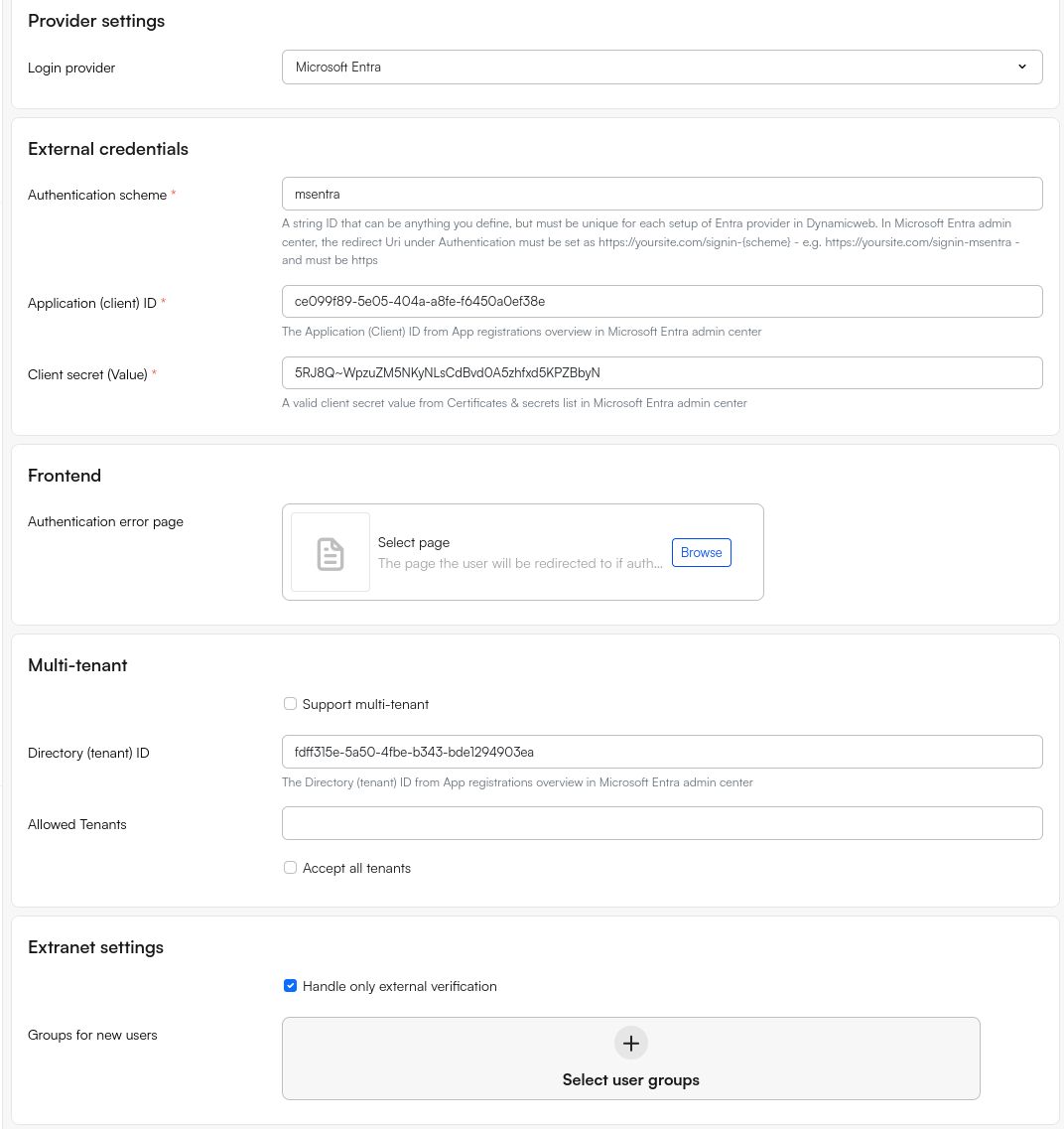
- In the External credentials section fill in:
- Authentication scheme: e.g.
msentra(must match redirect URI suffix). - Application (client) ID
- Client Secret (Value)
- Authentication scheme: e.g.
- Use the Extranet settings to handle unknown users without an account in DW with an email matching the email on the Entra-account:
- If Handle only external authentication is checked login fails
- If Handle only external authentication is not checked, login succeeds and a user is created in the user group(s) selected under Groups for new users. This can be used to control which permissions a newly created user will have
- In the Frontend section select an Authentication error page to redirect users to if login fails
- In the Tenant configuration section configure the provider for either single-tenant or multi-tenant login:
- Single-tenant: Supply a Directory (tenant) ID
- Multi-tenant: Check Support multi-tenant and then specify a list of tenant IDs OR check Accept all tenants
Note
DynamicWeb automatically applies the correct OpenID Connect settings for Entra
- Authority:
https://login.microsoftonline.com/{Tenant}/v2.0 - Callback Path:
/signin-{scheme} - Response Type:
id_token - Scopes: includes
emailto ensure user identity mapping
DynamicWeb also enriches claims (ensuring Name and Email are available) for consistency across providers.
Testing the integration
To test the integration:
- Go to your DynamicWeb site login page
- Select Login with Microsoft Entra
- You’ll be redirected to Microsoft’s login page
- After authenticating:
- If the user’s email matches a DynamicWeb account login succeeds
- If not, access is denied unless you implement provisioning logic
If login fails, users are redirected to your configured Error Page or the default backend login with an error message. All authentication errors are logged in DynamicWeb Security logs, tagged by provider scheme.
Using multiple MS Entra providers
DynamicWeb fully supports using more than one Microsoft Entra provider in the same solution, for example one provider for internal users and another for customers or a separate tenant. The important requirement is that each provider must use a unique Authentication scheme set:
- DynamicWeb uses this value internally to distinguish between providers and to build callback URLs
- The default scheme is typically set to
msentra - If you try to reuse this scheme, the system rejects it with an error like:
There is already an active provider with the same scheme: msentra
So - in order to use multiple MS Entra providers, change the Authentication scheme to a unique value:
| Provider | Authentication scheme | Typical use |
|---|---|---|
| First | msentra |
Internal users |
| Second | msentra-customer |
Customer tenant |
Each provider then has its own independent configuration, including:
- Application (client) ID
- Client Secret
- Directory (tenant) ID
Matching redirect URIs in Microsoft Entra
The authentication scheme determines the redirect URI. This means each Entra app registration must include the redirect URI matching the scheme configured in DynamicWeb.
In Microsoft Entra admin center > App registrations > Authentication, register the appropriate redirect URI for each provider:
- Internal provider:
https://yourdomain.com/signin-msentra - Customer provider:
https://yourdomain.com/signin-msentra-customer
Replace yourdomain.com with your actual DynamicWeb domain.
Make sure the scheme configured in DynamicWeb matches the redirect URI suffix registered in Entra. The comparison is case-insensitive, but the values should still be kept consistent to avoid confusion.