DynamicWeb 10 lets you configure Okta as an external authentication provider. Instead of DynamicWeb-managed usernames and passwords, users can sign in with their Okta accounts.
This works for both B2B (your organization’s Okta tenant) and B2C (where you expose selected groups or all users), depending on your portal scenario.
It works like this:
- The user clicks Login with Okta in DynamicWeb
- DynamicWeb redirects the browser to your Okta authorization server
- Okta authenticates the user and issues an ID token (and optionally an access token)
- DynamicWeb validates the token and reads the Name and Email claims
- If the email matches an existing DynamicWeb user, login succeeds. Otherwise, access is denied unless you implement provisioning logic
Tip
Some best-practice tips to start you off:
- Always use HTTPS for redirect URIs
- Keep scopes minimal – typically
openid,email, and (optionally)profile - Decide early whether you’ll use Okta’s default authorization server (
/oauth2/default) or a custom authorization server (needed when you control scopes/claims for your own APIs)
Create an OIDC app integration in Okta
To connect Okta and DynamicWeb you need a Client ID and Client secret from an Okta OIDC app.
- Sign in to the Okta Admin Console
- Go to Applications > Applications > Create App integration
- Sign-in method: OIDC - OpenID Connect
- Application type: Web Application
- Configure the app:
- App integration name: e.g.
DynamicWeb Login - Grant type: Implicit (hybrid)
- Sign-in redirect URIs: add your DynamicWeb callback, e.g.
https://yourdomain.com/signin-okta - Controlled access: Allow everyone in your organization to access
- Save
- App integration name: e.g.
- Copy the credentials you need in DynamicWeb:
- Client ID
- Client Secret
- Okta domain - e.g.
https://trial-123456-admin.okta.com
Please note that you of course also need some People assigned to a Group under the Directory menu - they're the people who should be allowed to login.
Note
The redirect URI must match the Provider scheme you configure in DynamicWeb (signin-{scheme}). For Okta we recommend signin-okta. If you need to setup multiple okta logins, make sure the URI and provider schemes differ.
Configure the Okta provider in DynamicWeb
With the credentials saved it's time to set up the login provider in DynamicWeb:
- Log in to the DynamicWeb administration interface.
- Open Settings > Areas > Users > External Authentication
- Click New Provider and fill in the basic settings:
- Name
- Active state
- Provider restrictions (None/Backend only/Frontend only)
- Icon
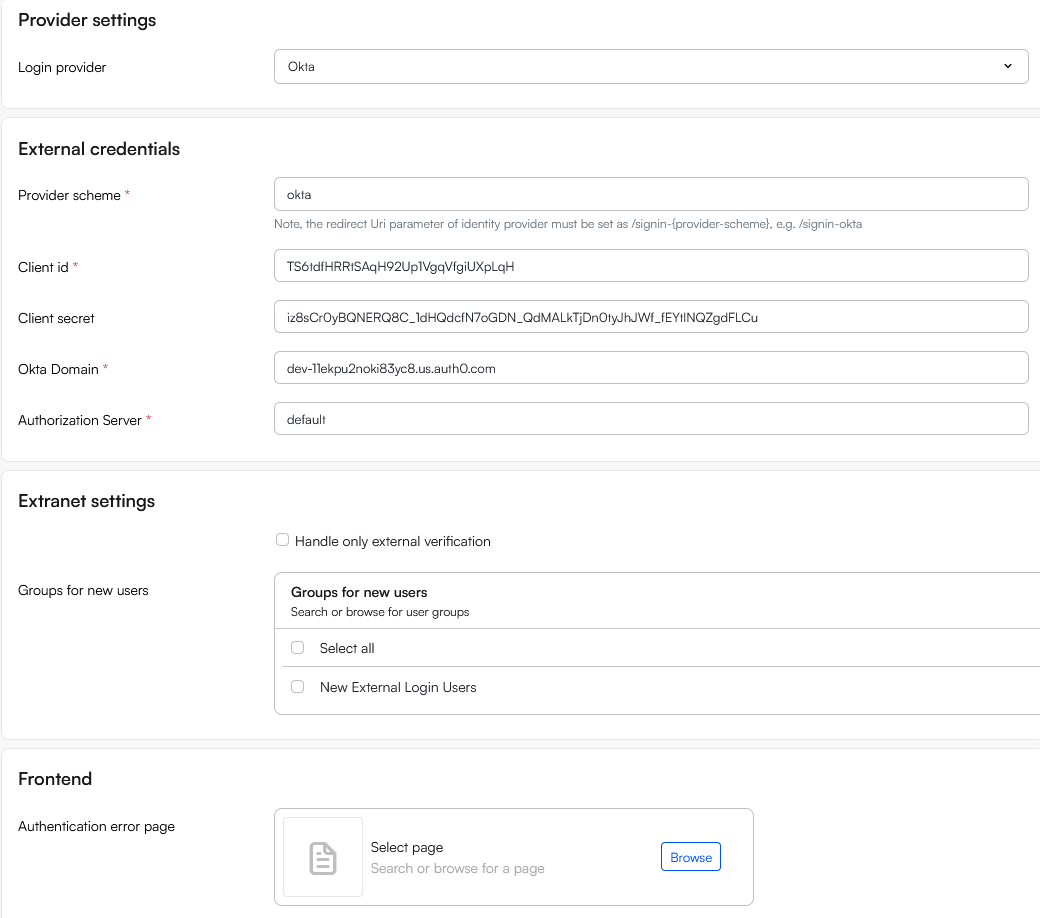
- Select Okta to reveal provider-specific fields and fill in:
- Provider scheme:
okta(so your callback path is/signin-okta) - Client ID: from Okta
- Client secret: from Okta
- Okta domain: e.g.,
https://dev-123456.okta.com(or your custom domain) - Authorization server (Issuer): e.g.,
default
- Provider scheme:
- Use the Extranet settings to handle unknown users without an account in DW with an email matching the email on the Okta-account:
- If Handle only external authentication is checked login fails
- If Handle only external authentication is not checked, login succeeds and a user is created in the user group(s) selected under Groups for new users. This can be used to control which permissions a newly created user will have
- In the Frontend section select an Authentication error page to redirect users to if login fails
Test the integration
- Go to your DynamicWeb login page
- Click Login with Okta
- You’ll be redirected to your Okta sign-in
- After successful authentication:
- If the user’s email matches a DynamicWeb user login succeeds
- If no match exists → access is denied, unless you’ve enabled/implemented user provisioning in your solution
On failed authentication users are sent to your Error page (if configured) or the default backend login with an error message. Check the Security logs in DynamicWeb if something looks off.
Some other troubleshooting tips:
invalid_redirect_uri: The URI in Okta must exactly match your DynamicWeb callback (including scheme and domain), e.g.,https://yourdomain.com/signin-okta.- Users can’t log in: Ensure the user/group is assigned to the Okta app integration
- Issuer mismatch: The Authorization server (Issuer) you enter in DynamicWeb must match the issuer that minted the tokens (for example,
/oauth2/defaultvs. a custom server) - Scopes missing: Add
email(and optionalprofile) if you need those claims, and verify your authorization server policies allow them - Custom domain: If you use an Okta custom domain, keep the issuer consistent with that domain. Changing the “Issuer” field under an app’s Sign On tab doesn’t change your authorization server configuration