This article introduces how to use the DynamicWeb PIM connector inside Business Central. It requires you already have setup the connection between DynamicWeb PIM and Business Central, followed the guided configuration. Link to how to set up connection
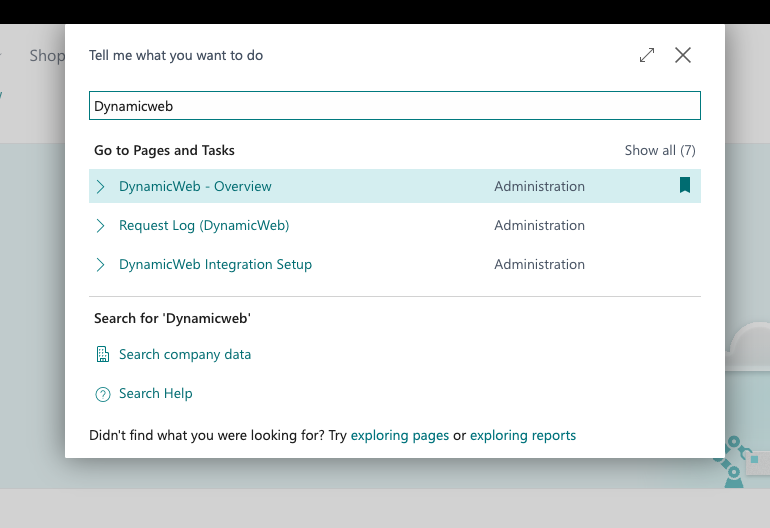
If you have not already bookmarked the DynamicWeb – Overview page, you can always find it using the Business Central Tell Me search:
- In Business Central, open Tell Me (Alt+Q or Ctrl+Option+Q).
- Type
DynamicWeb. - Select DynamicWeb – Overview.
From the DynamicWeb Overview page, you control everything related to the connection between Business Central and DynamicWeb PIM.
Overview Page
On the DynamicWeb Overview page, you have access to key information and actions for the connector.
This article explains each of these areas and how to use them in daily operations.

From the ribbon on the Overview page, you can:
- Apply updates between Business Central and DynamicWeb PIM.
- Start the guided configuration.
When the connector is set up, Apply updates will synchronize any updated items between Business Central and DynamicWeb PIM, depending on the sync direction defined on each field mapping (PIM → BC or BC → PIM).
Note
After completing the configuration, start by clicking Apply updates.
You must have at least one enabled field mapping (for example, by using the pre-made mappings).
When you run Apply updates, the connector will:
- Look for products in DynamicWeb PIM with a matching Product number and Item No. in Business Central.
- Build the initial list of linked products and items.
Basic setup
From Basic setup, you can edit the connection details to DynamicWeb PIM if you need to make any changes.
You can also access this configuration through the guided setup, which is launched the first time you use the connector.
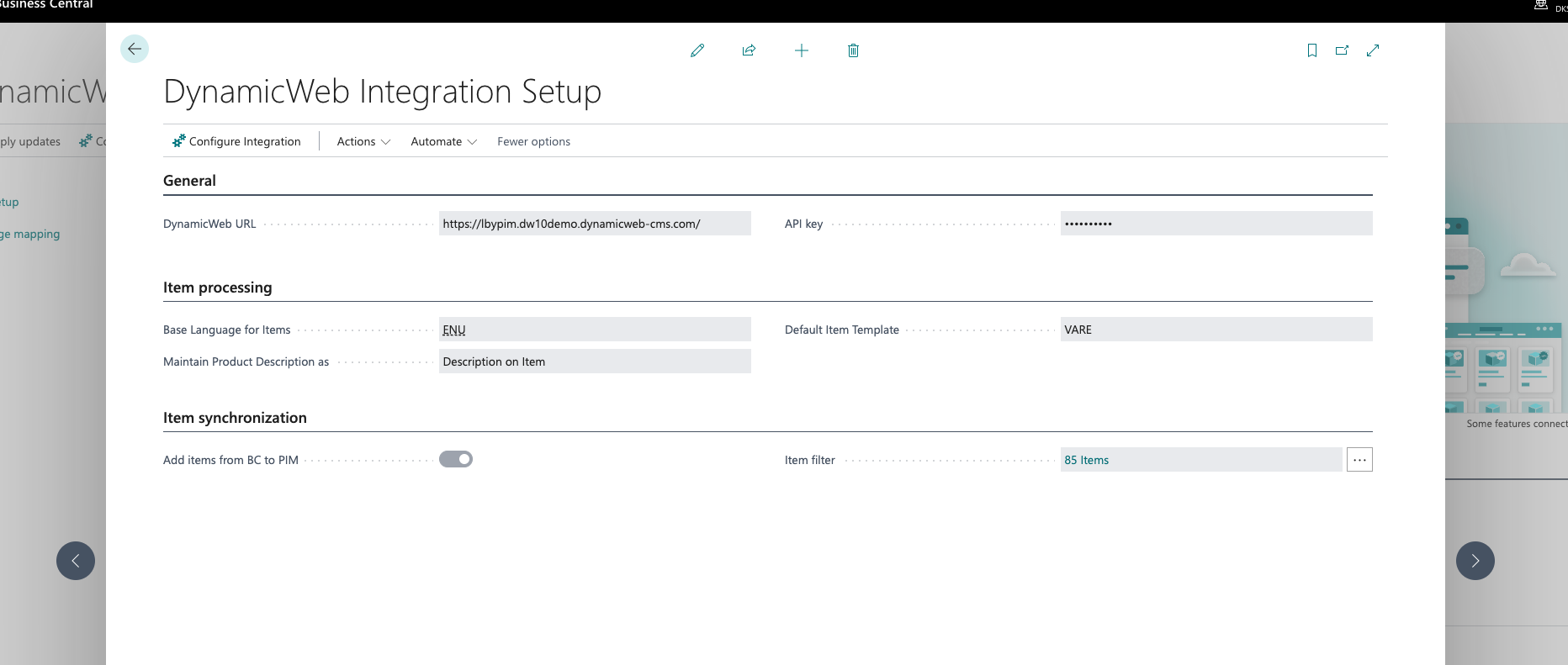
If you ever need to ensure that all item data is synchronized again, you can use Reset synchronization:
- Open Basic setup from the Overview page.
- In the Actions menu, choose Reset synchronization.
Use this if you want to synchronize everything again.
Each time a synchronization is performed, the connector stores a last sync timestamp and only picks up changes made after that time.
Reset synchronization clears this timestamp so that all items from DynamicWeb PIM are treated as changed and will be synchronized again.

Language mapping
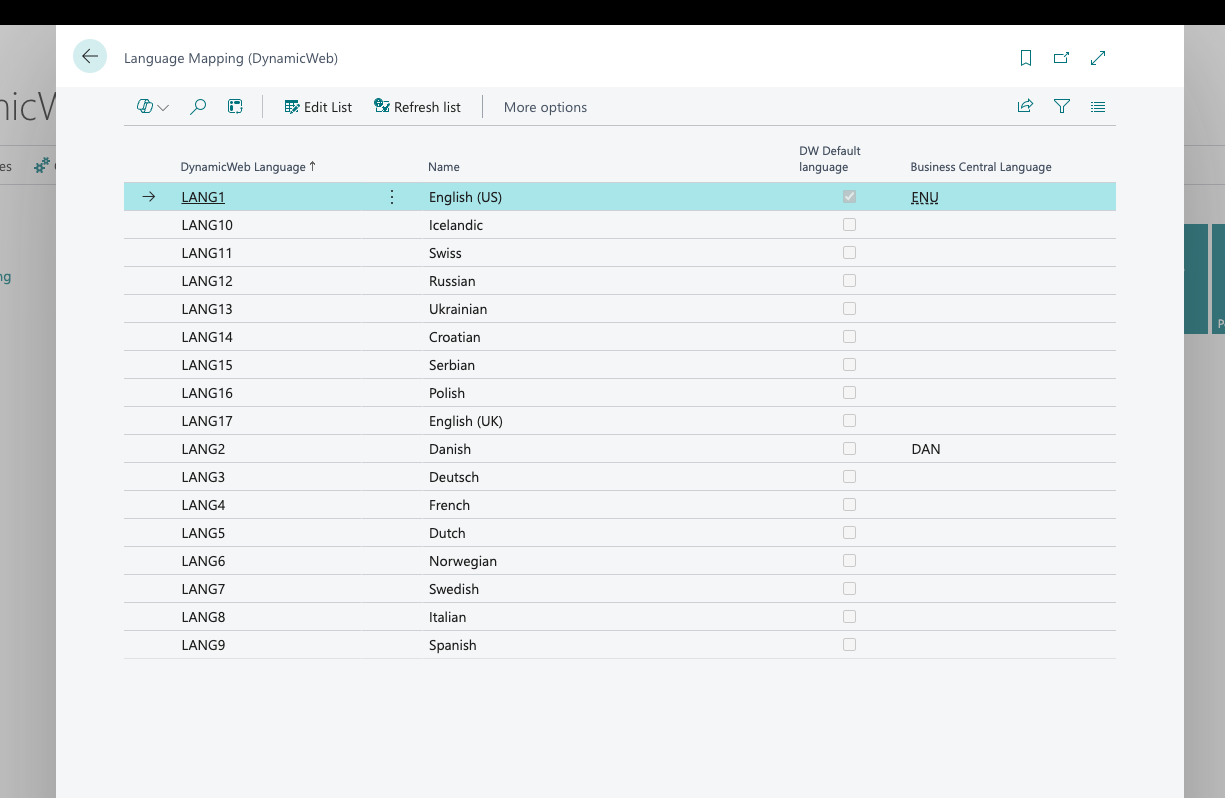
In Language mapping you define which languages in DynamicWeb PIM map to which languages in Business Central.
- The list shows all languages available in DynamicWeb PIM.
- For each PIM language, you wish to map, you select the corresponding Business Central language.
You must map at least one language for the connector to work correctly.
Typically, you will at minimum, map the base language used for items in Business Central.
The mapped languages are used for item descriptions and other translated fields. For example:
- When item descriptions are synchronized from DynamicWeb PIM, the connector uses the language mappings to:
- Update the Description field on the item for the base language, and/or
- Create Translations on the item for other mapped languages.
Field mapping
In Field mapping, you configure how item data flows between DynamicWeb PIM and Business Central.
- You can synchronize data from DynamicWeb PIM to Business Central (PIM to BC) or from Business Central to DynamicWeb PIM (BC to PIM).
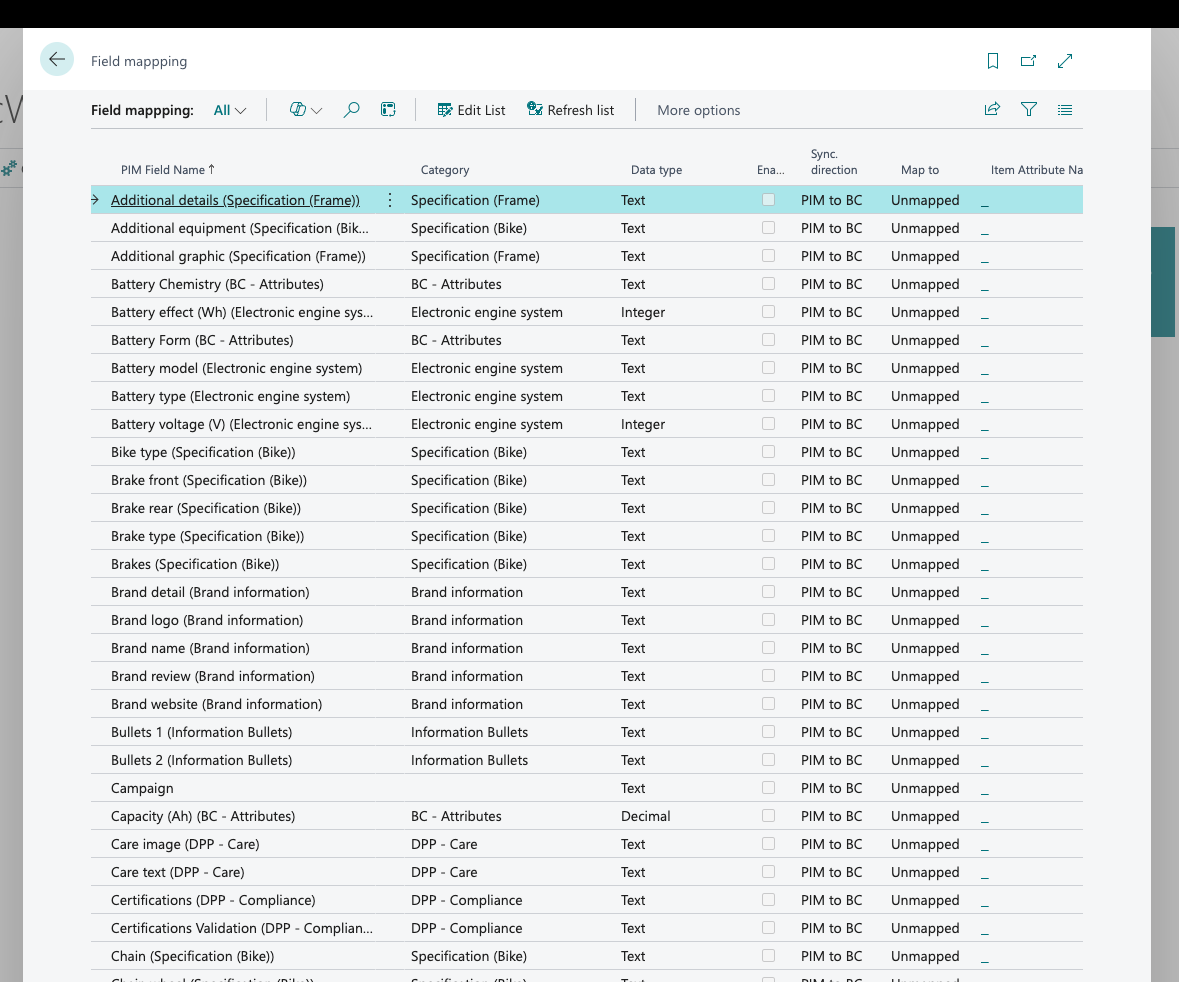
- When you open Field mapping, you see the full list of fields from DynamicWeb PIM that can be mapped.
Use the filters, search, and views to quickly find the fields you want to map.
Field mapping columns
| Column | Description |
|---|---|
| PIM field name | The name of the field in DynamicWeb PIM. |
| Category | The field’s category group in DynamicWeb PIM. If empty, the field is not part of a category group but is instead a standard, global custom, or property field. This column can help you filter for the right field or understand the field’s context. |
| Data type | Indicates which data type the value will be created as in Business Central: Text, Integer, Boolean, Decimal, or Date. |
| Enabled | Indicates whether this mapping is active. If checked, the mapping is included in synchronization. |
| Sync. direction | Defines the direction of synchronization for this mapping: PIM to BC or BC to PIM. |
| Map to | The field or area in Business Central you want to map to (for example, Item field, Item attribute, etc.). |
| Item Attribute Name | If Item attribute is chosen in Map to, you must choose which attribute to map to (or create a new item attribute). |
Sync direction behaviour:
- PIM to BC: Data is read from DynamicWeb PIM and written to Business Central during synchronization.
- BC to PIM: Data is read from Business Central and written to DynamicWeb PIM during synchronization.
Note
If you use the field type List in DynamicWeb PIM, it is interpreted as a Text field in Business Central.
The connector does not create list/option values in Business Central. Only the selected list value from PIM is transferred as text to the mapped field.
Pre-made mappings The connector includes several pre-made mappings that cover common integration needs:
| PIM Field Name | Map to | Comment |
|---|---|---|
| Price | Unit price | Sync direction can only be BC to PIM. This uses the Unit Price on the Business Central item card, not prices from price lists. |
| Default unit | Unit of measure | Sync direction can only be BC to PIM. If the Unit of Measure does not exist in DynamicWeb PIM, it will be created together with the product when the item is synchronized. |
| Image | Product image | Synchronizes the default image from DynamicWeb PIM to the item in Business Central. |
| Long description | Marketing Text | Synchronizes the Long description text from DynamicWeb PIM to Marketing Text in Business Central for the language mapped to your chosen base language of Business Central. |
| Name | Description | Synchronizes the Name from DynamicWeb PIM to the item Description field for the language mapped to your chosen base language of Business Central. Other mapped languages are created as translations. Behaviour depends on “Maintain Product description as” in setup: - If set to Description on item: The language mapped to the base language updates the Description field. Other mapped languages are added as Translations. - If set to Language translation: All languages, including the one mapped to the base language, are created as Translations. |
Tip
Use the pre-made views in the ribbon to quickly filter All, Enabled, Mapped, or Unmapped fields.
- Use the Search bar to search in PIM field name and Category.
- Use standard Business Central filtering options on the table to refine the list further.
Products from PIM
The Products from PIM list gives you an overview of all products in DynamicWeb PIM and whether each product exists as an item in Business Central.
This page is mainly used for:
Troubleshooting and verification
- See if a product from PIM is already created as an item in Business Central.
- Identify which Business Central item a PIM product is synchronized with.
- If you choose Edit list, you can change which item a product is synchronized with (for example, to correct a previous mapping error).
Creating new items in Business Central
- From this list, you can create new items in Business Central from products in DynamicWeb PIM.
- You can only create items for products that do not already exist in Business Central.
- Check the BC item exist column: it must be No for you to create a new item based on that product.
To create items from products:
- Open Products from PIM (or click the PIM products not in BC tile, see below).
- Select one or more products (multi-select is supported).
- Choose Create item.
- Select the Item Template to use.
- By default, the template is set to the one chosen in the connector setup.

Shortcut tiles on the Overview page
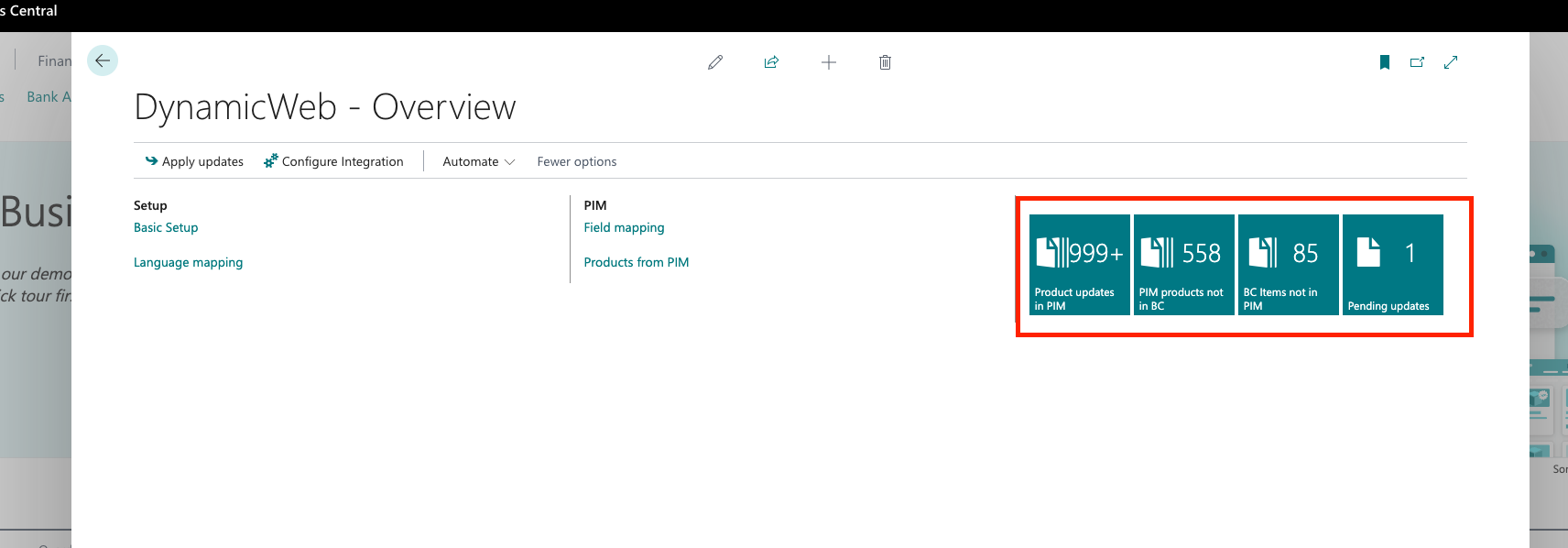
On the DynamicWeb Overview page you will find several shortcut tiles that show counts and give quick access to relevant lists:
Product updated in PIM
- Shows the number of products with updates available from DynamicWeb PIM (changes since last synchronization).
- Click the tile to start Apply updates.
PIM products not in BC
- Lists all products from DynamicWeb PIM that do not exist as items in Business Central.
- This is effectively a subset of the Products from PIM list.
- From here you can create new items in Business Central based on these products.
BC items not in PIM
- Lists all items in Business Central that do not exist as products in DynamicWeb PIM.
- From here you can create products in DynamicWeb PIM based on these items.
Pending updates
- Shows if there are any pending updates to be synchronized.
- For example, if you add a new field mapping in Field mapping, the connector will detect new data to synchronize, and this tile will reflect that.
Create products from Business Central to DynamicWeb PIM
You can create products in DynamicWeb PIM from existing items in Business Central using the BC items not in PIM tile.
To create products from Business Central items:
- On the DynamicWeb Overview page, click the BC items not in PIM tile.
- This opens a list of all items that do not exist in DynamicWeb PIM.
- Select one or more items.
- Choose Create item in PIM.
This will initiate product creation in DynamicWeb PIM and create a product with at least the following data:
- Item Description → Product Name in PIM
- Unit of Measure → Default unit in PIM
- GTIN (if used on the item) → EAN in PIM
- Item No. → Product Number in PIM
- If an image exists on the item in Business Central, it will be copied to the product in DynamicWeb PIM.
If you have configured additional mappings with sync direction BC to PIM, these fields will also be populated when the product is created in PIM.
Create products from DynamicWeb PIM to Business Central
You can also create items in Business Central from products in DynamicWeb PIM using the PIM products not in BC tile.
To create items from PIM products:
- On the DynamicWeb Overview page, click the PIM products not in BC tile.
- This opens a list of products in DynamicWeb PIM that do not exist as items in Business Central.
- Select one or more products.
- Choose Create item.
- Select the Item Template that the new items should use.
The connector will then create items in Business Central using all mappings that:
- Are enabled, and
- Have sync direction PIM to BC.
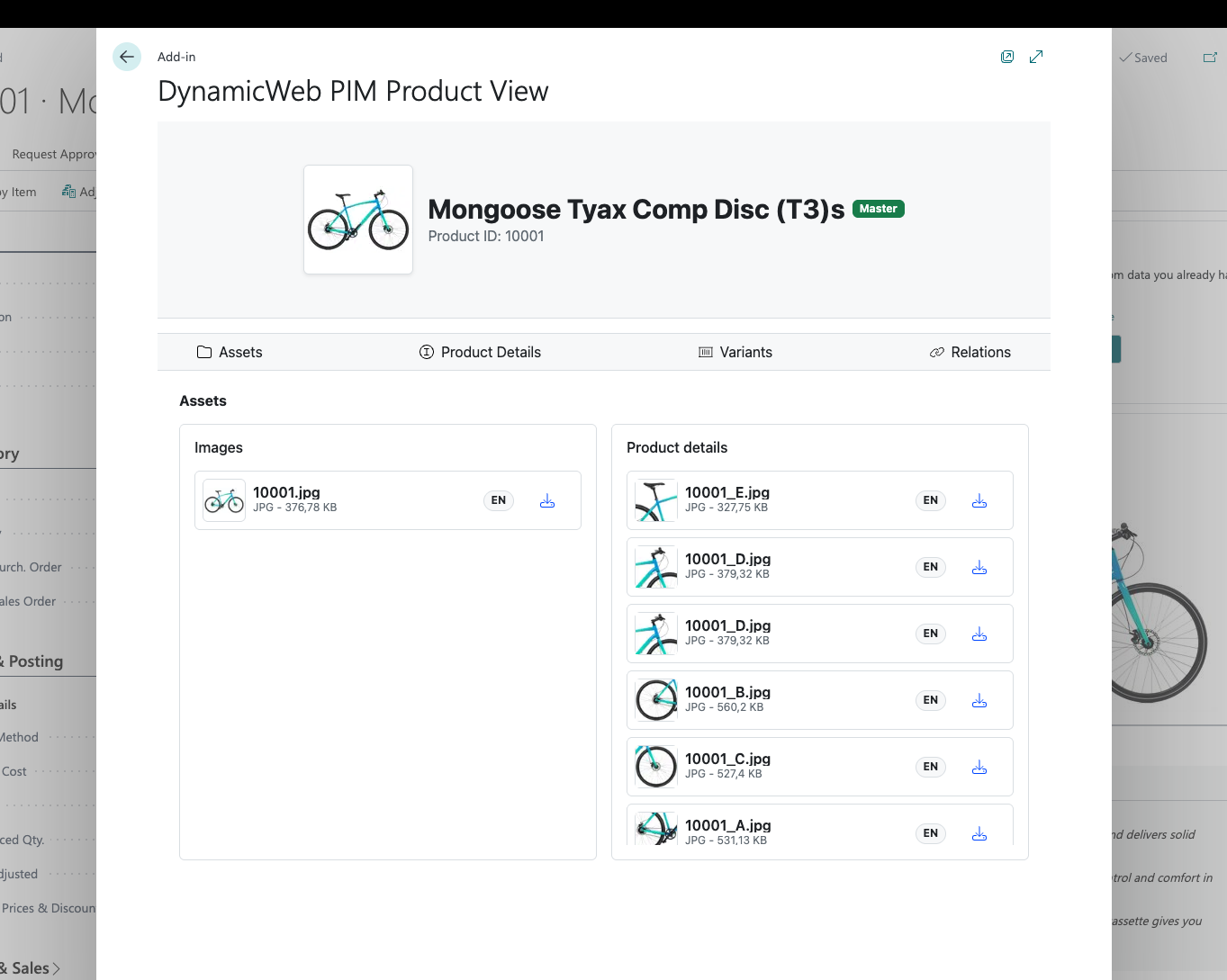
PIM product view on the item card
If you have installed the StaticLinkManager app from the DynamicWeb App Store in your DynamicWeb solution, you can open the full PIM product view directly from the item card in Business Central.
This view is especially useful for:
- Viewing all product data from DynamicWeb PIM.
- Downloading and working with digital assets (images, documents, etc.).
- Inspecting variants and related products managed in PIM.
To open the PIM product view from an item:
- Open an Item card in Business Central.
- Go to Actions → DynamicWeb PIM → Show PIM product view.
Install the StaticLinkManager
- In DynamicWeb, go to Apps → Installed Apps and check whether StaticLinkManager is listed.
- If the app is not installed, switch to All Apps, search for StaticLinkManager, and install it.
Note
You must recycle the solution before the StaticLinkManager app becomes active and operational.