As an editor you can create flexible and captivating overviews of article-style content using Posts — ideal for blogs, news sections, announcements, and other post-based content.
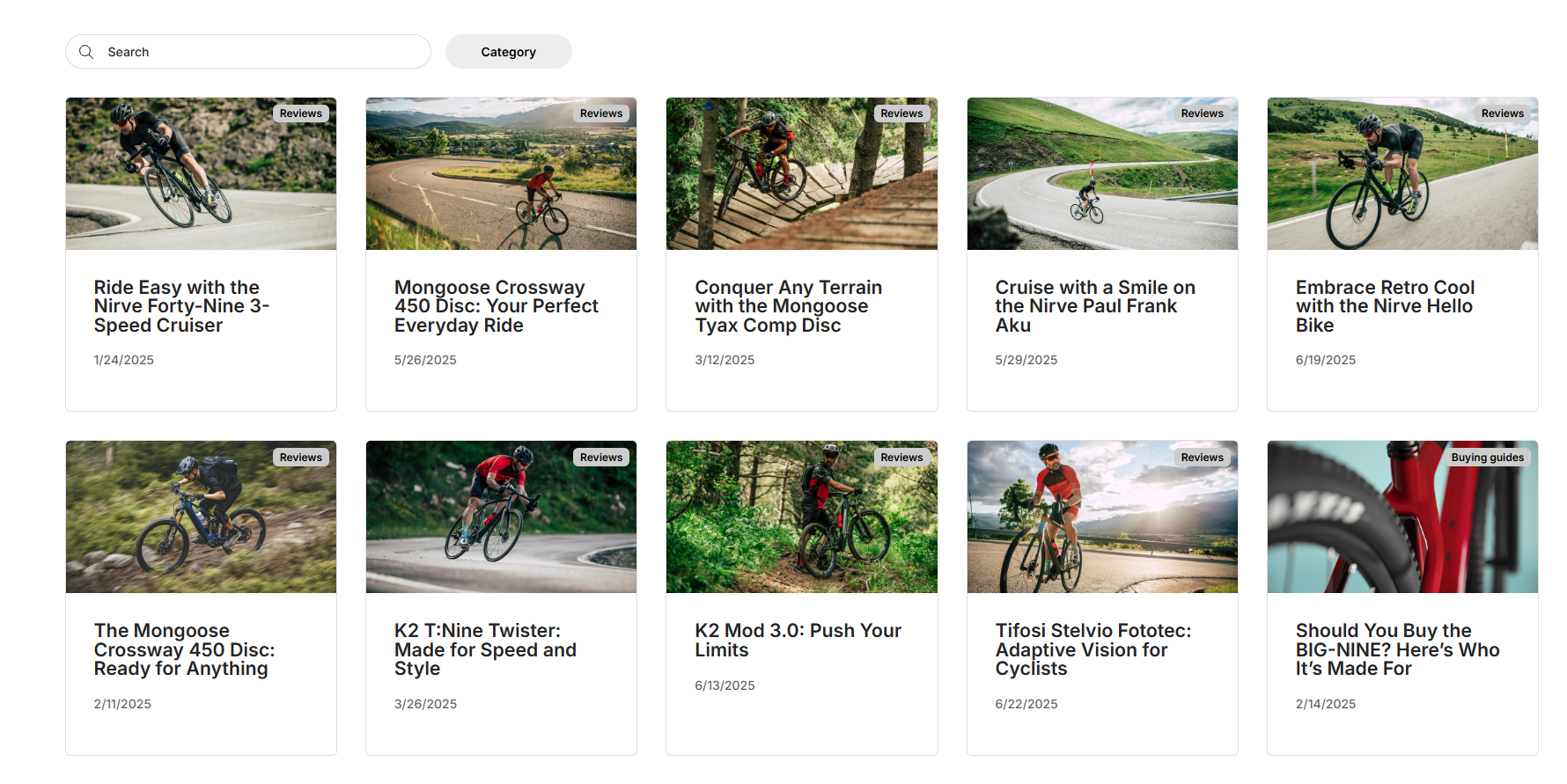
You can display lists of pages as posts using:
- Post List paragraph – an intuitive, editor-friendly approach
- Query Publisher paragraph app – a more advanced, query-based method for developers
Note
Both methods are indexed by the Post index, which needs to be built when a new post is created. Read about using Scheduled Tasks to automatically build an index here.
Post List
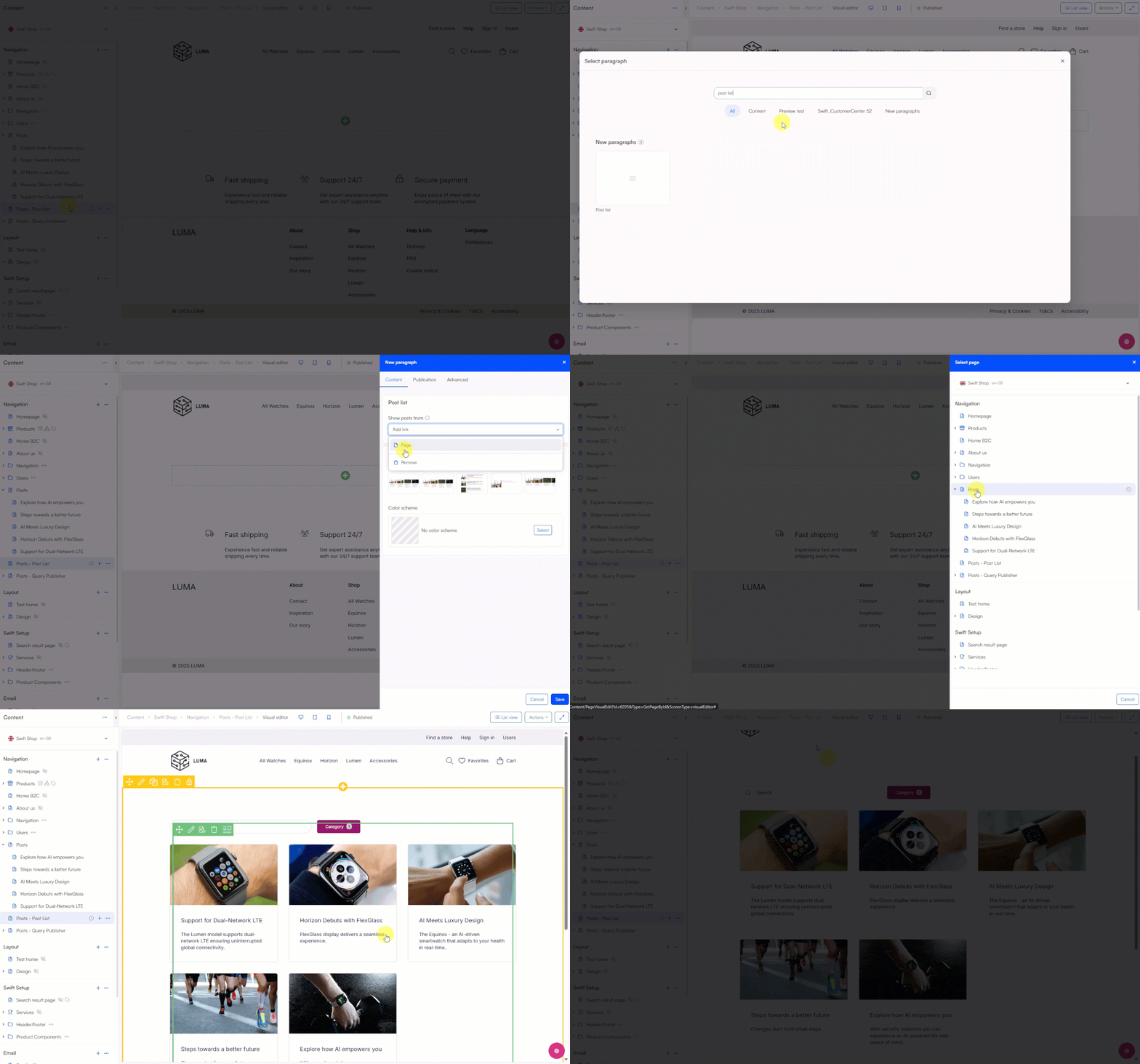
The Post List paragraph offers a visual, no-code way to display posts by choosing a layout and optionally a separate parent page. It's intuitive, flexible, and perfect for landing pages, front pages, or section overviews.
To display a list of posts using this method, add the Post list paragraph to your column. By default, it displays posts from pages placed under the current page. If you want to show posts from another page use the Show posts from setting to select where the posts are located.
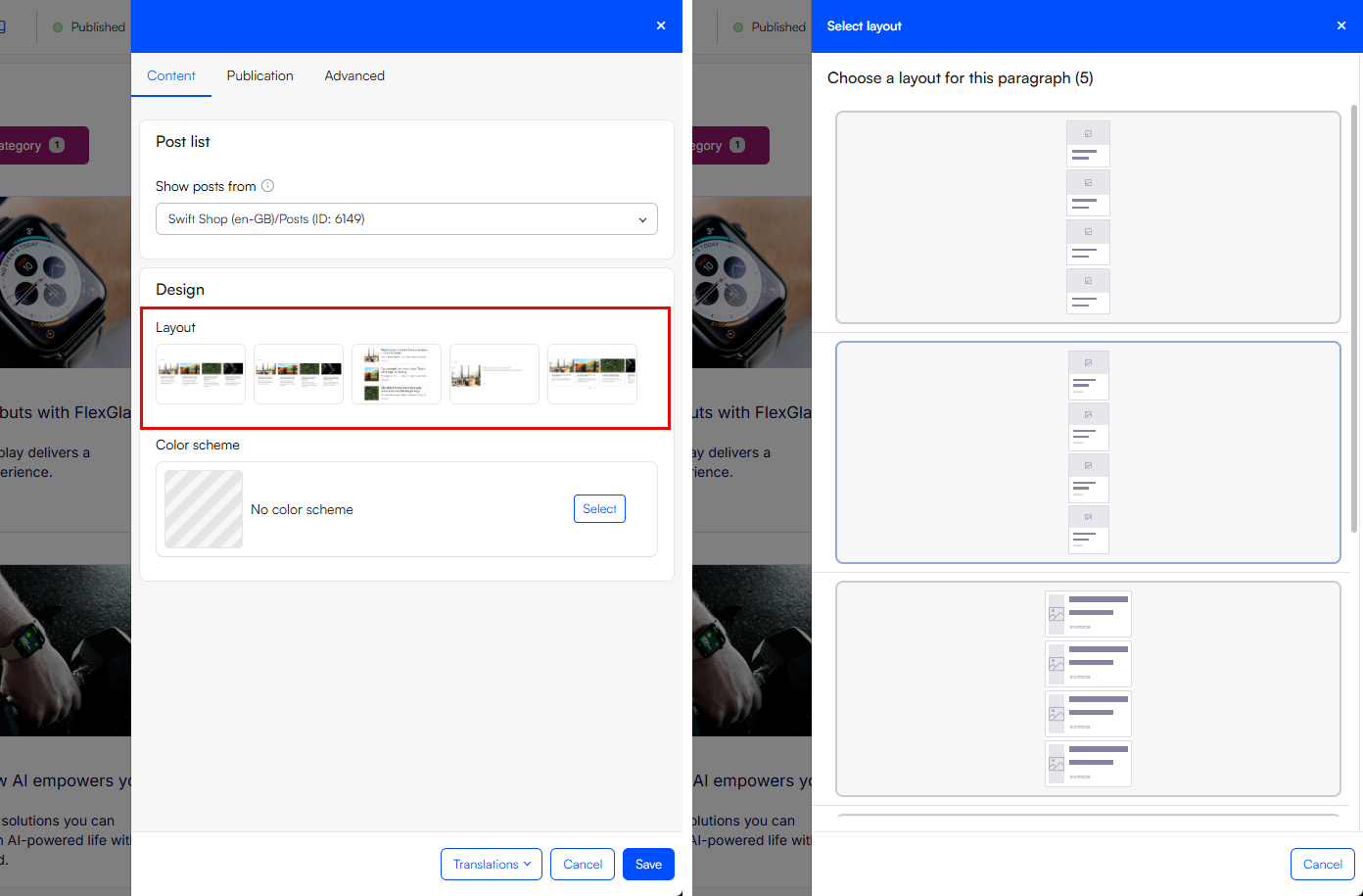
You can further set the design of the list by selecting a layout, use the editor tools to either select Edit paragraph or Layout settings:
Query Publisher
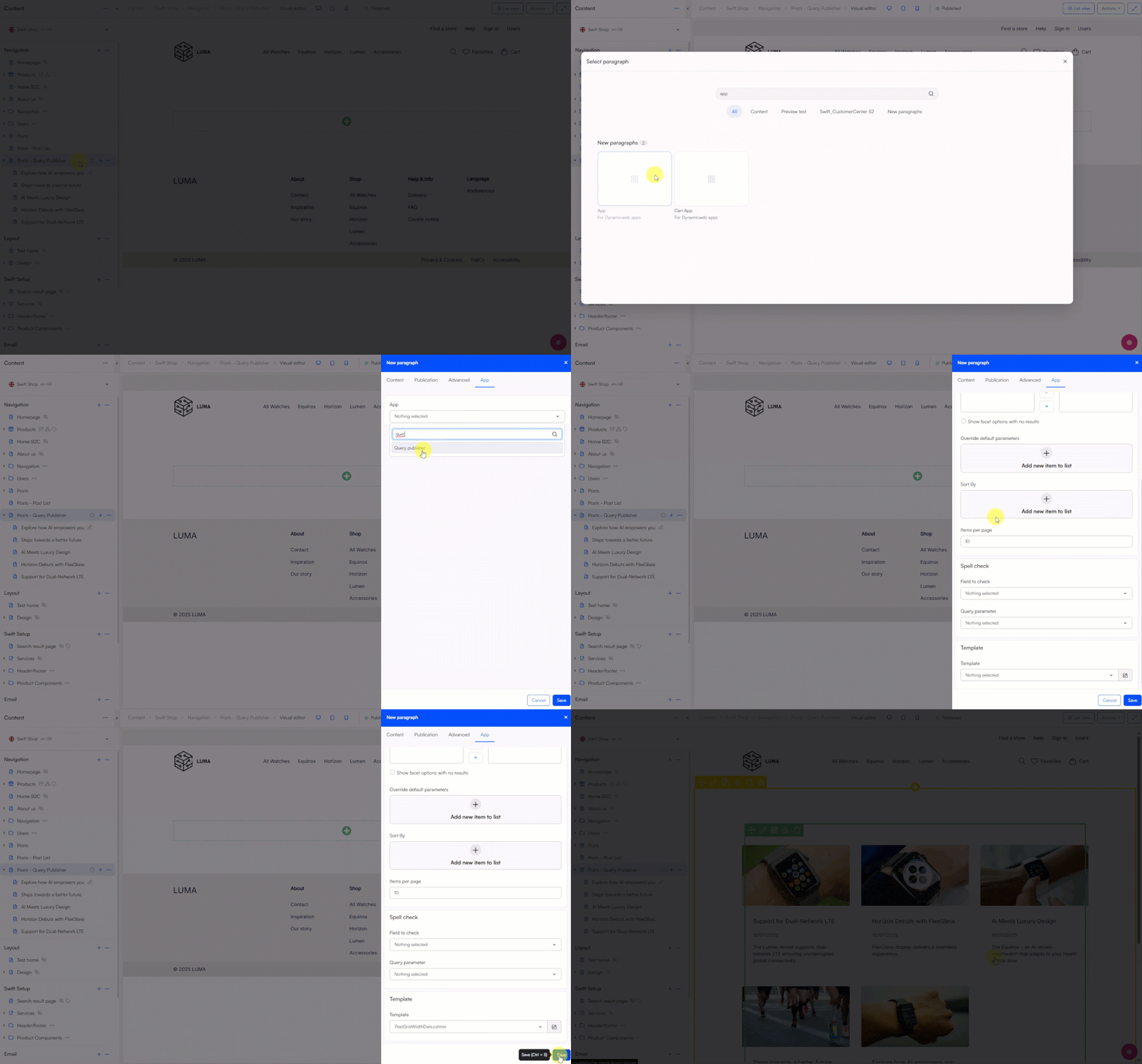
The Query Publisher paragraph app lets you filter and display posts using a query-based setup. It's more advanced than the Post List and is directed at developers or advanced editors, and offers advanced filtering and full control over layouts with templates.
To use this method you select the App paragraph for your column, go to the App-tab and select Query Publisher, from here select the Post-PostCurrentPage-query in the query-field and select a template in the template-field. Posts should be created as subpages to the page with the Query Publisher paragraph, otherwise follow this guide.
Posts
Posts are regular pages that can be used for whatever content you want, blogs posts, news sections, press releases, job postings etc.
You can create your posts under a parent page, this parent page can have either the Post List or Query Publisher paragraph attached to it (1). Alternatively, you can have a separate parent page without a posts paragraph attached to it and point to this from the Post List, if using Query Publisher you need to override a query expression as explained below (2).
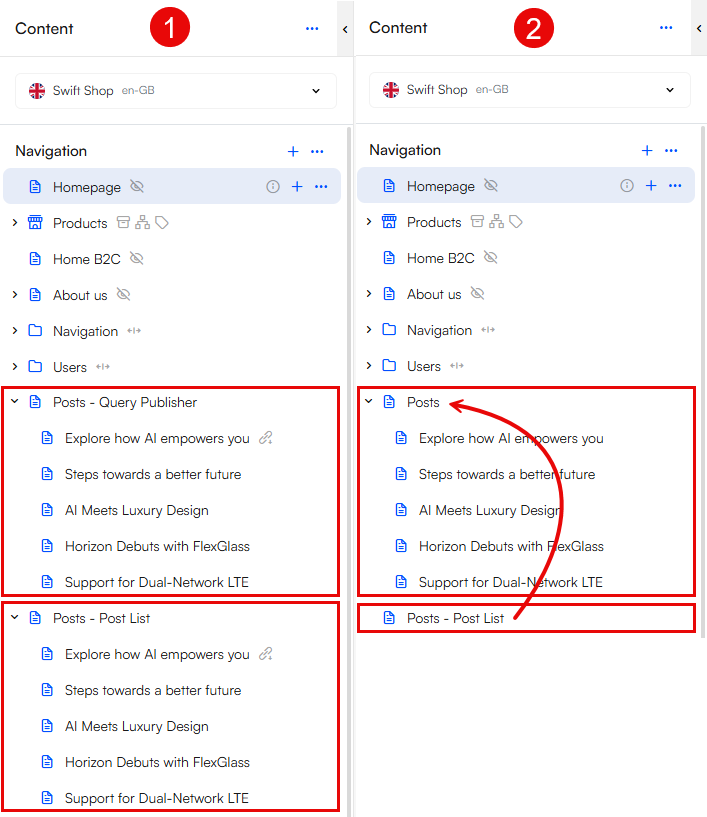
Using a separate parent page
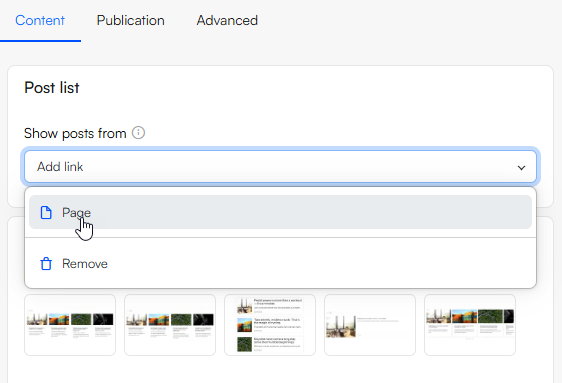
Our general recommendation is to use the Post List paragraph for use cases where a separate parent page is needed, we have made it intuitive to select a separate parent page from the page selector setting Show posts from:
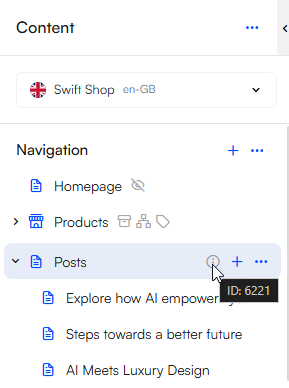
If you need to use the Query Publisher you will need to override the ParentPageID query expression to not use the current parent page, but a separate one. You can find any page ID by hovering over the info icon by a page in the content tree:
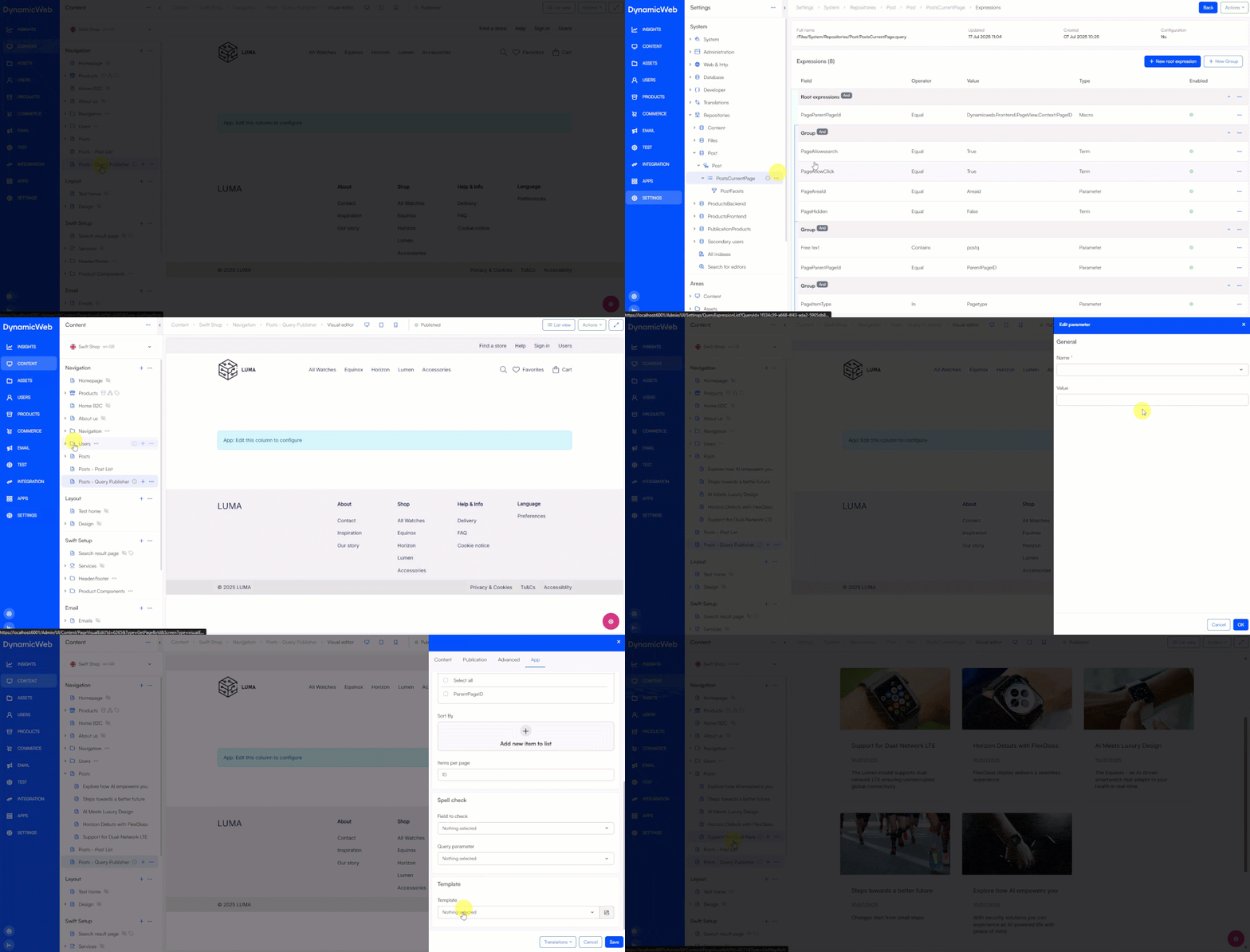
 To override the expression first navigate to the
 PostsCurrentPage-query in the Settings-area, here you disable the PageParentPageId macro in the root expressions by using the context menu. Back in the Content-area go to the app settings of the Query Publisher and click on the field Override default parameters, from here you choose the ParentPageID as name and for value you write the PageID of the separate parent page you want to target:
If using a separate parent page and you don't want it to show up as a post in the displayed list, uncheck the field Show in searches in the Publication-tab from the page edit.
Post information
Show the title, image, description and date of your posts by using page edit:
- Title: The post's title is be the same as the page's title, to change it you need to change the page title
- Image: Select an image for your post by using the image-field in the SEO-tab
- Description: Write a description for the post to be displayed under the title by using the description-field in the SEO-tab
- Date: If chosen an layout with dates showing, it will display the date set in the Publication-tab
Categorize your posts
You can organize posts into categories by placing them in folders in the content tree. This makes it easy to manage and present content grouped by topic or section — useful for filtering and visual grouping in post overviews.
Here the posts have been organized in three folders: Connectivity, Design and Inspiration, and the posts have been tagged accordingly in the post overview and when using filtering:

Note
Remember to build the Post Index from the Settings area before using either methods, otherwise no posts will be shown.