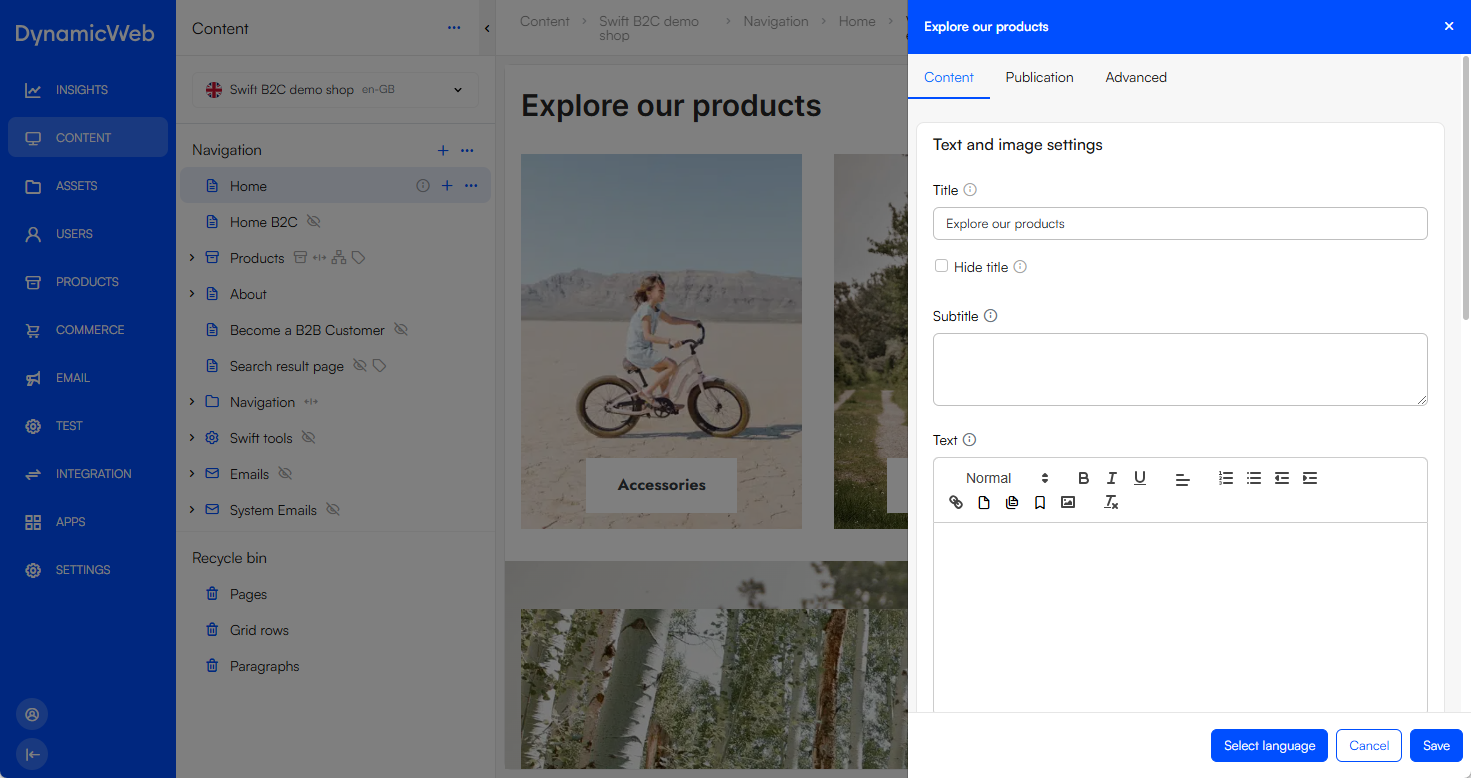
The administration interface of your Swift-based solution allows you to have access to a number of concepts and tools used to e.g. create content and presets as an editor.
Login screen
When accessing the administration interface with /admin suffixed your solution URL, the login screen is shown.
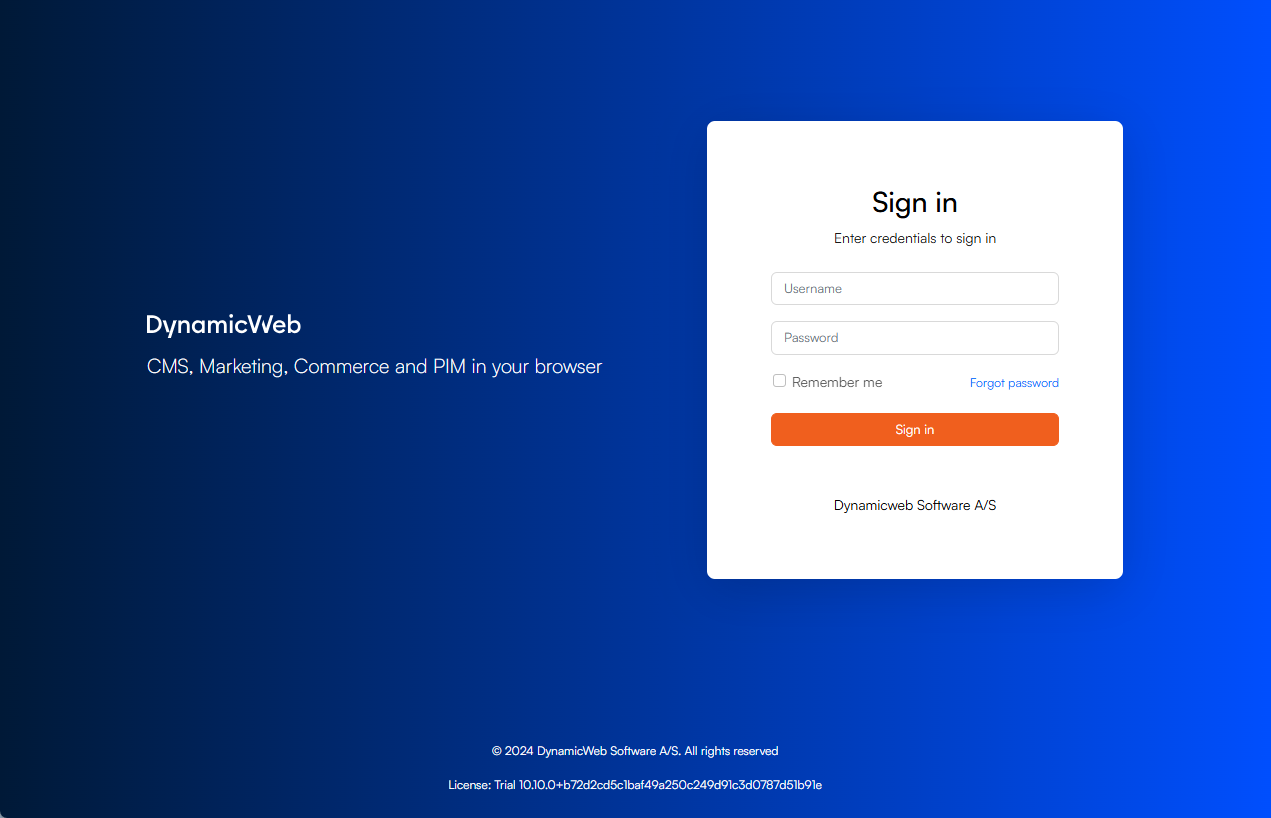
Sign in using an account with backend access, for instance an administrator user. You can also see information about the solution license and current version.
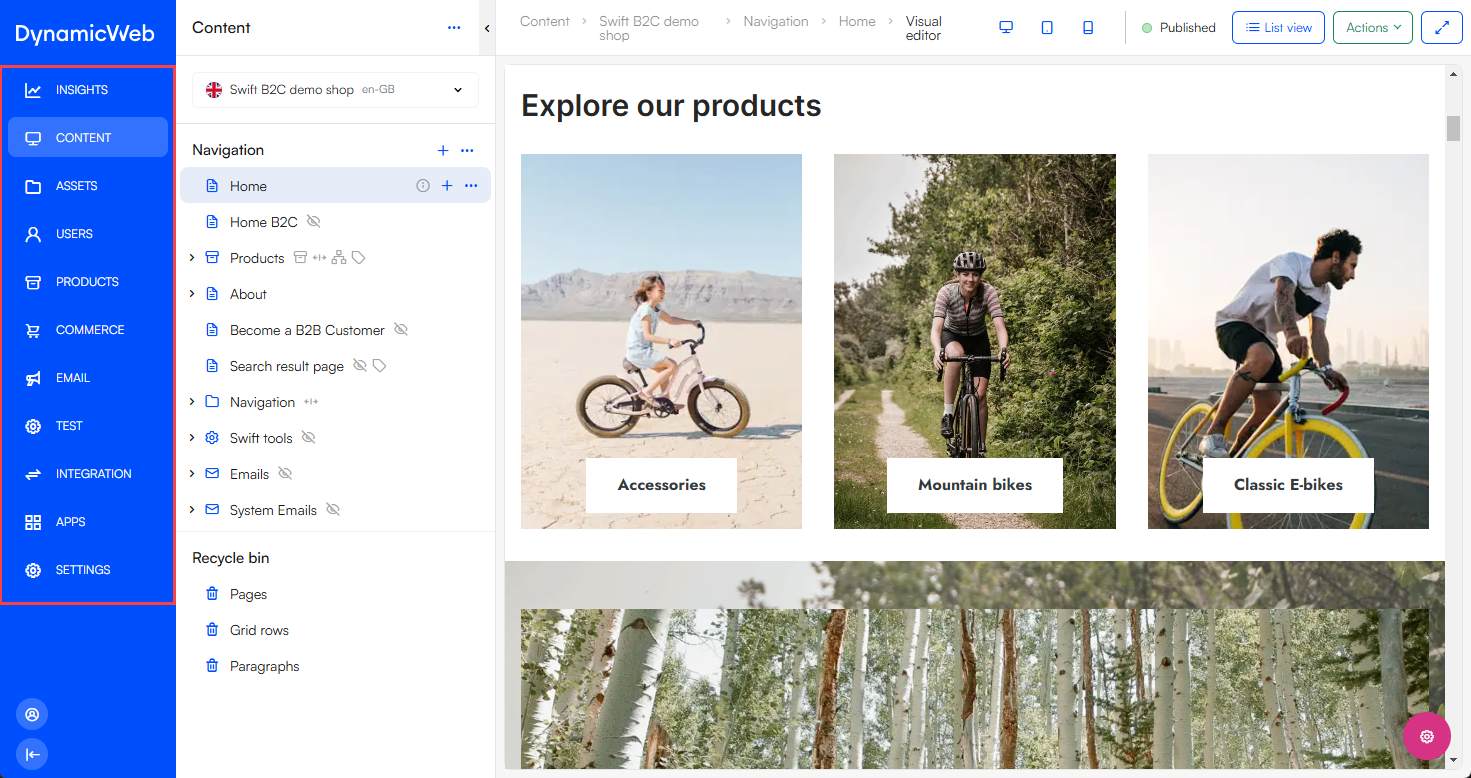
Area menu
The administration interface consists of areas such as Content, Assets and Commerce. Access each area from the area menu.
Area tree
Each area has an area tree containing sections and nodes related to it. E.g. Content has a Navigation section with pages and folders representing the frontend, and a Recycle bin section if you regret deleting a page e.g..
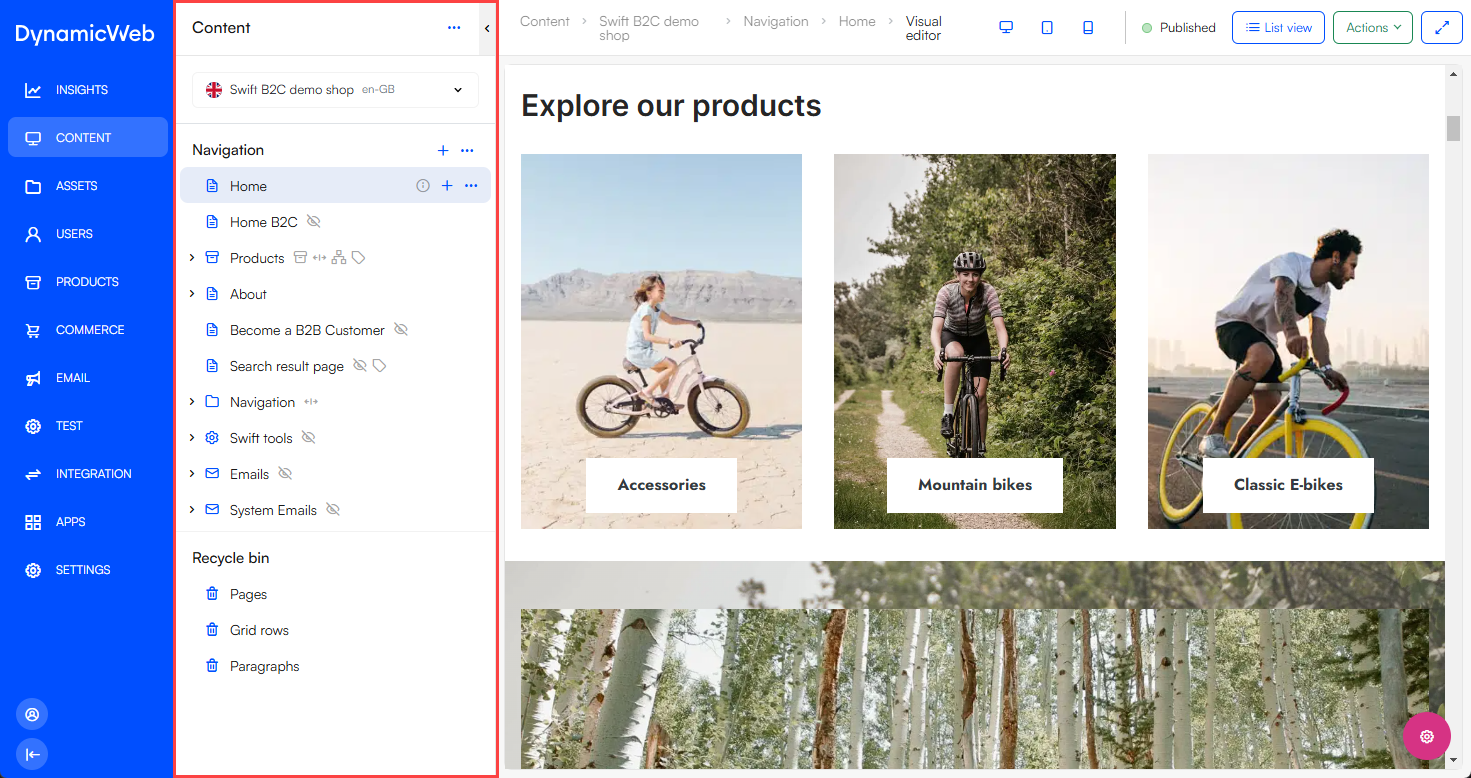
When clicking on one of the nodes, the corresponding content or tool is opened in the workspace.
Top bar
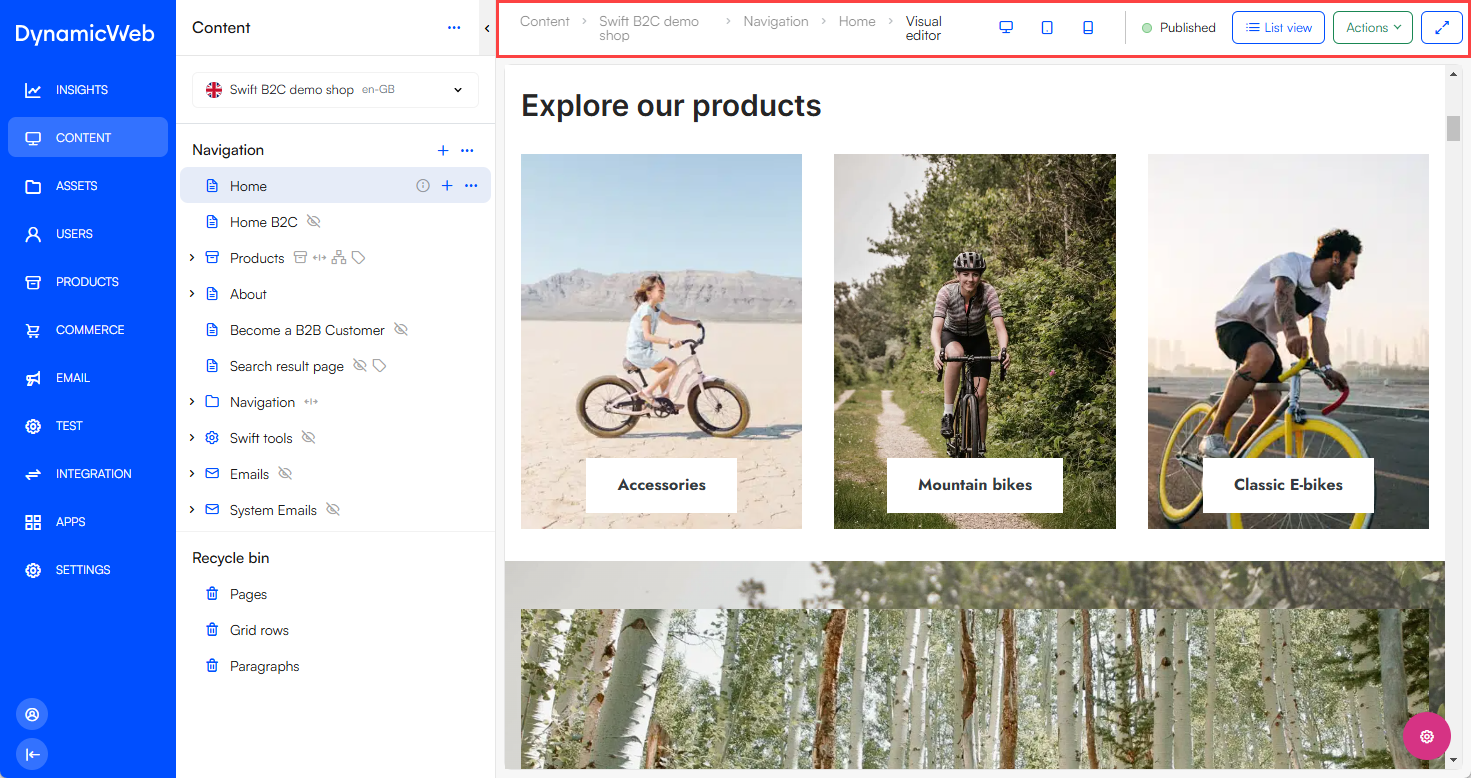
The top bar is an element which is primarily used for two things; to display a breadcrumb trail and to contain buttons like the action menu button.
Action menu
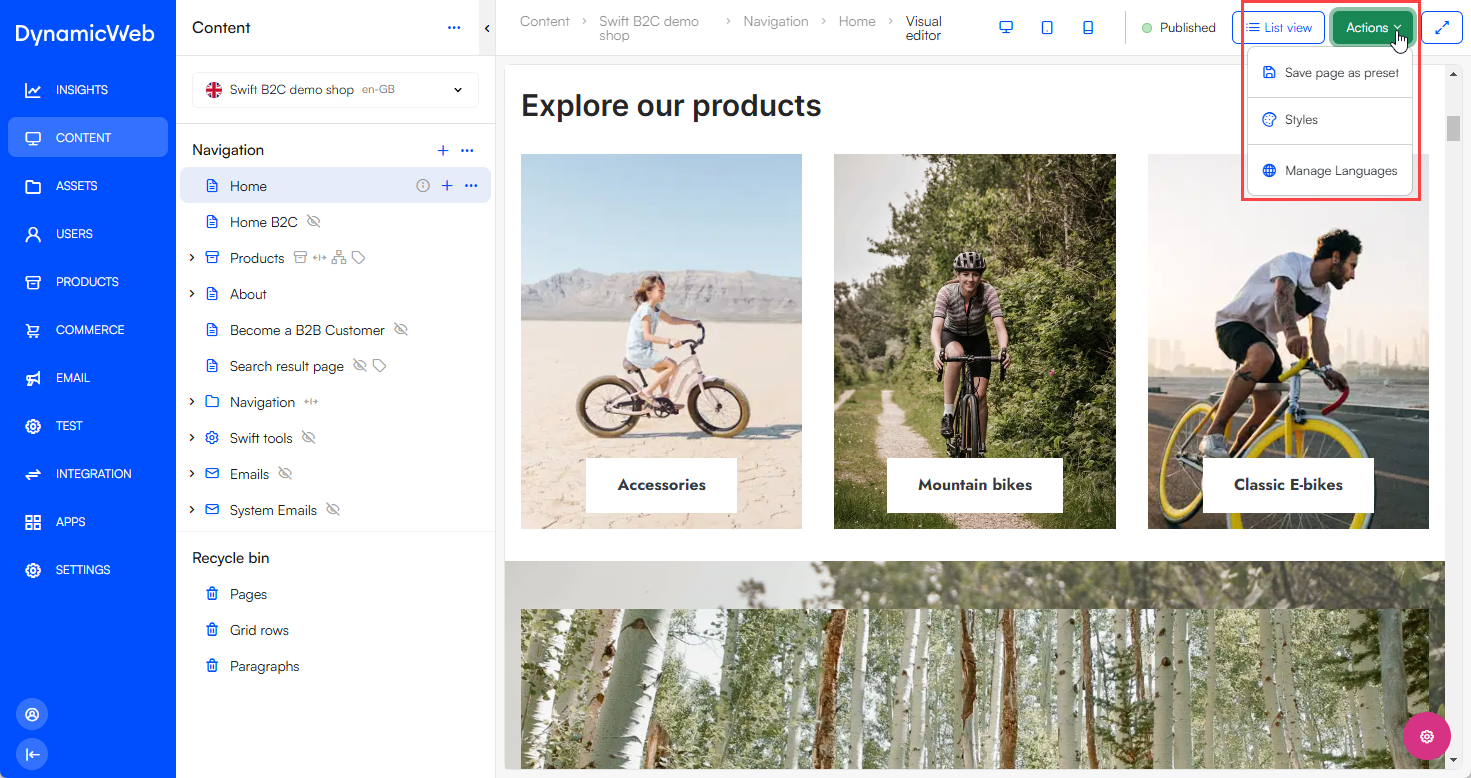
Many list- and overview-screens feature an action menu. Action menus contain actions which have scope over the whole view, e.g. on content pages the Save page as preset action and Manage Styles action are present.
Context menu
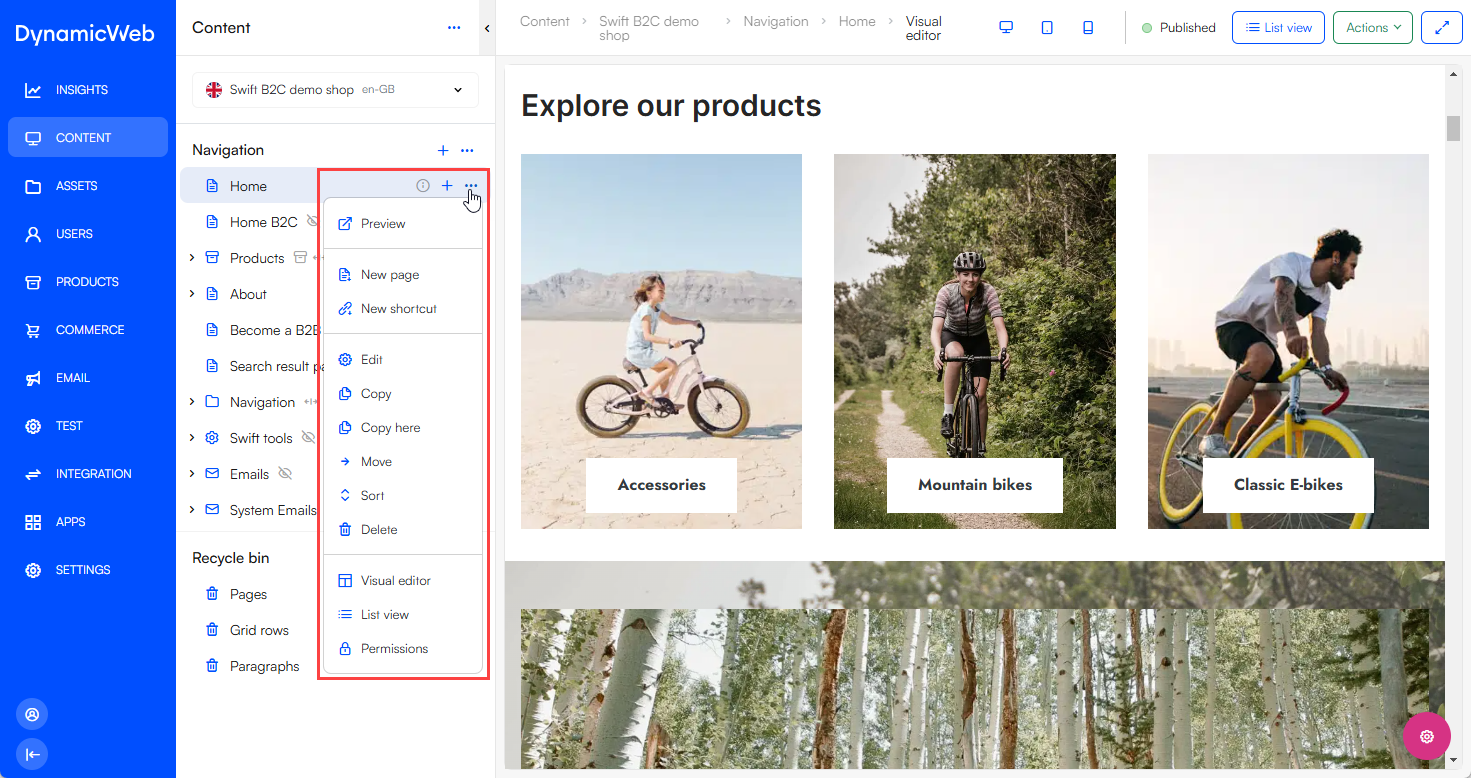
The context menu contains collections of context-sensitive actions, e.g. Edit, Delete or Permissions. Context menus are available when you click a ...-button on a list item or in an area tree.
Slide-over
A slide-over panel is an element which slides in from the right side of the screen, hovering over the rest of the administration interface. It is typically used to ask you to configure or select something and then click select or save.