The "My account information" page lets users view and edit their account details. In a standard Swift solution, this includes information like name, company, street address, email, and more. When users enter this page, they can immediately edit their details, but changes are only saved if they click the "Update" button at the bottom.
Users can also change their password by clicking "Change Password" in the upper right corner. This opens a new page where they must enter their current password and the new password.
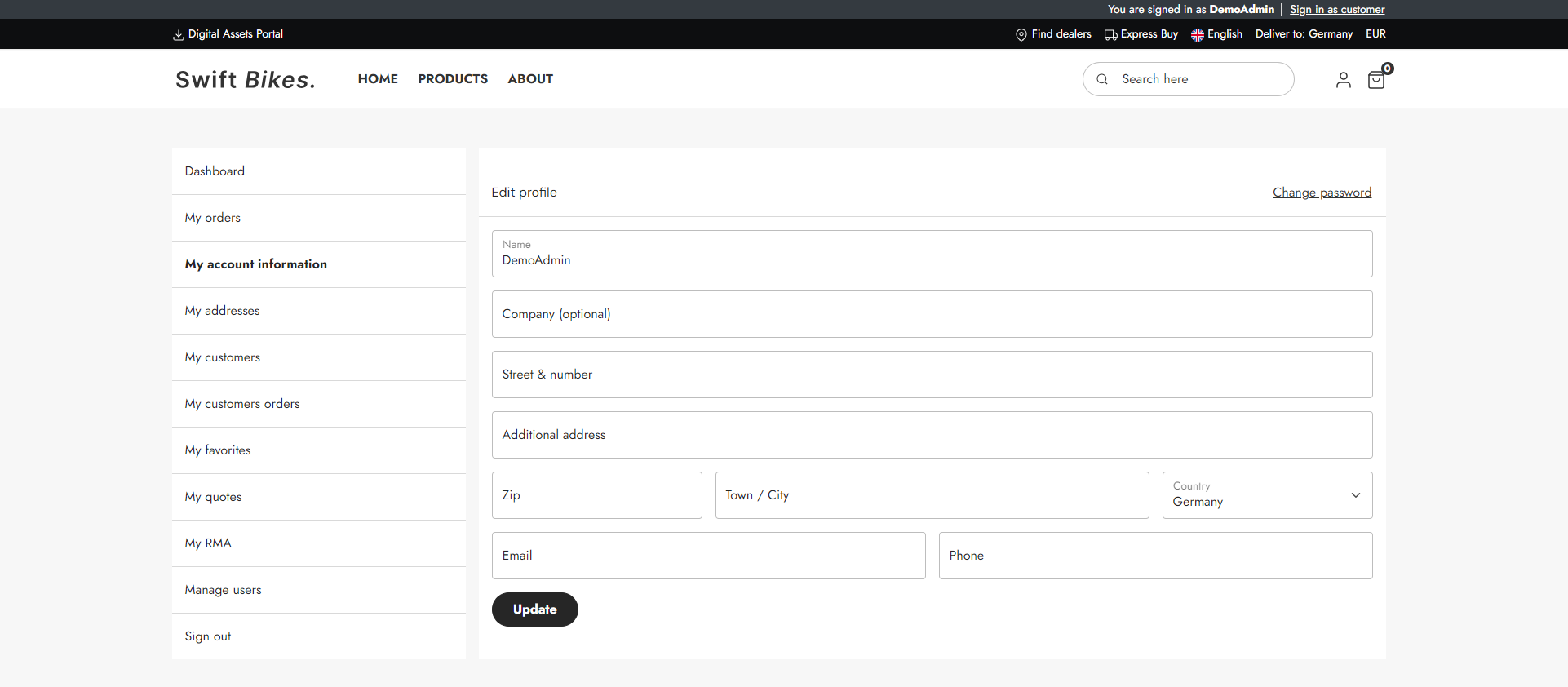
There isn't much configuration needed for this page. If you want to add other profile fields, you'll need to modify the template.
The "My account information" page is a built-in standard feature in Swift. However, if you are interested in the manual setup, read to the guide below.
Manual setup
The manual setup will take place in the "My account" folder, which can be found in Content > Navigation > Utilities.
Here are the step to recreate the Swift "My account information" page:
- Create a new page and provide it with a appropriate name, e.g. “My account information favorites”
- Enter the Visual Editor on the newly created page
- Add a 2 columns 3/9 row to the empty page
- Add a Vertical navigation to the first empty column – Set the Navigation root to the “My account” folder
The second column is where the Account information feature will be placed.
- Add a “Customer center app” to the second column
- Set the title to “My account information"
- Go to the App section
- Select the Extranet app and select the "Edit profile" mode
- Select the "EditProfile.cshtml" template
- Save