The "My Addresses" page displays all saved addresses on a users profile. From this page, it is possible to add new addresses, edit existing ones, or delete them. Beneath each address, there is a "This is your default delivery address" radio button. When this is clicked, that address is set as the default and moved to the top.
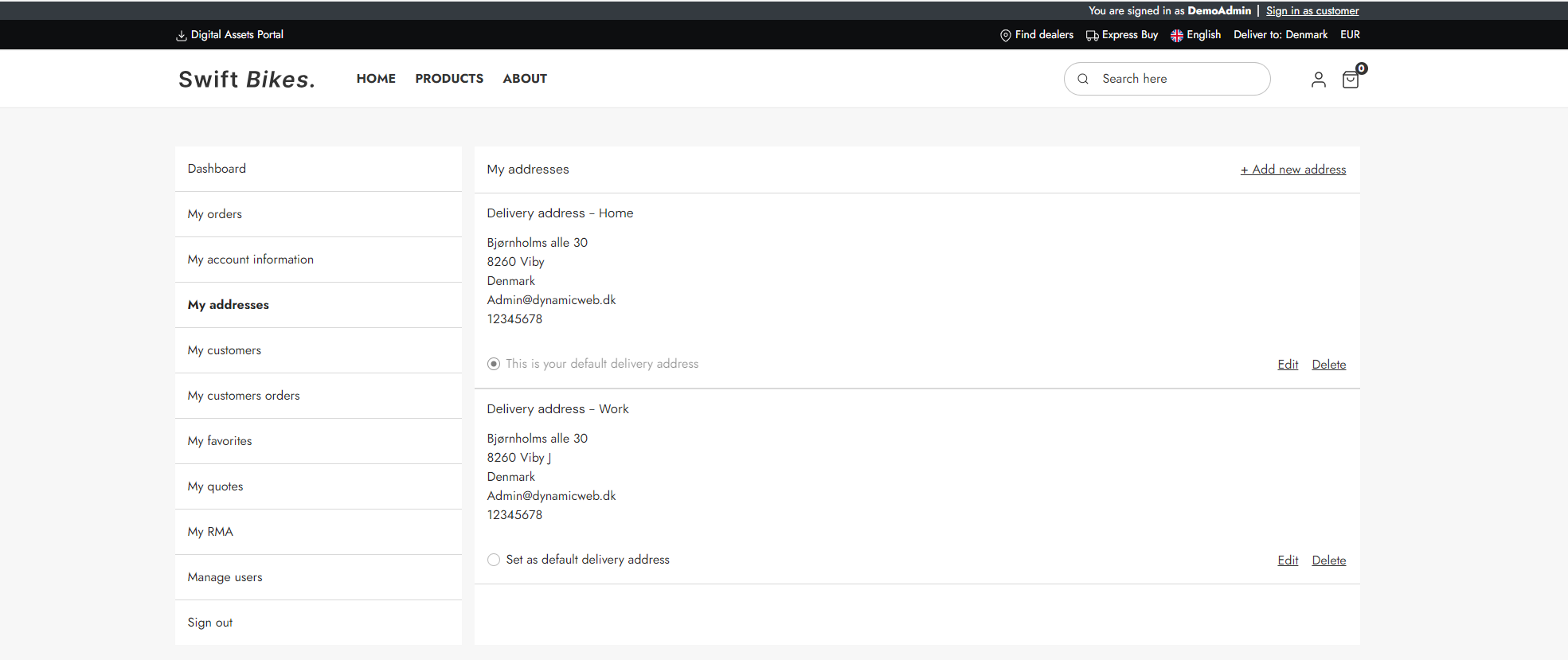
The My addresses page is an standard part of a Swift solution. However, if you prefer to set it up manually, you can follow this guide:
Manual setup
The manual setup will take place in the "My account" folder, which can be found here Content > Navigation > Utilities.
Here are the step to recreate the Swift "My addresses" page:
- Create a new page and provide it with a appropriate name, e.g. “My addresses"
- Enter the Visual Editor on the newly created page
- Add a 2 columns 3/9 row to the empty page
- Add a Vertical navigation to the first empty column – Set the Navigation root to the “My account” folder
The second column is where the My addresses feature will be placed.
- Add a customer center app and provide it with a title, e.g. My addresses
- In the App section, select the "Extranet" app
- in Extranet mode, select "Manage addresses"
- Select the "ManageAddresses.cshtml" template in Address list template
- Select the "AddAddress.cshtml" template in Create address template
- Save