The 'My favorites' page enables users to create and organize multiple lists of their favorite items, typically for future purchases. When users find an item they like on the website, they can add it to one of their favorite lists. During this process, users can choose which specific list to add the item to. Users can create these lists directly on the 'Favorites' page, or if they add an item to favorites without an existing list, a new list will be automatically generated for them.
If a favorites list is empty, users can click on it to explore products and find inspiration. Additionally, Users also have the option to delete or rename their lists.
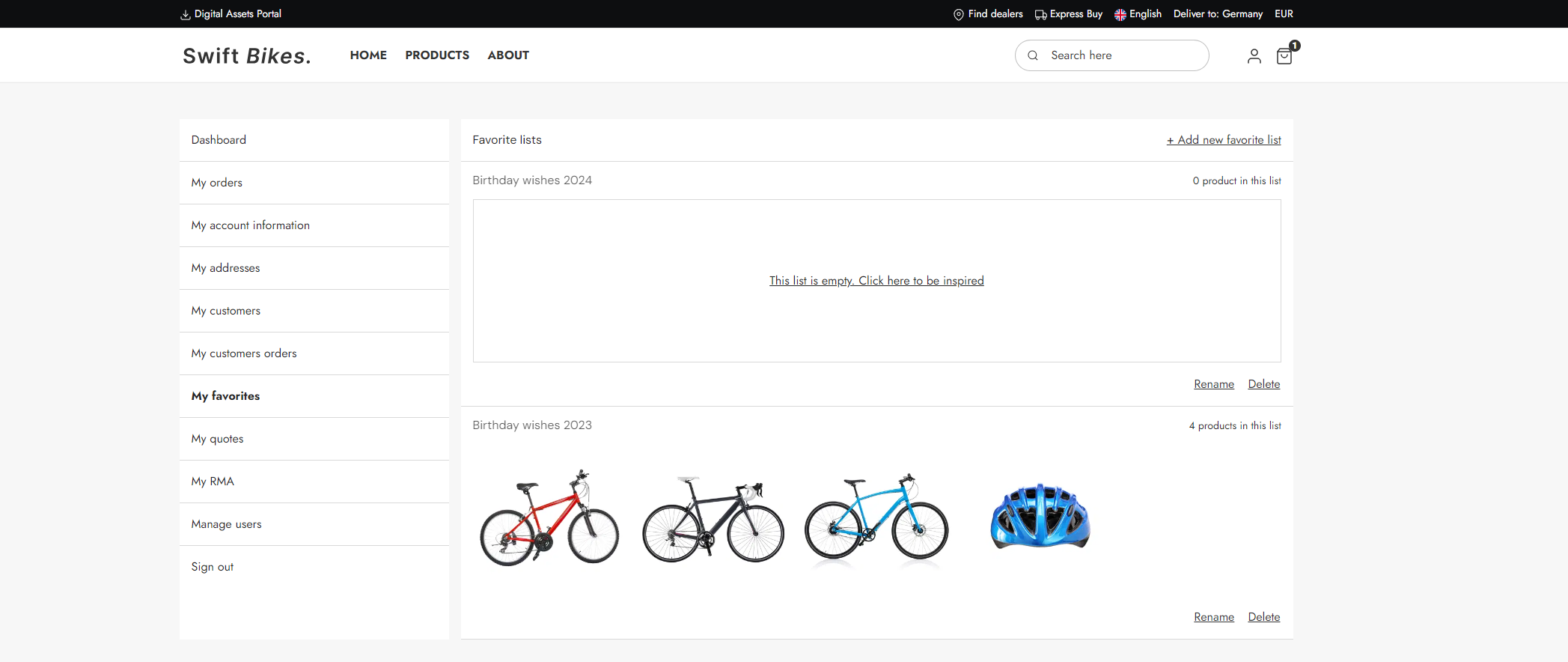
The backend configuration of this page offers several options, including:
- Selecting the number of items displayed per page within each list
- Setting the sorting order, such as sorting by name in descending order
The "My favorites" page is a built-in standard feature in Swift. However, if you are interested in the manual setup for any reason, read to the guide below.
Manual setup
The manual setup will take place in the "My account" folder, which can be found here Content > Navigation > Utilities.
Here are the step to recreate the Swift "My favorites" page:
- Create a new page and provide it with a appropriate name, e.g. “My favorites”
- Enter the Visual Editor on the newly created page
- Add a 2 columns 3/9 row to the empty page
- Add a Vertical navigation to the first empty column – Set the Navigation root to the “My account” folder
The second column is where the favorites list feature should be placed.
- Add a “Customer center app” item to the second column
- Set the title to “My favorites”
- Link the Orders page field to your "My orders" page
- Link the Account settings page field to your "My account information" page
- Link the Addresses page field to you "My addresses" page
- Link the Product list page field to your Products list
- Go to the App section
- Select the Customer experience center - favorites app
- Set "Retrieve list based on" to "User id"
- Set "Lists per page" to "12"
- Set "Sort by field" to "Name"
- Set "Sort direction" to "Descending"
- Select "FavoriteLists.cshtml" in List template
- Select "FavoriteDetail.cshtml" in the Detail template
The "My favorites" page is now finished.