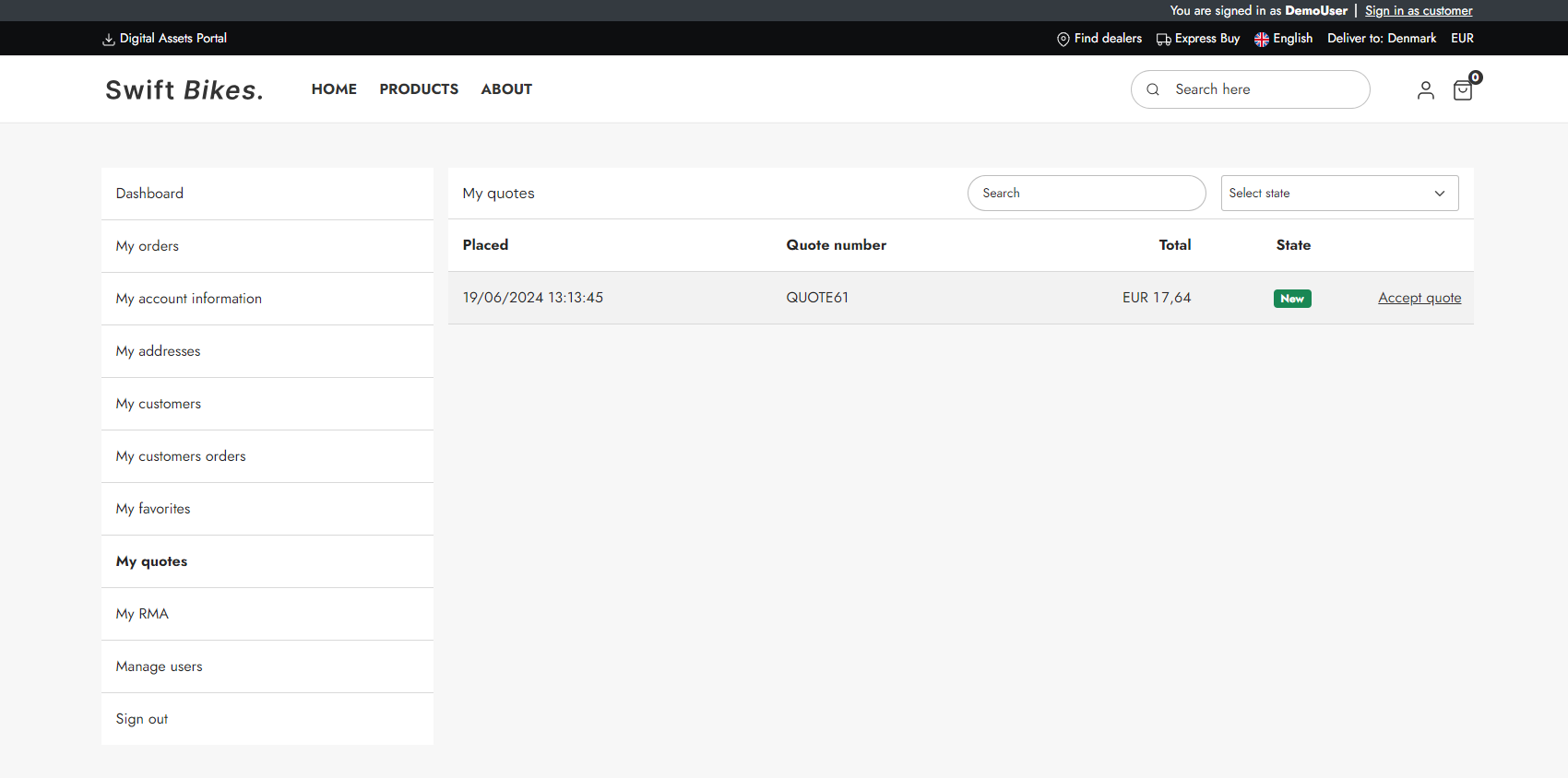
The "My Quotes" page in the customer center is designed to display all quotes submitted by customers. On this page, customers can view details such as the date each quote was placed, the quote number, the total price, and the status of the quote. The status can be either "New" or "Price Given". "New" indicates that the quote has just been submitted, while "Price Given" means that the commerce team has provided a price for the order. Customers can also accept a quote directly from this page.
Customers can also search through their quotes, and additionally they have the option to sort the quotes by their status.
When the commerce team has provided a price for the item(s), possibly including a discount, it will look like this:
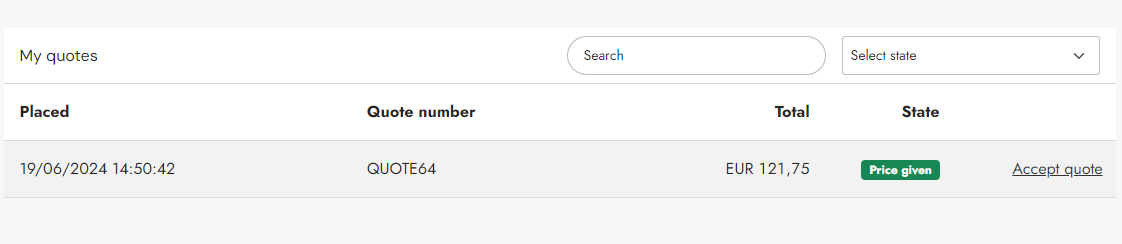
If a user chooses to accept the quote, they will be directed to a shopping cart that includes the items from the quote with the new price applied. This allows them to proceed directly to checkout with the updated pricing.
The "My quotes" page is a standard Swift page, but if you need to set it up manually for any reason, follow the guide below.
Manual setup
Here is how to manually set up the "My quotes" page:
- Go to the My account folder, located in Content > Navigation > Utilities
- Create a page and provide it with a relevant name, e.g. “My quotes”
- Add a 2 Columns 3/9 row
- In the first column add a vertical navigation and set the navigation root to the "My account" folder
- Add an Customer center app to the second column and choose the customer experience center as the app
On to configuring the app:
- In the Content tab:
- Set the title, e.g. "My Quotes"
- Link Orders, Account settings, and Addresses page to the corresponding page in the My account folder
- Link the Cart page to your cart
- Link the Product list page to your products page
- In the App tab:
- Set the Order type to Quotes
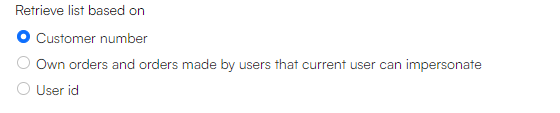
- Retrieve list based on User Id
- In the Templates section, set the List field to the "CustomerQuotesList.cshtml" template and the Detail field to the "QuoteDetails.cshtml" template