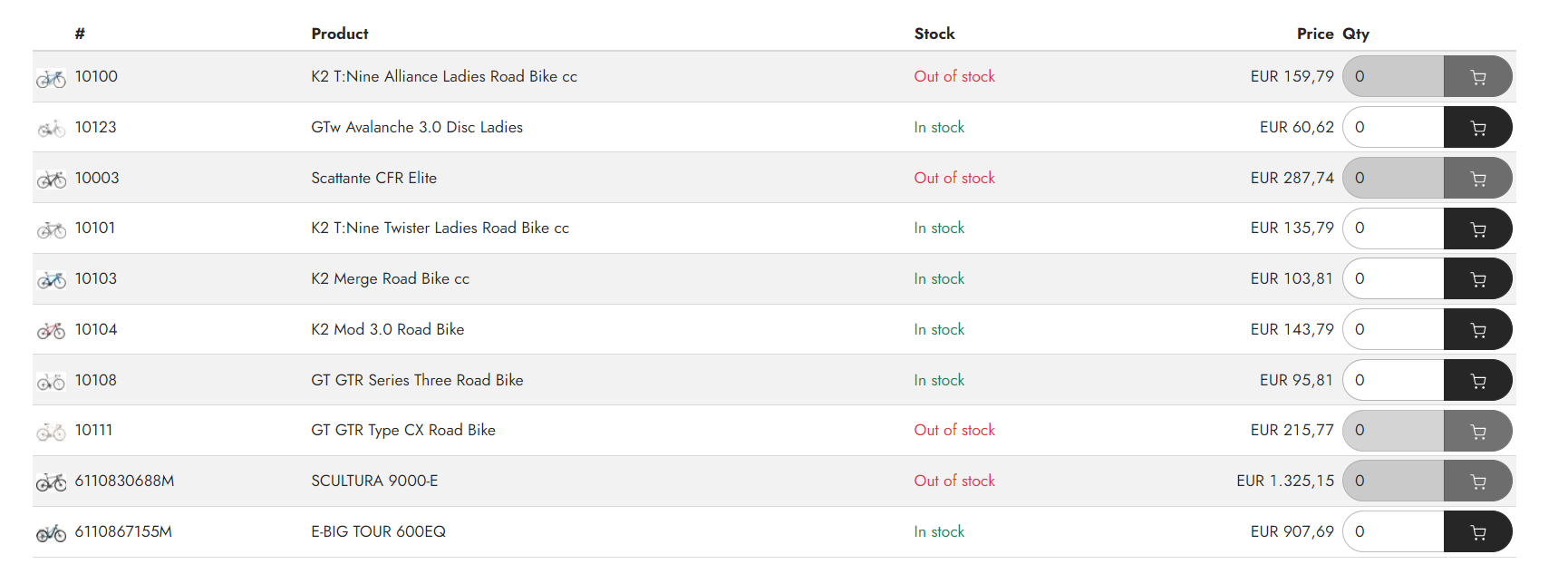
Several Ecommerce columns - such as the Related products list view column, the Product list – list view column, and the Product list – compact view columns - depend on this service page to function.
The Related products list service page retrieves data from the query defined within the app on the service page. When a filter is applied within the paragraph using the service page, it fetches data that meets the specified criteria. For instance, if a Related product list paragraph has its source type set to Variants, the service page will fetch all variants of the same item from the query within the app.
While Swift typically provides this functionality as a standard built-in feature, should you find yourself needing to set it up manually, you can follow the guide below.
Manual setup
To build this service page from scratch you can follow these instructions:
First, we need to create a new page, which will be our Related products list service page
- Navigate to your service pages folder in the content tree: Content > Swift Tools > Services
- Right click the folder and select New page
- Go to the page settings
- provide the page with a title, e.g. Related products list
- Enter the Publication tab and select Hidden in menu
- Enter the Advanced tab and add RelatedProductsListService to the navigation tag field
- Click Save and close
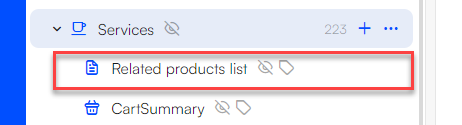
When the service page is provided with a navigation tag, there is no need for manually linking your E-commerce columns to the service page as this is done automatically. If you prefer to manually link all your E-commerce columns to the service page, simply leave the Navigation tag field empty.
Now you need to add a new paragraph to the page:
- Insert a new row
- Add an App paragraph to the row
- Set the title, e.g. Related products list
- Enter the App tab, and choose Product catalog for ViewModel in the dropdown menu
- Choose a product query, e.g. SwiftProducts - Product.query in the Query dropdown menu
- In the Facet groups move Products.facets to the included facets group using the arrows
- In the Templates section, select RelatedProductList.cshtml in the List field
- Click Save and close
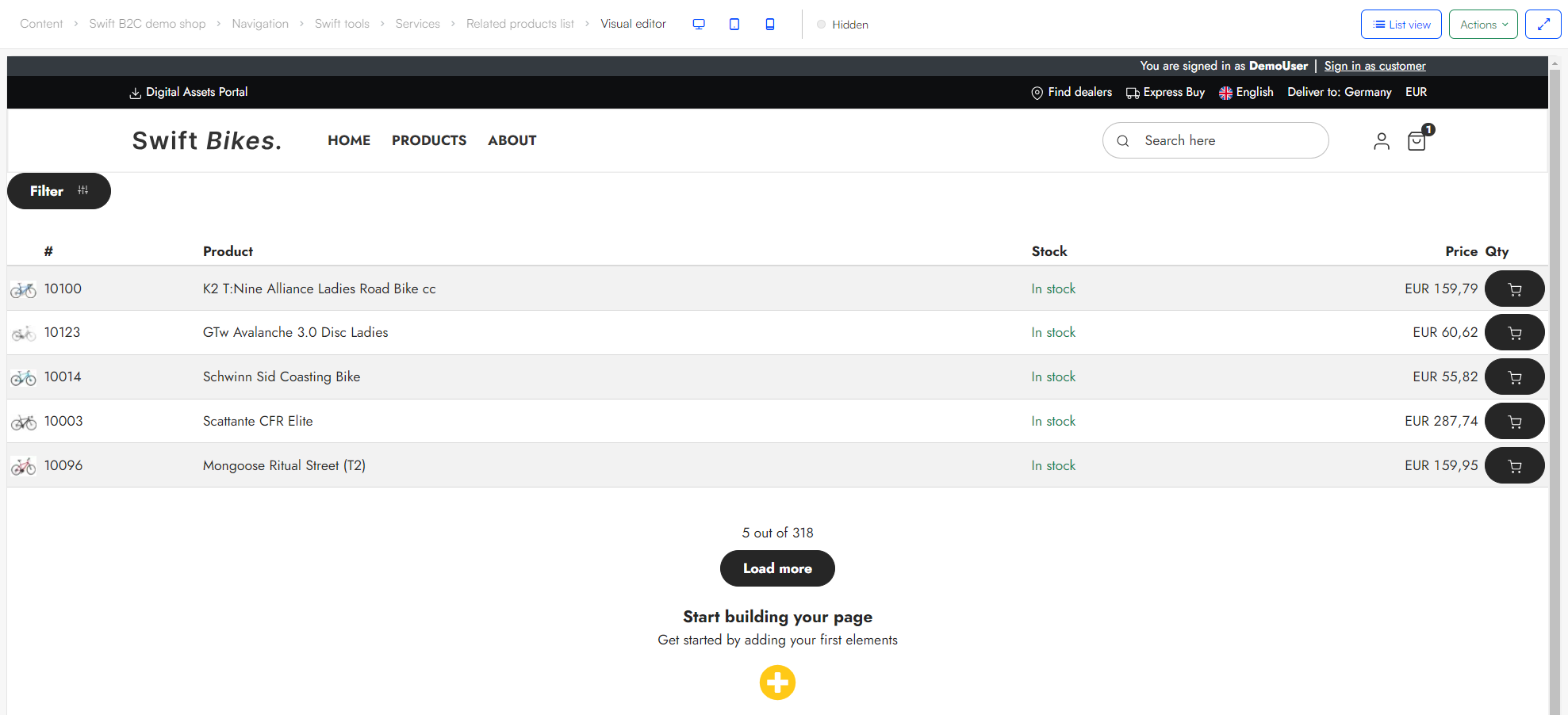
The service page should now look something like this in Visual Editor:
List/Compact View
Unlike the Product list - grid view both alternatives (Product list – list view and Product list - compact view) requires a service page to handle product variants. There is no need to create a new service page; simply use the related products list service page and supplement it with an additional file.
- Navigate to the related products list service page, Content > Swift tools > Services > Related products list
- Open List view
- Click the App column
- Go to the App section
- Scroll down to the Templates section and select VariantSelector.cshtml file in the Details field.
- Click Save and close.

The service page can now also be used on Product list – list view and Product list - compact view.