This service page is needed for the Product slider/grid paragraph to function properly. The way it works is that the Related products slider/grid-service page retrieves data from the query defined within the app on the service page. If any configuration has been applied in the Product slider/grid paragraph that uses the service page, the service page will retrieve products based on this configuration. For example, if the Product slider/grid paragraph is set to display the 8 most sold items, the service page will fetch these specific items from the query within the app.

While Swift typically provides this functionality as a standard built-in feature, should you find yourself needing to set it up manually, you can follow the guide below.
Manual setup
First, we need to create a new page, which will be our Related products slider/grid-service page:
- Navigate to the services folder: Content > Swift Tools > Services
- Right click the folder and select New page
- Right click the new page and select Page settings
- Give the page the title, e.g. Related products slider/grid
- Enter the Publication tab and select Hidden in menu
- Save and close
Now we'll add the app paragraph to the service page:
- Add a new row to the page
- Add an app paragraph to the row
- Go to the App tab and select Product catalog for ViewModel in the dropdown menu
- In the Query dropdown menu, select the query you want to use. for instance SwiftProducts - Products.query
- Set the List template to ProductSlider.cshtml
- Save and close
The service page is now essentially done. To make the product slider work, you’ll either have to link the column with the service page or set a ProductSliderService tag on the service page. If you want to use more than one product slider you probably want to go with the tag, but we’ll show both ways.
To link a column with the service page, you have to:
- Navigate to the Product slider column you wish to link your service page to and select Edit paragraph
- In the Content tab, scroll down to the Advanced section
- In the Product slider service page field, link to the service page
- Save and close
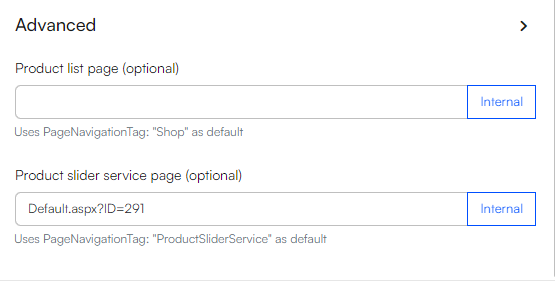
if you use a ProductSliderService tag on your service page, this field will by default be linked to your service page. To create the tag:
- Navigate to the Product slider service page
- Enter the Page settings
- Head to the Advanced tab
- In the Navigation section, under Navigation Tag, write ProductSliderService
- Save and close
