The Variant Selector service page is used when products are offered in multiple colors, sizes, or other variations.
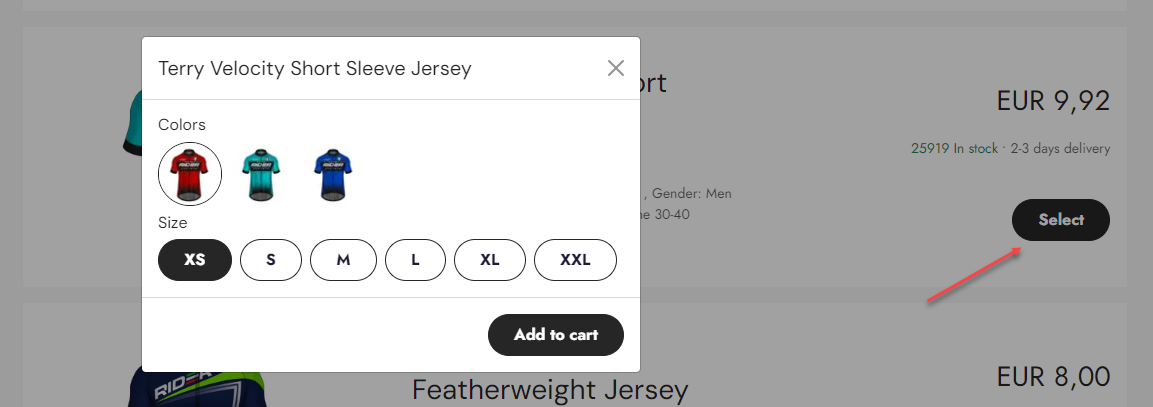
The Variant Selector service page is used when adding a variant selector directly onto a product list card, ensuring optimal performance. By implementing it on a product list card, users encounter a "Select" button instead of an "Add to Cart" option when a product is available in different variants. Upon clicking the "Select" button, a modal window displaying all possible variants opens. Once users have chosen their preferred variant, they can proceed to click "Add to Cart".
The Variant Selector service page is equipped with a navigation tag, which ensures automatic linking to where it is used. e.g. when it's used in a Product list: List view paragraph.

While Swift typically provides this functionality as a standard built-in feature, should you find yourself needing to set it up manually, you can follow the guide below.
Manual Setup
To build this service page from scratch you can follow these instructions:
First, we need to create the page, which will be our Variant Selector Service page
- Navigate to the Services folder : Content > Swift Tools > Services
- Right click the folder and select New page
- Go to the page settings
- provide the page with a title, e.g. Variant Selector Service
- Go to the Publication tab and select Hidden in menu
- Go to the Advanced tab and add RelatedProductsListService to the navigation tag field
- Save and close
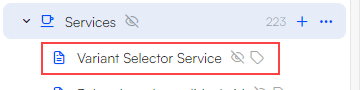
When the service page is equipped with a navigation tag, there is no need for manually linking columns to the service page as this is done automatically where needed. Alternatively, if manual linking is preferred, the Navigation tag field can be left empty.
Now you need to add a new paragraph to the page:
- Insert a new row
- Add an App paragraph to the row
- Set the title, e.g. VariantSelectorService
- Enter the App tab, and choose Product catalog for ViewModel in the dropdown menu
- Choose a product query, e.g. SwiftProducts - Product.query in the Query dropdown menu
- In the Templates section, select VariantSelector.cshtml in the Details field
- Save and close
The service page is now finished and will look something like this in the Visual Editor:
