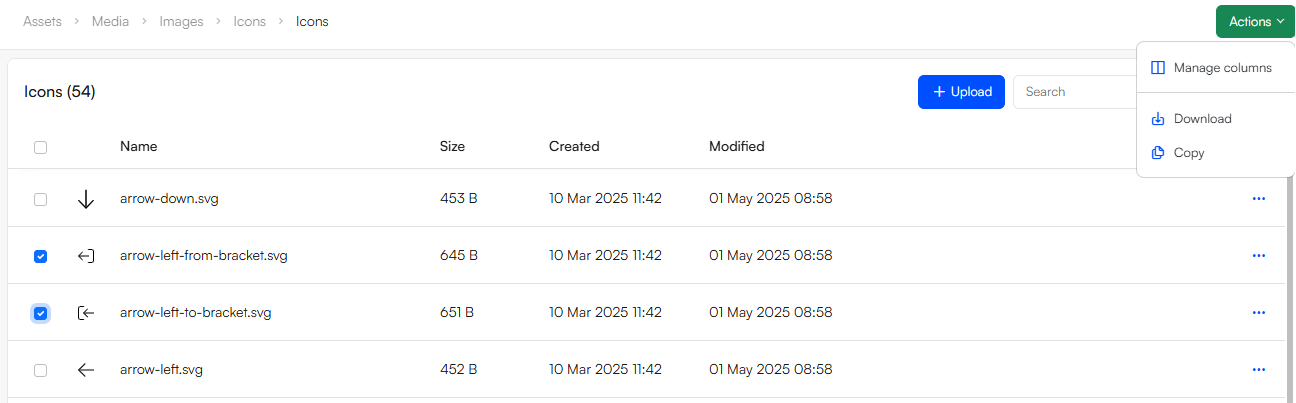
An action menu is a menu launched from an action-button on a list screen or an overview screen.
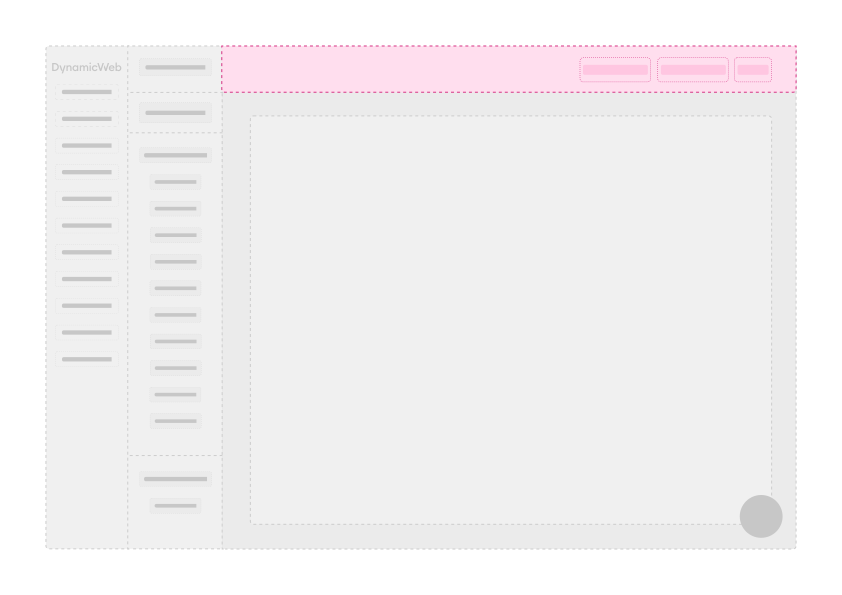
Action menus are different from context menus in that they have scope over the whole view; on lists you can select any number of list items and use the action menu options to do stuff.
One option which is always available for list screens is the manage columns action, which allows you to customize what columns are shown in a list. This is extremely useful during daily use.
Custom menu actions
To add custom actions to the actions menu you can override the GetListContextActions inherited from the ListScreenBase, or the GetScreenActions method inherited from the OverviewScreenBase, depending on which ScreenType you are working with.
Multiple actions can be added by creating a new ActionNode for each. Within the ActionNode you can set properties including the name of the action, an icon, and of course the action you want to occur when clicked.
The below example shows how we have added Download and Copy actions to the FileListScreen action menu:
    protected override IEnumerable<ActionGroup>? GetListContextActions() => new ActionGroup[]
    {
        new()
        {
            Nodes =
            [
                new ActionNode
                {
                    Name = "Download",
                    Icon = CoreUI.Icons.Icon.DownloadAlt,
                    NodeAction = DownloadFileAction.Using(new FileDownloadCommand { DirectoryPath = Model?.DirectoryPath ?? "" })
                },
                new ActionNode
                {
                    Name = "Copy",
                    Icon = CoreUI.Icons.Icon.Copy,
                    NodeAction = OpenSlideOverAction
                        .To<SelectorScreen>()
                        .With(new SelectorDataByProviderQuery(SelectorBuilder.CreateFolderSelector().Provider))
                        .WithOnSelectAction(ConfirmAction.For(
                            RunCommandAction.ForCommandAndProperty<FileCopyMultiCommand>(c => c.Path).WithReloadOnSuccess(ReloadType.Workspace),
                            $"Copy files?",
                            "Are you sure you want to copy files?"
                        )),
                    PermissionLevelRequired = PermissionLevel.Create
                },
            ]
        }
    };
We now have these options available in the action menu, and can apply these actions to the selected items in the list: