Our publication and permissions tools are used to control visibility of content either by publishing or un-publishing it or restrict the access to it using permissions.
Publication
The Publication tools allow you publish or un-publish content such as pages, rows or paragraph types. This can be done manually or automatically by specifying a start and end date for when it should be published or unpublished.
Use publication tools for:
- Automated scheduling: You can plan content releases in advance without manual intervention.
- Time-sensitive content: Ideal for seasonal promotions, limited-time offers, event announcements, and campaign-based content.
- Drafting and revisions: Unpublish a page, row or paragraph while making updates or revisions, preventing visitors from seeing incomplete or outdated content.
Publication states
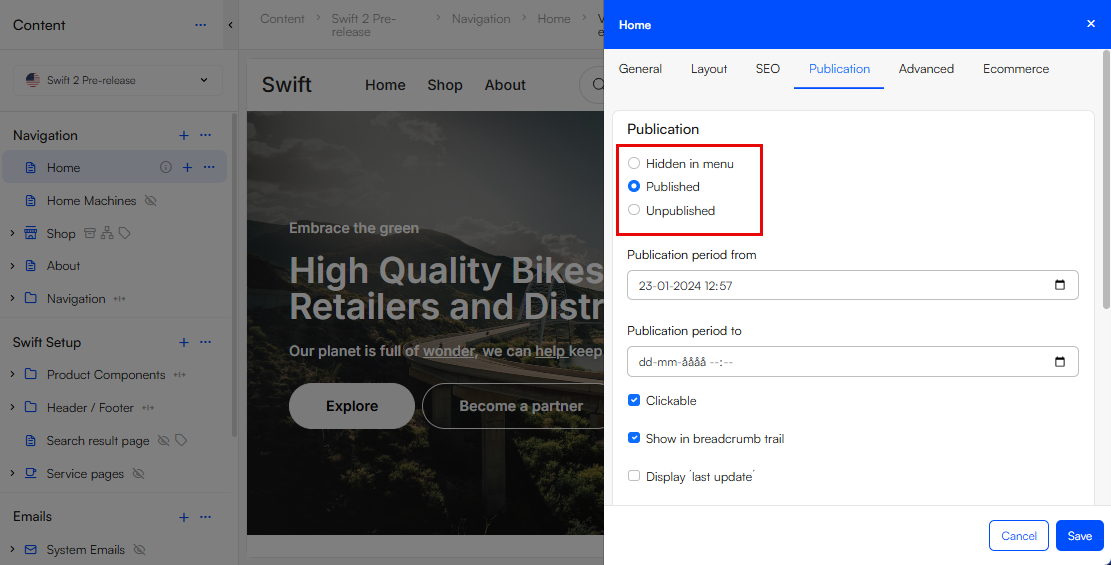
For pages you have three publication states to choose from:
- Hidden in menu: Will not show the page in navigation menus but is still published and visible to the frontend. Use it e.g. on a landing page where you don’t want a Home page visible in your header navigation.
- Published: Can be seen in the frontend and in navigation menus.
- Unpublished: Cannot be seen in the frontend. Use when working on a new page to prevent visitors seeing the incomplete page.
You manually select a publication state in the Publication-tab from a page's edit screen:
Publication periods
For pages, rows and paragraph types you can set up the publication period-tool. This can be used to automatically change whether the content should be published or unpublished.
To use publication periods set the two periods that defines a start and end date: Publication period from and Publication period to. You set the publication period in the Publication-tab from the edit screen of your page, row or paragraph type:
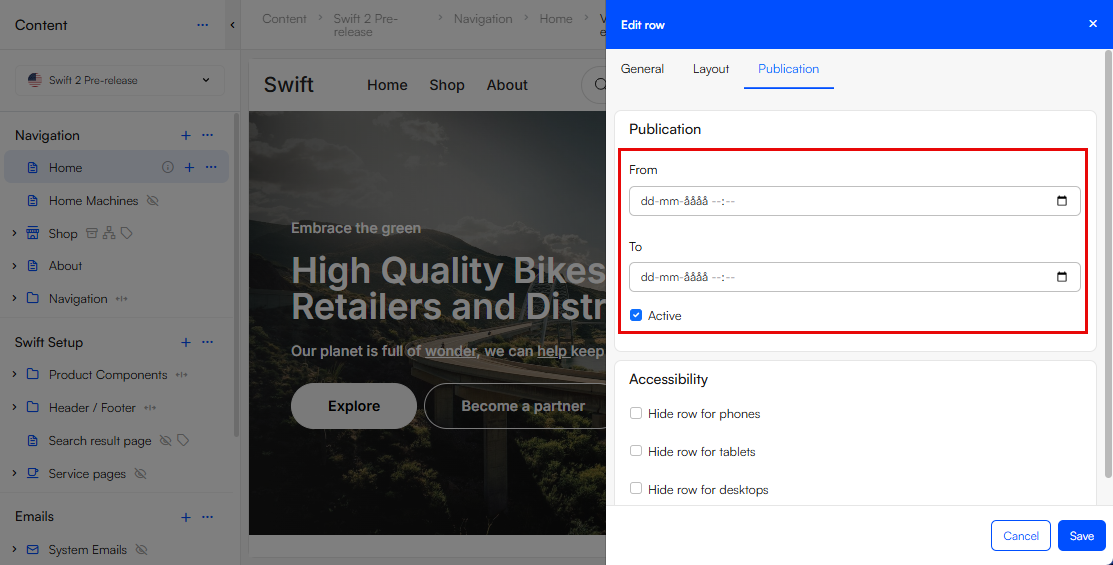
The Publication period to is sat to “dd/mm/yyyy --:--” by default, meaning that the page doesn’t have an expiration date. If Publication period from is set to “dd/mm/yyyy --:--” it means that the page doesn’t have a publication date. On rows you also have the possibility to select Active instead of defining a publication period.
Permissions
Permissions can be used to restrict access to pages based on a user's permission level. You can restrict access to pages based on e.g. user roles, meaning you can block anonymous users from accessing a page in the frontend.
Note
In order to set permissions you need to have an administrator user role.
If you want to restrict access to pages in frontend go to Permissions on the specific page from its context menu. Here you have an overview of the present permissions set, here anonymous users (frontend) will typically have the permission Read - this means they have access to this page in the frontend.

To restrict the access to the specific page e.g. restrict anonymous users from accessing the page you need to:
- Click + New permission
- Set the user role to anonymous users (frontend)
- Set the permission to None
- Click Save - now only logged in users will have access to the page in frontend.
Read more about permissions, permission levels and user roles here.