The "My Customers Orders" page is a tool designed specifically for administrators on a website. It serves as a central place where administrators can effectively manage and monitor all orders placed by their users. Since this page should only be accessible to specific users, it's important to implement permissions to restrict access accordingly.
Administrators can see a complete list of orders, with each order showing important details like:
- Date and Time of Order Placement: This timestamp provides administrators with the exact moment the order was placed
- Order Number: Each order is uniquely identified by an order number, allowing easy reference and tracking
- Customer Name and Customer Number: Administrators can see who placed the order
- Total Amount: The total cost of the order is displayed
- Order State: Orders are categorized into different states such as "New", "Completed", "Rejected", and "Deleted", allowing administrators to see the current status of each order
Additionally, administrators can initiate a reorder of any existing order directly from this page, making it easier to repeat previous transactions when needed. Administrators can also search for specific orders using the order number, which allows them to quickly access detailed order information as needed
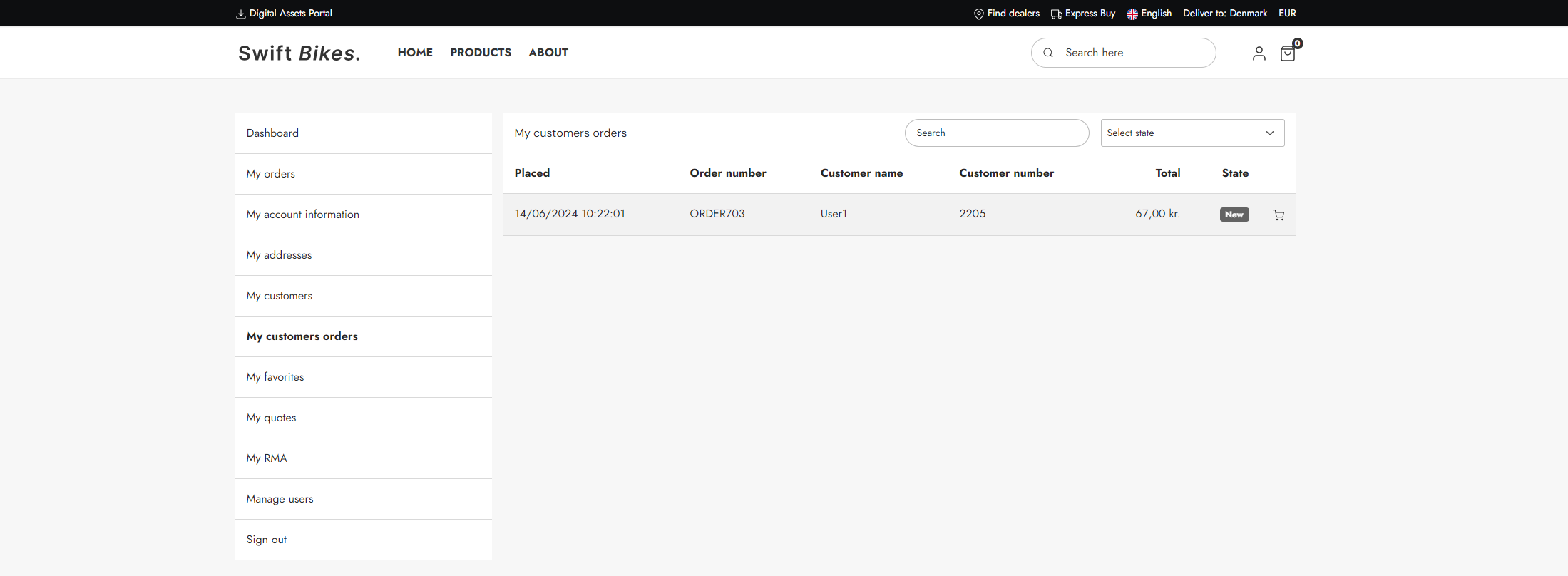
The "My customers order" page is a built-in standard feature in Swift. However, if you are interested in the manual setup, read to the guide below.
Manual setup
The manual setup will take place in the "My account" folder, which can be found here Content > Navigation > Utilities.
Here are the step to recreate the Swift "My customers orders" page:
- Create a new page and provide it with a appropriate name, e.g. “My customers orders"
- Enter the Visual Editor on the newly created page
- Add a 2 columns 3/9 row to the empty page
- Add a Vertical navigation to the first empty column – Set the Navigation root to the “My account” folder
The second column is where the customers orders list feature should be placed.
- Add a customer center app and provide it with a title, e.g. My Customers orders
- In the App section, select the "Customer experience center" app
- Select Orders as the order type
- Set "Retrieve list based on" to "Own orders or orders made by users that current user can impersonate"
- Select how many orders you want displayed per page, e.g. 5
- Select the "CustomerOrderViewSearchList.cshtml" template in List template
- Select the "CustomerOrderDetails.cshtml" template in Detail template
- Save