Users - as opposed to visitors - are registered accounts with access to a DynamicWeb 10 solution frontend and possibly the administration/backend. That is to say; some users are direct customers who can log in to websites on the solution, others are editors or administrators who log into the administration interface to create content or handle orders, etc.
Once a user has been created they can be found in a user group or via the All Users-query. Either way, clicking on the user will open the user overview screen:
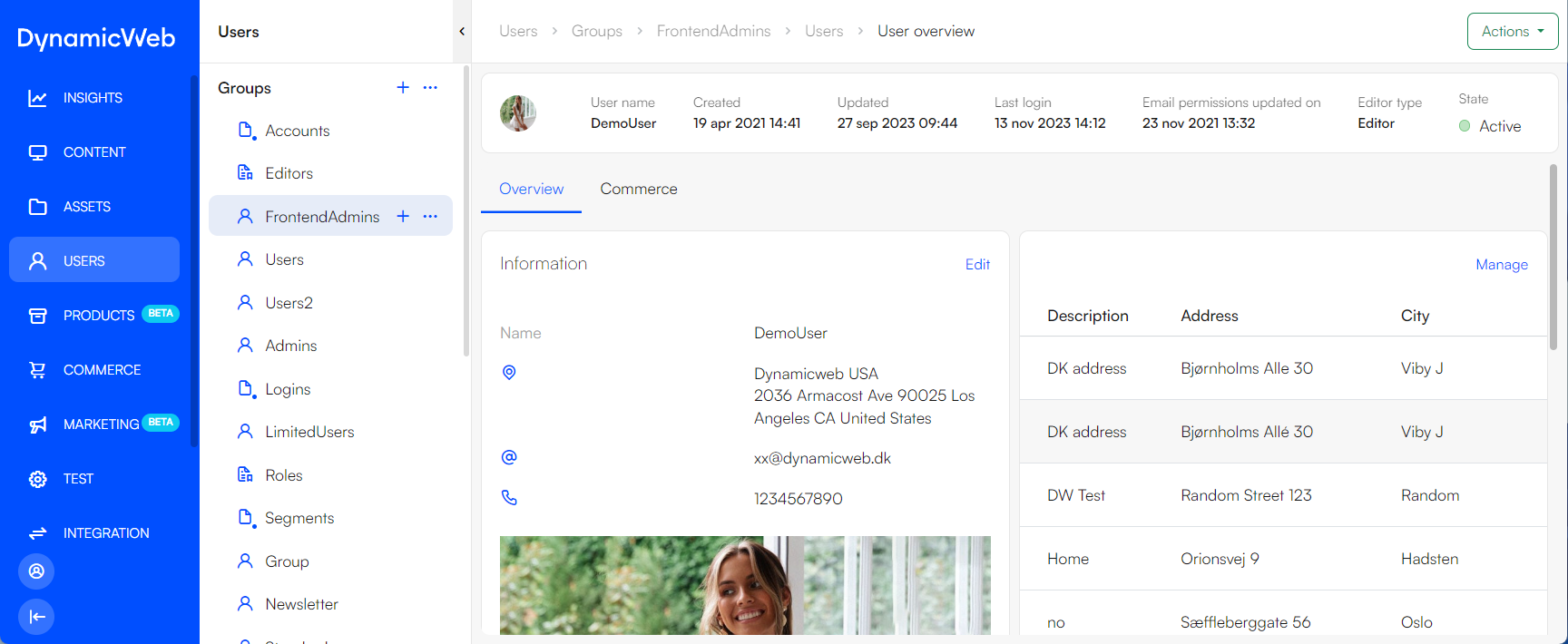
The user overview screen shows a number of widgets and tabs depending on the kind of data stored which is related to this user; while the Details-tab is always available, the Impersonation-tab is only present when the user can impersonate or be impersonated.
Editing Users
To edit the user details, click edit on the overview tab to open the edit user view:

In this view, user fields are organized in a series of tabs:
The User-tab contains the most commonly used standard user fields and settings:

Using the Login section you can:
- Set a Username
- Select a custom user type (if available)
- Set the user as active or inactive
- Check Allow backend login to allow this user to log in to the administration
- Select a custom authentication method for the user
The User information, Phone, and Work sections are used to fill in details about the user - e.g. their First name, Last name, Title, etc. The User address section is used to store the default address for the account - additional addresses can be added and managed using the Addresses tab. Finally, the Groups section provides an overview of group membership for the user and allows you to edit it, if necessary.
In many cases, the contents of these fields can be edited by the users themselves from frontend, provided of course that it is implemented in the design using e.g. a Customer Center app. In other cases, the values will come from and be maintained in an external CRM-system, this all depends on the solution design and implementation.


 More specifically:
In edit view, you can also use the action menu to edit certain user properties:

You can:
- Set a password for the user
- Send user details
- Send recovery mail
- Manage the impersonation relations for the user
- Review changes made on the user
Send user details
When editing a user, you can use the action-menu to send an email to the user with their user details - you must:
- Provide a subject
- Provide a sender name
- Provide a sender email
- Select where the mail content should come from:
- Page
- Template
- Click save
Only the following tags are available for pages and templates when sending out user information - you cannot use tags from Extranet or Email Marketing:
DWUsers:User:Username
DWUsers:User:Password
DWUsers:User:Name
DWUsers:User:Email
DWUsers:User:Department
DWUsers:User:Type
DWUsers:User:ValidFrom
DWUsers:User:ValidTo
DWUsers:User:PasswordRecoveryUrl
User types
The user type of a user represents different default levels of access to a solution. There are three system user types:
- Administrator
- Admin
- Editor
Administrators and admins have default access to the backend administration - for Editors, you need to check the Allow backend login for this user-checkbox in the user details. The user type of a user is changed from the advanced-tab on a user.
When logged in, both administrators and admins default to the permission level All, which means they can see everything and set permissions for other users. Editors, on the other hand, have no default permission set, and will have to be granted access to backend content explicitly.
You can also create custom user and group types - this is typically used if you're looking to implement a more advanced kind of access control system than the default types allow you to do.