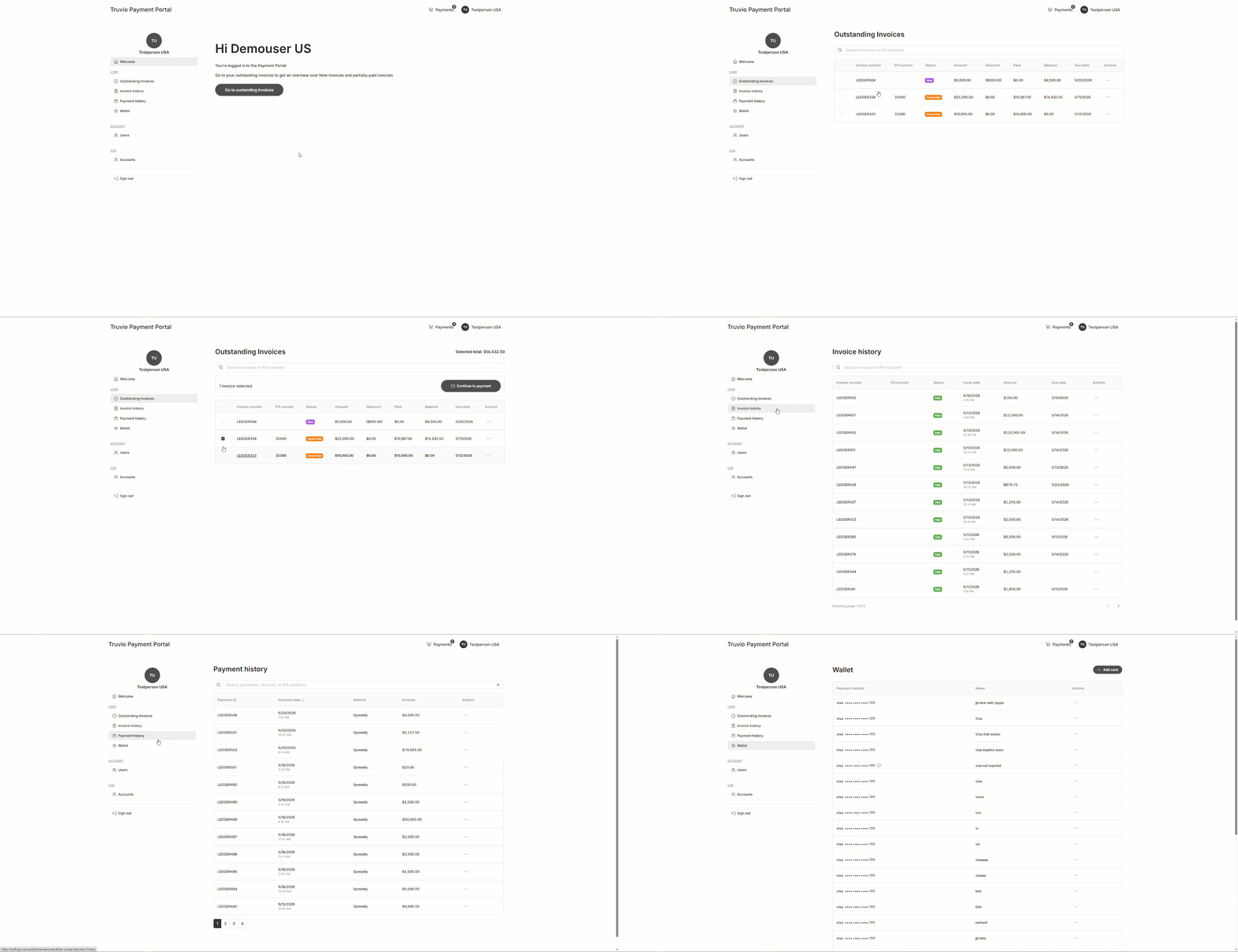
The Truvio Payment Portal gives your customers a single place to manage their invoices. It brings together four related views:
- Outstanding invoices: For unpaid or partially paid invoices
- Invoice history: For past invoices, including paid and canceled records
- Payment history: For completed payments made against invoices
- Wallet: For managing saved payment cards
Truvio Payment Portal relies on configured Ledger types and Ledger flows, plus the Customer Experience Center module, to decide which ledger type and which flow states appear in each frontend view. It also needs a configured payment provider to process invoice payments — see Configure a payment provider.
Configure ledger types and ledger flows
Truvio Payment Portal uses dedicated ledger types and ledger flows to keep invoice and payment records separate from standard orders.
To configure this:
Create the ledger types you need for invoice management, such as Invoice or Payment. Ledger types are created in Settings > Commerce > Order Management > Ledger types, where you can also edit or delete existing types.
Set up a ledger flow to define the states used by ledger entries. This makes it possible to treat invoice and payment records differently from regular order states. Ledger flows can be set up in Settings > Commerce > Order Management > Ledger flows.
- Typical examples used in Truvio Payment Portal are:
- New
- Partial paid
- Paid
- Draft
- Cancelled
- Create the flow states you need for the invoice and payment scenarios in your solution. The frontend list behaviour depends on the selected ledger type and the selected flow states.
- Typical examples used in Truvio Payment Portal are:
Create ledger entries of the appropriate type from Commerce > Ledgers. Each ledger entry is classified by its ledger type and follows the states defined in its ledger flow.
Configure the Customer Experience Center
The Customer Experience Center can filter ledger-backed data by ledger type and ledger flow state, which lets you use the same template for different invoice and payment views.
The selected ledger type and flow states are stored in the module settings and used by the order search layer to filter the ledger-backed data.
To configure the Customer Experience Center:
- Navigate to a page with the Customer Experience Center app attached, e.g. Outstanding Invoices
- Open the App tab and select the Customer Experience Center app
- Under Shows, select Ledgers
- Select the ledger type that the page should use, such as Invoice or Payment
- Select one or more Ledger flow states applicable to the page
- Under Templates, select e.g.:
- List: Invoices_Outstanding_List.cshtml
- Detail: Invoices_Details.cshtml
- Click Save
Example of ledger configurations
| View | Ledger type | Example flow states |
|---|---|---|
| Outstanding invoices | Invoice | New, Partial paid |
| Invoice history | Invoice | Paid, Cancelled |
| Payment history | Payment | Paid, Cancelled |
Configure a payment provider
Invoice payments started from the Outstanding invoices flow are processed through a payment provider. Truvio Payment Portal is built to use Spreedly, which securely stores cards and routes transactions to an underlying payment gateway — the same tokens power the saved cards shown in the Wallet.
For the full setup — installing the add-in, selecting the Spreedly Checkout Handler, and entering the credentials (environment key, access secret, gateway token, and certificate token) — see Spreedly.
Outstanding invoices
The Outstanding invoices view is where your customers find their unpaid or partially paid invoices and start paying them. You'll typically configure it to show ledger entries of type Invoice in flow states such as New and Partial paid.
The list shows the following columns for each invoice:
- Invoice number
- Purchase order number
- Status
- Amount
- Discount
- Paid amount
- Balance
- Due date
- Actions
From the list, your customers can search invoices, page through results, and open an invoice to view its full details.
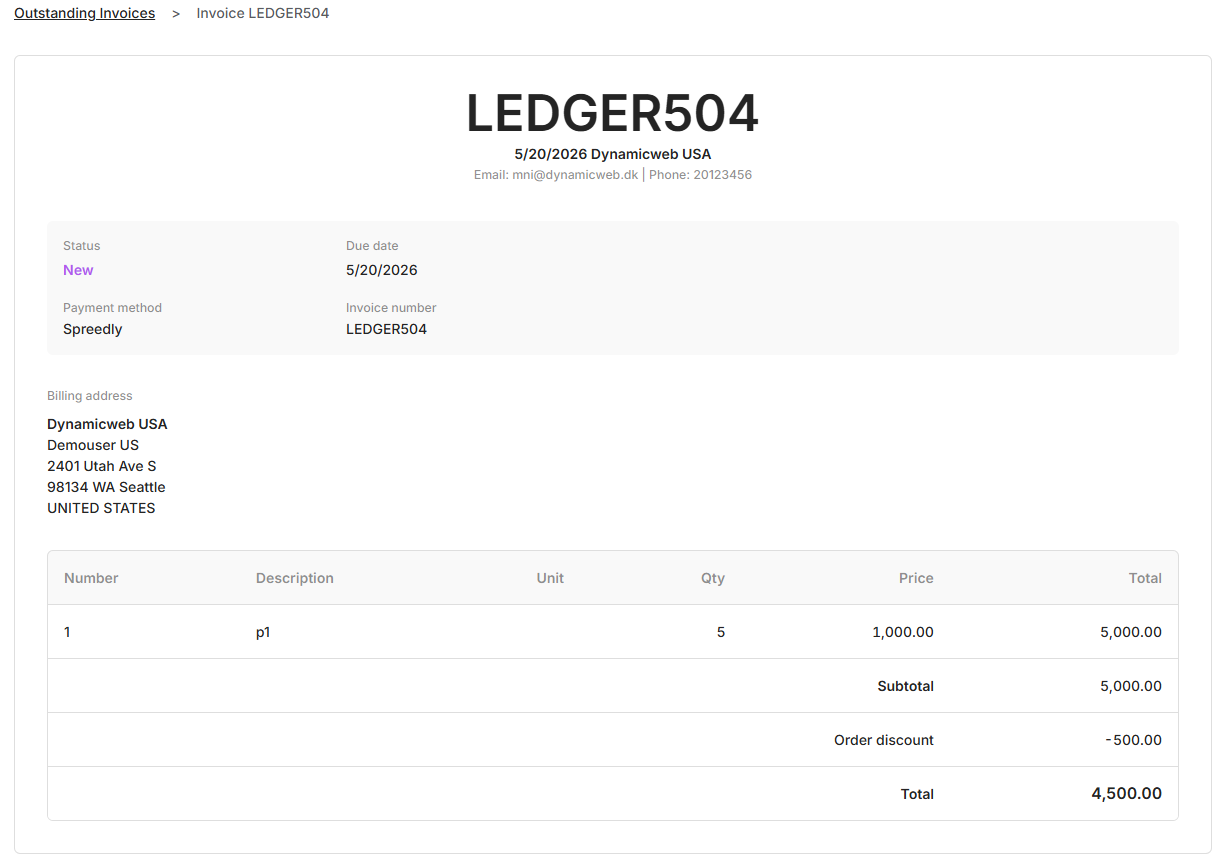
Invoice detail page
When a customer clicks an invoice, they open the invoice detail page — shared by both outstanding invoices and invoice history. It shows the full invoice record, including the invoice number, invoice date, customer contact information, status, due date, payment method, billing address, invoice lines, subtotal, discounts, and total amount.
Your customers can pay one or more invoices in a single checkout flow — they select the invoices to pay and click Continue to payment.
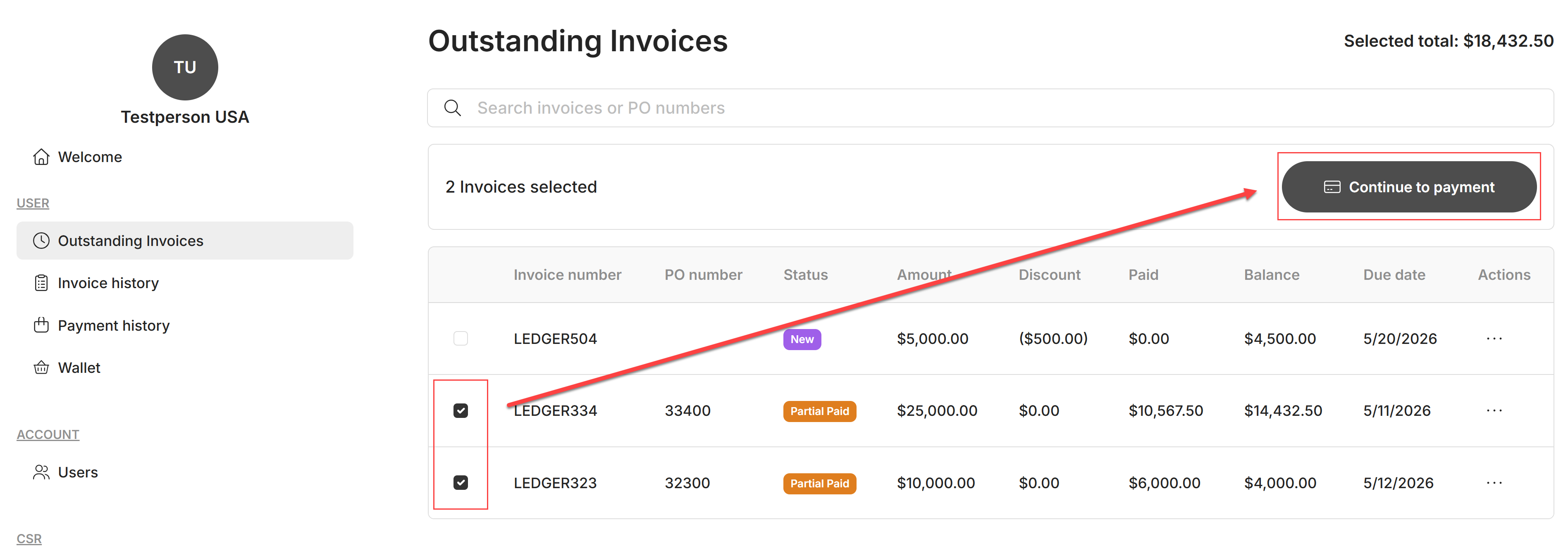
The selected invoices are then combined into a single payment. In the payment step the customer chooses one of their saved cards (and can set a default), adds an optional comment, and clicks Complete payment to finish.
Receipt after payment
Instead of the standard checkout receipt, Truvio Payment Portal shows a receipt designed for invoice payments. The receipt can show:
- Payment number
- Date
- Billing address
- Capture amount
- Card information
- Invoice numbers
- Total paid amount
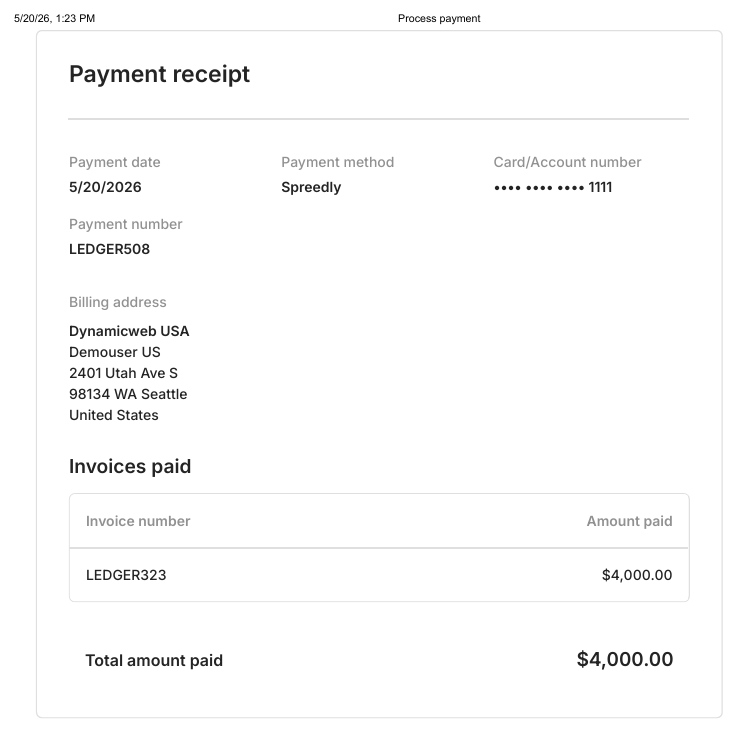
If your solution uses a custom receipt template, check that it matches the intended Truvio Payment Portal layout and text.
Invoice history
The Invoice history view is where your customers review their completed invoice records. You'll typically configure it to show ledger entries of type Invoice in flow states such as Paid and Cancelled.
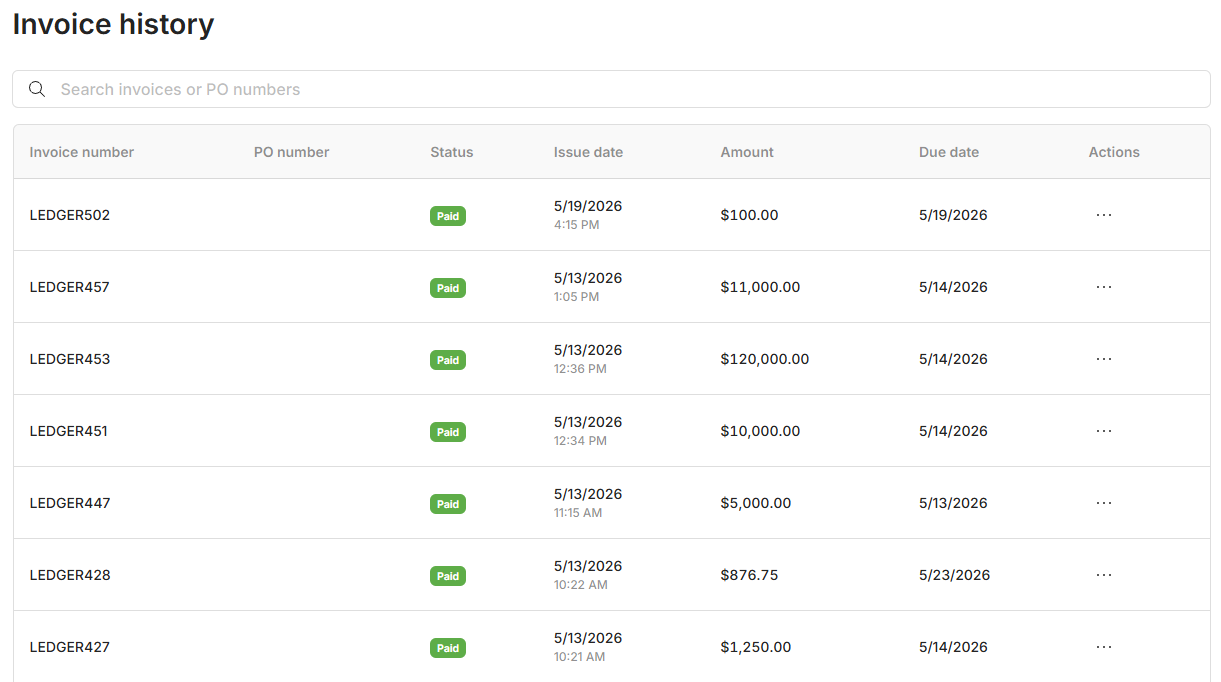
The list shows the following columns for each invoice:
- Invoice number
- Purchase order number
- Status
- Issue date
- Amount
- Due date
- Actions
From the list, your customers can search through previous invoices, page through results, open an invoice to view its full details, and review completed records for verification and record keeping.
Payment history
The Payment history view is where your customers review the payments they've made against their invoices. You'll typically configure it to show ledger entries of type Payment in flow states such as Paid and Cancelled.
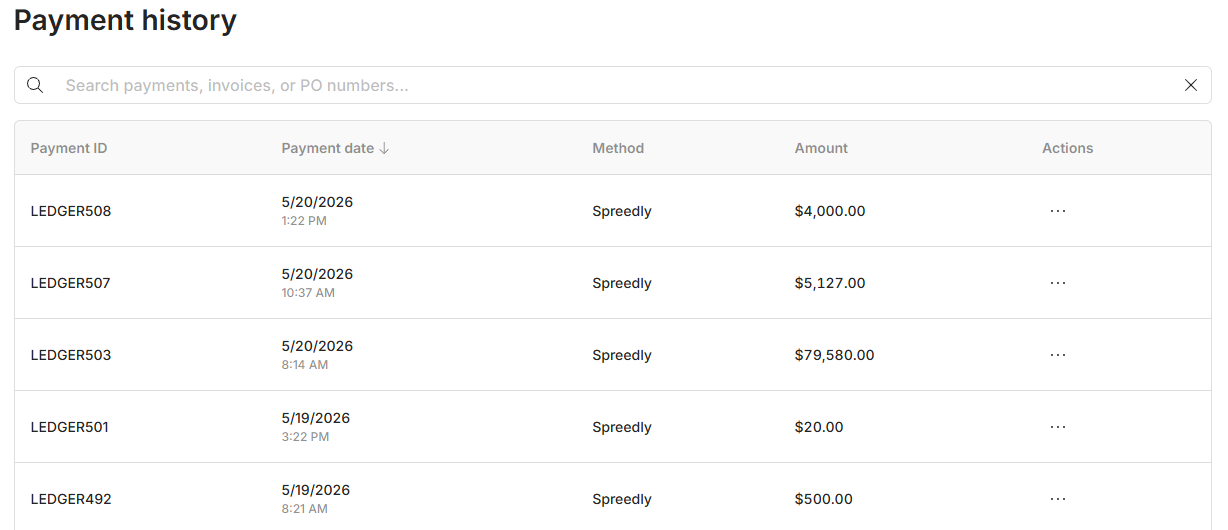
The list shows the following columns for each payment:
- Payment ID
- Payment date
- Method
- Amount
- Actions
From the list, your customers can search payment records, page through results, open a payment to view its full details, and review which invoices were included in each payment.
Note
Invoice history vs. Payment history
Invoice history and Payment history can look similar at first glance, but they track different records. Invoice history lists the invoices themselves, one entry per invoice, regardless of how it was paid. Payment history lists the payment transactions, one entry per payment, which may cover one or more invoices.
For example, if a customer pays three outstanding invoices in a single checkout, Payment history shows one payment record covering all three invoices, while Invoice history shows three separate invoice records, each now in the Paid state.
Payment detail page
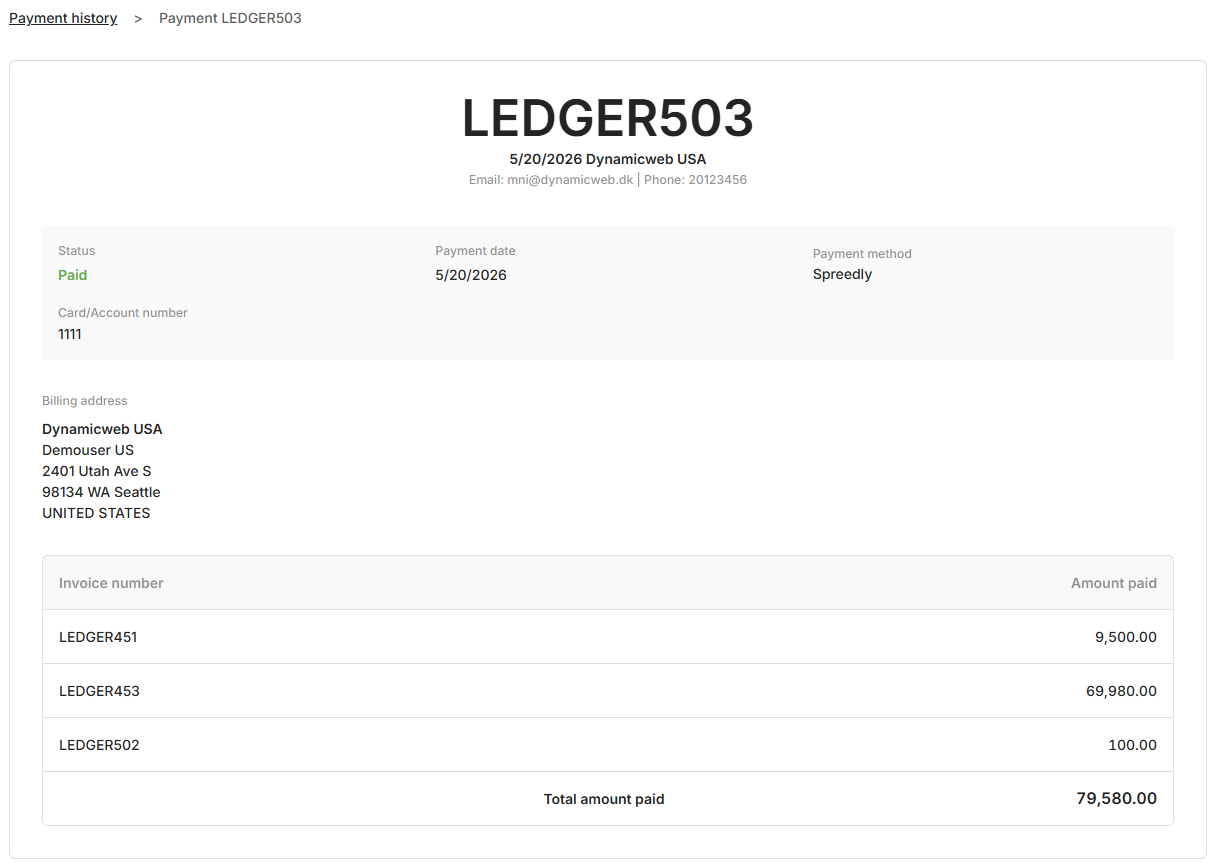
As with invoices, a customer can click a payment to open the payment detail page. It shows the details of a completed payment, including the payment number, payment date, payment method, status, masked card details, billing address, and customer contact information.
The page also lists the invoices included in the payment, with the amount paid for each invoice and the total amount paid.
Wallet
The Wallet view is where your customers manage their saved payment cards. Cards saved here can be selected during invoice payment in the Outstanding invoices flow.
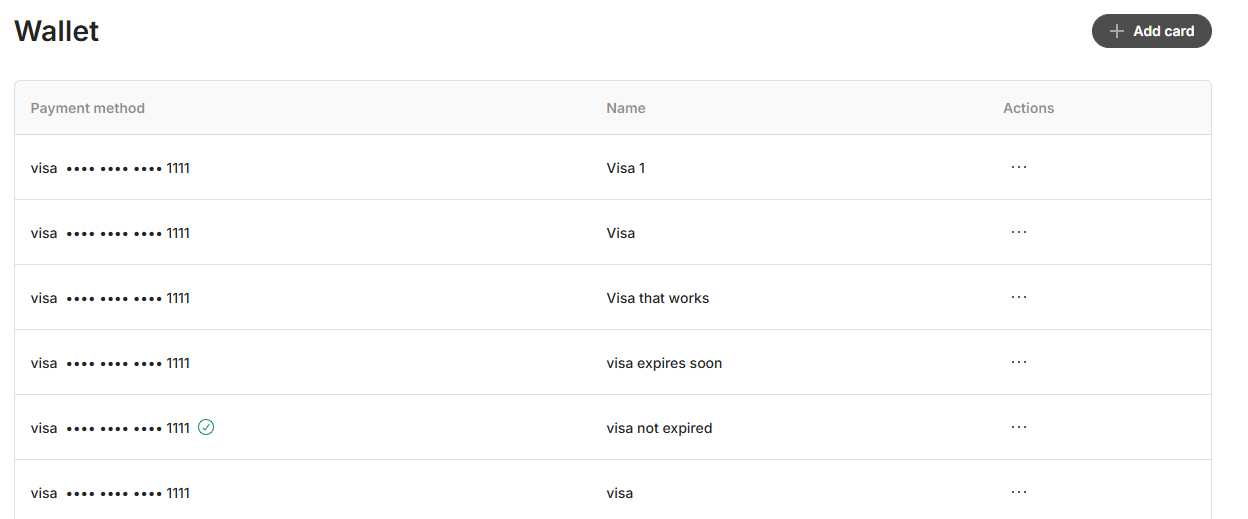
The list shows the following columns for each card:
- Payment method
- Name
- Actions
From the list, your customers can add a new card using Add card, and use the actions menu on each card to set it as default, rename it, or delete it.