External authentication is the process of logging into a DynamicWeb backend or frontend using credentials from an external service such as GitHub or MS Entra.
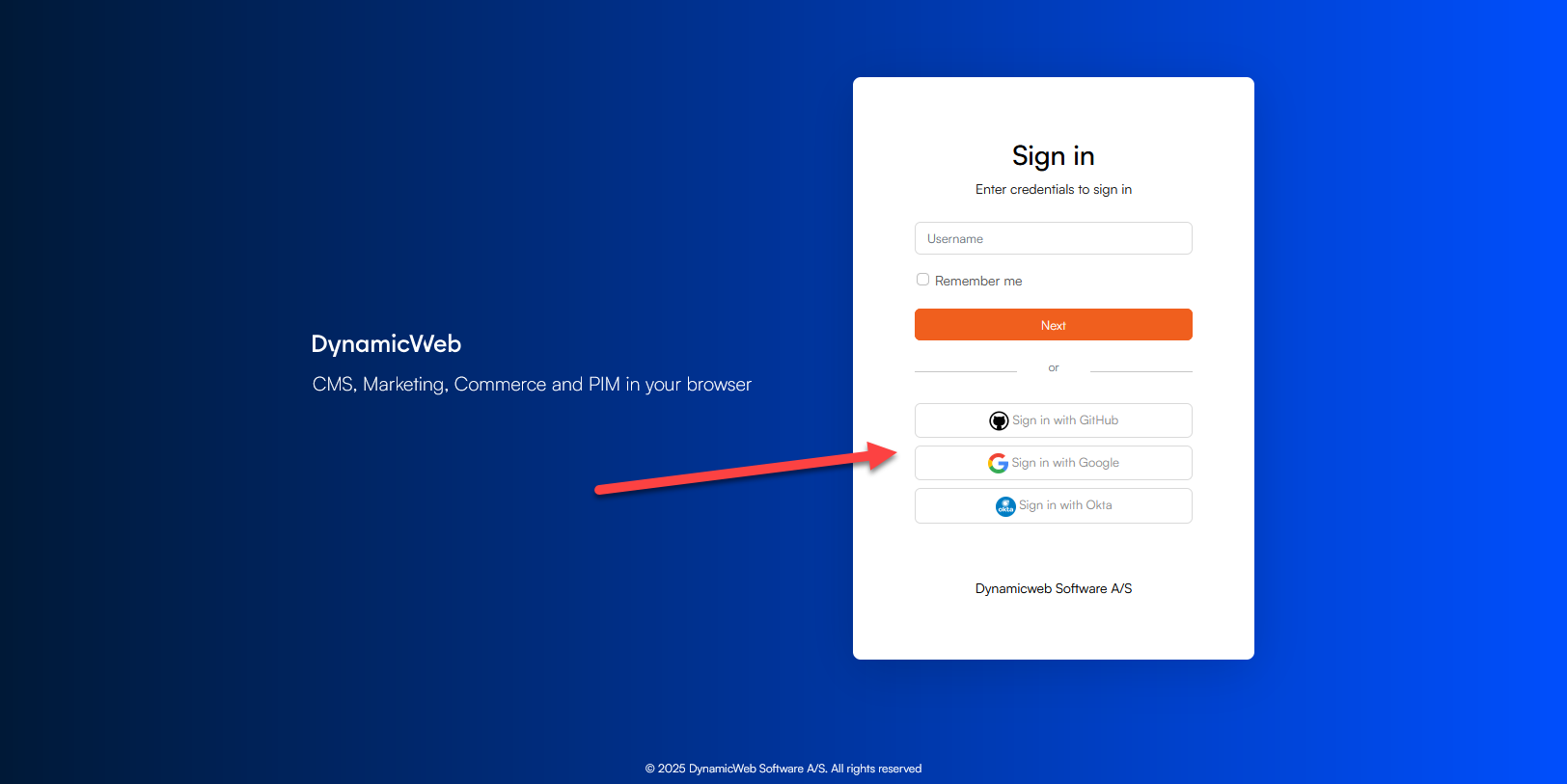
This is achieved by setting up one or more external login providers on your solution, these providers then integrate with the external service using e.g. API keys or Client IDs etc.
To set up an external login provider:
- Go to Settings > Areas > Users > External login providers
- Click New provider
- Fill in the basic settings:
- Name
- Active
- Provider restrictions (backend, frontend, or both)
- Icon (available in frontend)
- Select a login provider and configure it
- Save
Login providers are available for the following external identification services:
- Azure Active Directory B2C
- GitHub
- Microsoft Entra
- Okta
The basic premise for all of these providers is the same; you set up an integration to the external login service using a client id and secret and occasionally some service-specific parameters like tenant id or instance or whatever is required by the remote service.
On all of them, the Extranet settings are used to control whether or not a user which does not exist should be created in DynamicWeb, or simply logged in without creating a permanent user. Disable user creation by checking Handle only external verification.
If you don't disable user creation, consider selecting one or more user groups to add newly created users to. This is only relevant for frontend - backend users must exist prior to logging in, and are matched based on their email address.
Active providers which are enabled for backend login will automatically be made available on the login screen. Providers enabled for frontend need to be made explicitly available in the Extranet login template via the loginProvider-loop.
Tip
For hands-on assistance with setting external authentication up please consult our implementer guides: